Add a Verification Source
A verification source is Oho's connection to an issuing register — Services Victoria for VIC Working With Children Checks, the NDIS Worker Screening Database, AHPRA. Once a source is connected, every credential of that type is checked against the register automatically, on a schedule, instead of relying on the expiry date someone typed in.
This guide connects the Working With Children Check (VIC) register — a good first source, because Services Victoria's public register needs no API key or account to query.
Every VIC WWCC in your tenant verified against Services Victoria on a weekly schedule, with statuses and engagement verdicts updating automatically.
Step 1: Open Verification Sources
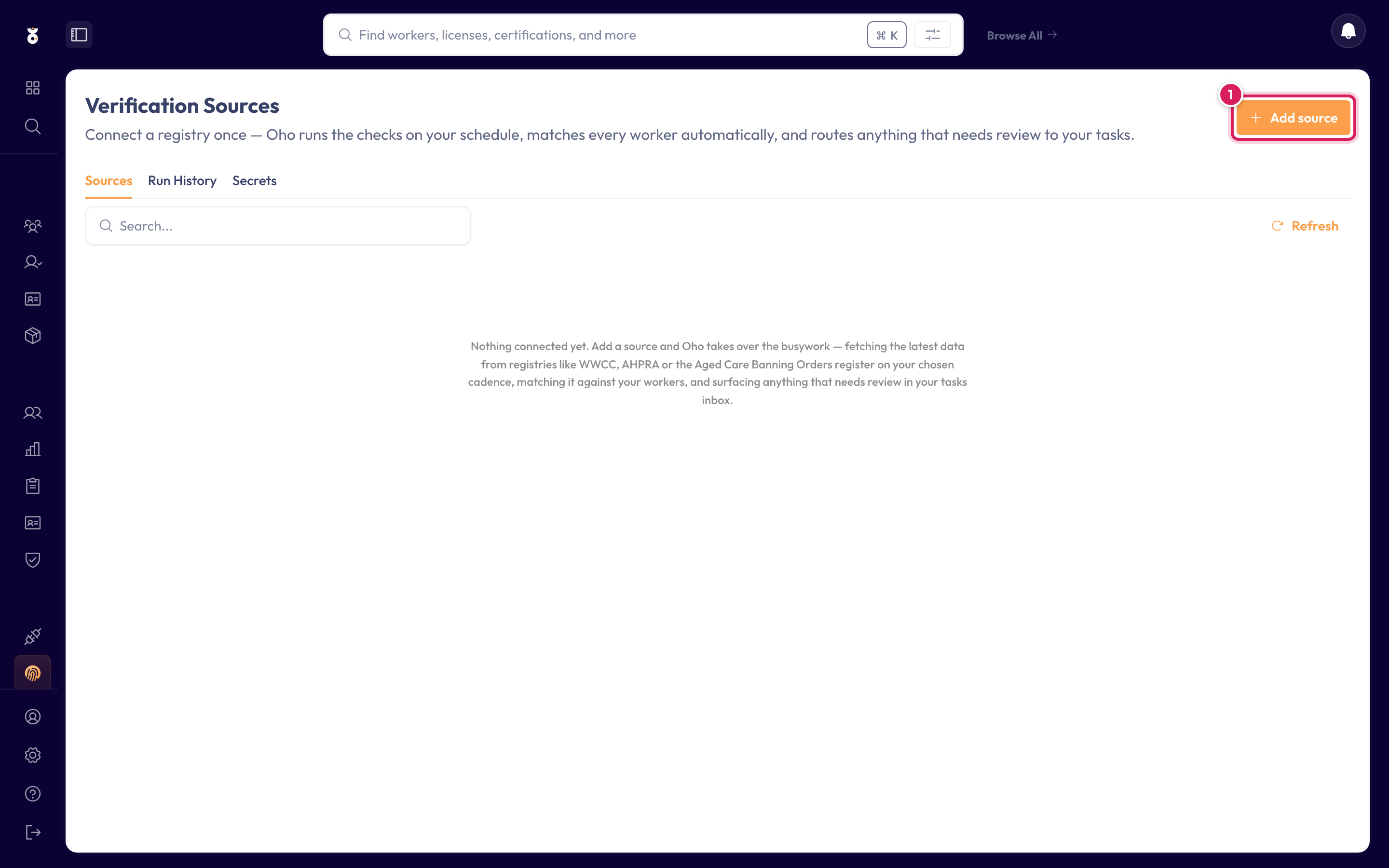
In the left menu under Admin, click Verification Sources, then click Add source.
Step 2: Choose the registry
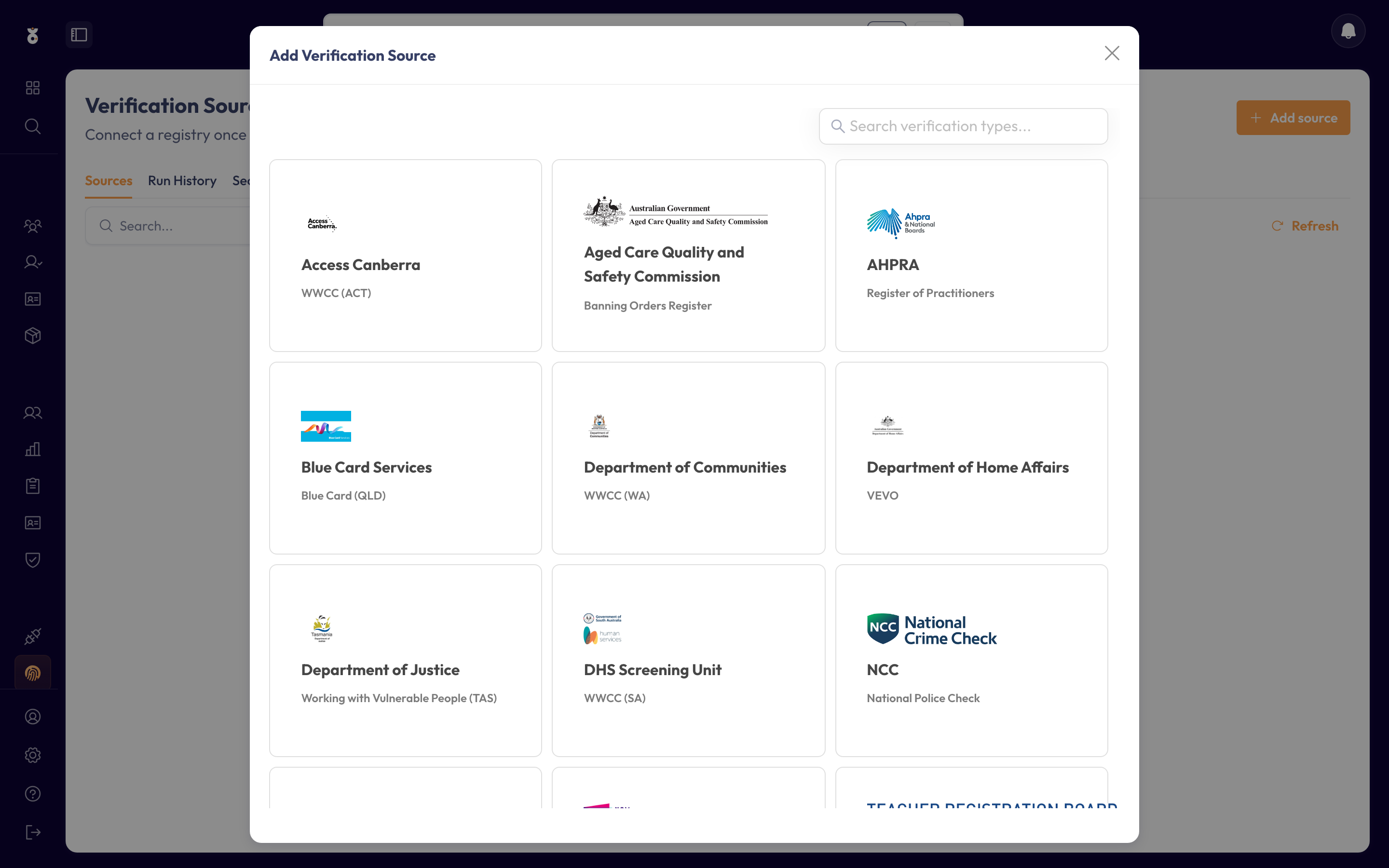
Pick Services Victoria — Working with Children's Check (VIC). Each card names the issuing authority and the credential type it verifies.
Step 3: Review the connection
VIC WWCC needs no authentication — Oho queries the public register directly. This screen explains what each check needs to succeed: the worker's Family Name and Card Number (as shown on their WWCC card) must be on their Oho profile. Click Next.
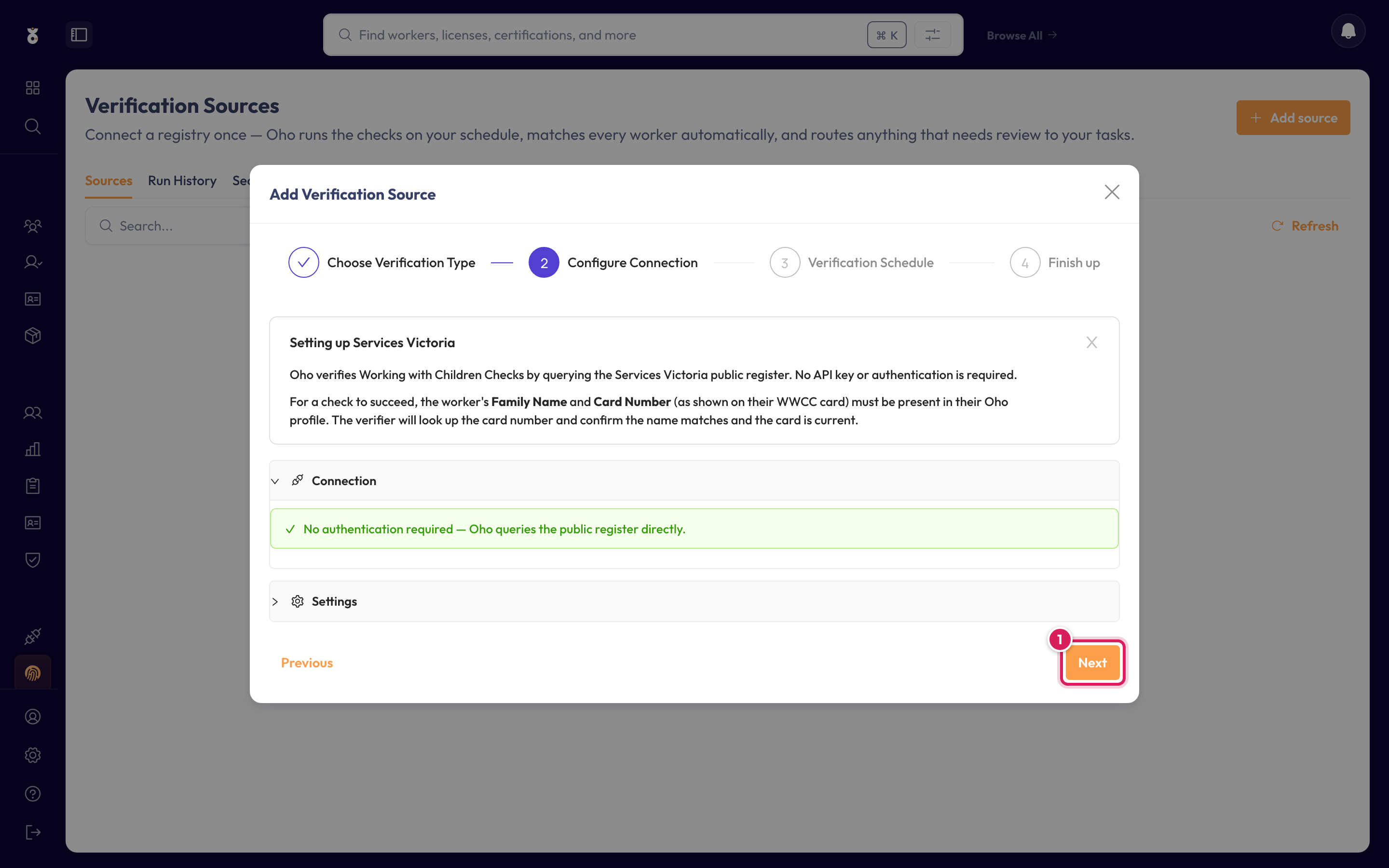
Sources like the SA Screening Unit or NDIS Worker Screening sign in on your organisation's behalf — for those, this step asks for the account details and lets you test them before continuing.
Step 4: Set the schedule
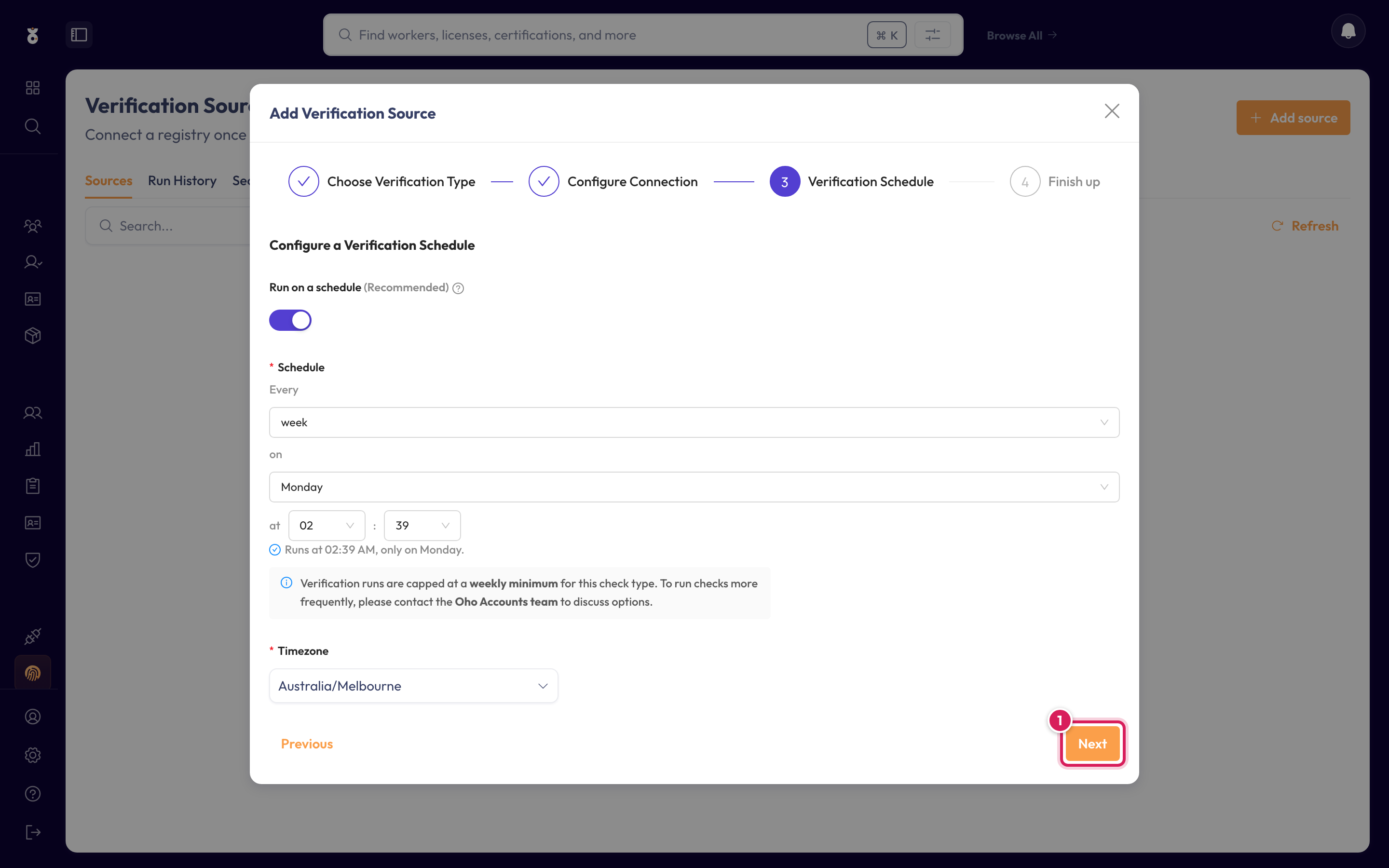
Choose how often Oho re-checks every credential against the register. For a register check — a Working With Children Check, a registration — weekly is the default and suits most teams. Click Next.
An NCC or PharmacyID source works differently. A police check result only reaches Oho when the source runs, so the schedule is how long a finished check can sit at In progress while someone waits to start work. On a weekly schedule that can be a week.
- NCC — set Every to minute, which runs every 5 minutes. New NCC sources start there.
- PharmacyID — the fastest it allows is half hour, because PharmacyID limits how often Oho can ask.
If you turn Run on a schedule off for a police check source, Oho still checks every 6 hours. To change an existing source, open ⋮ → Edit and go to the schedule step.
Step 5: Name it and save
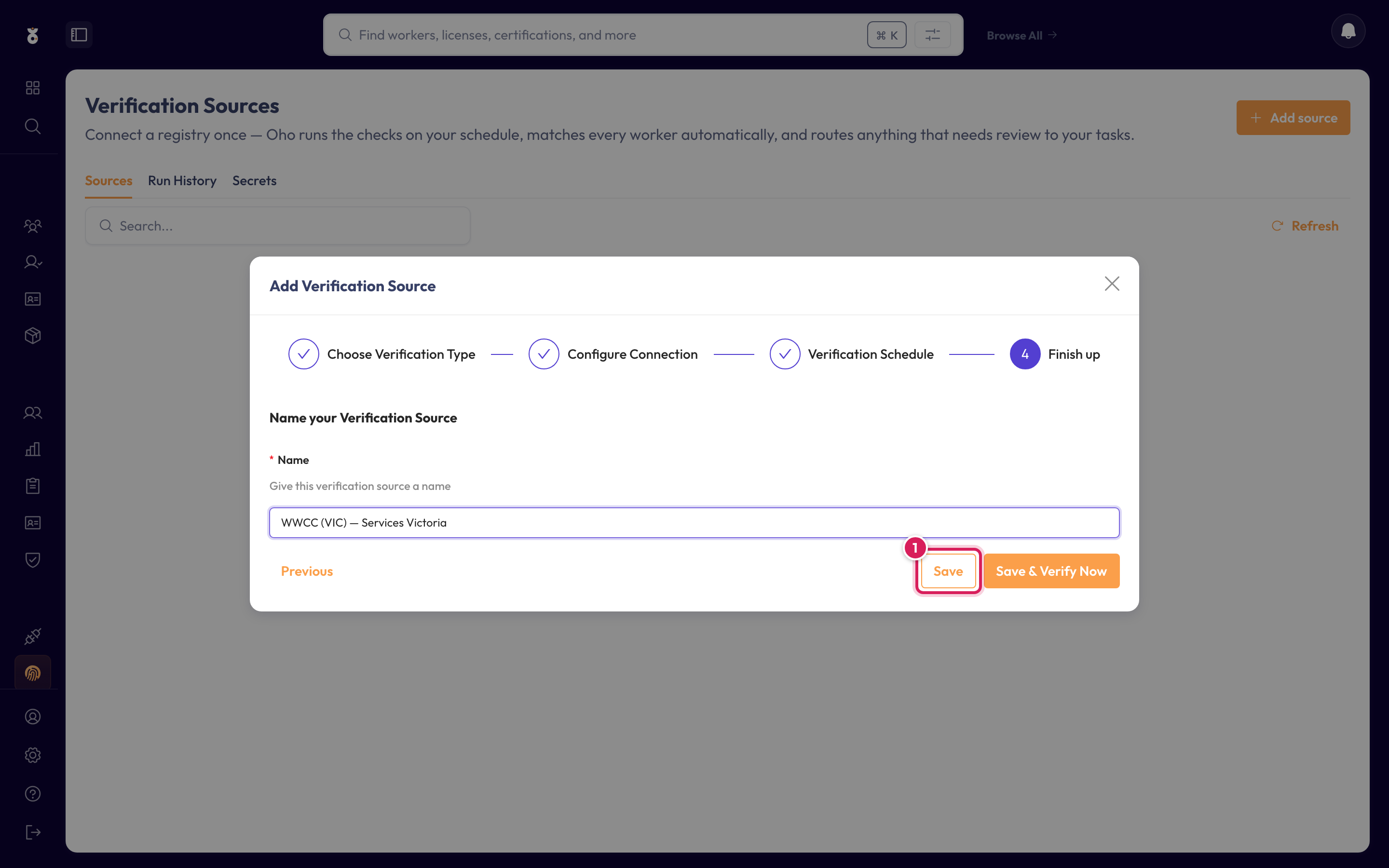
Give the source a name your team will recognise, then click Save — or Save & Verify Now to kick off the first full check immediately.
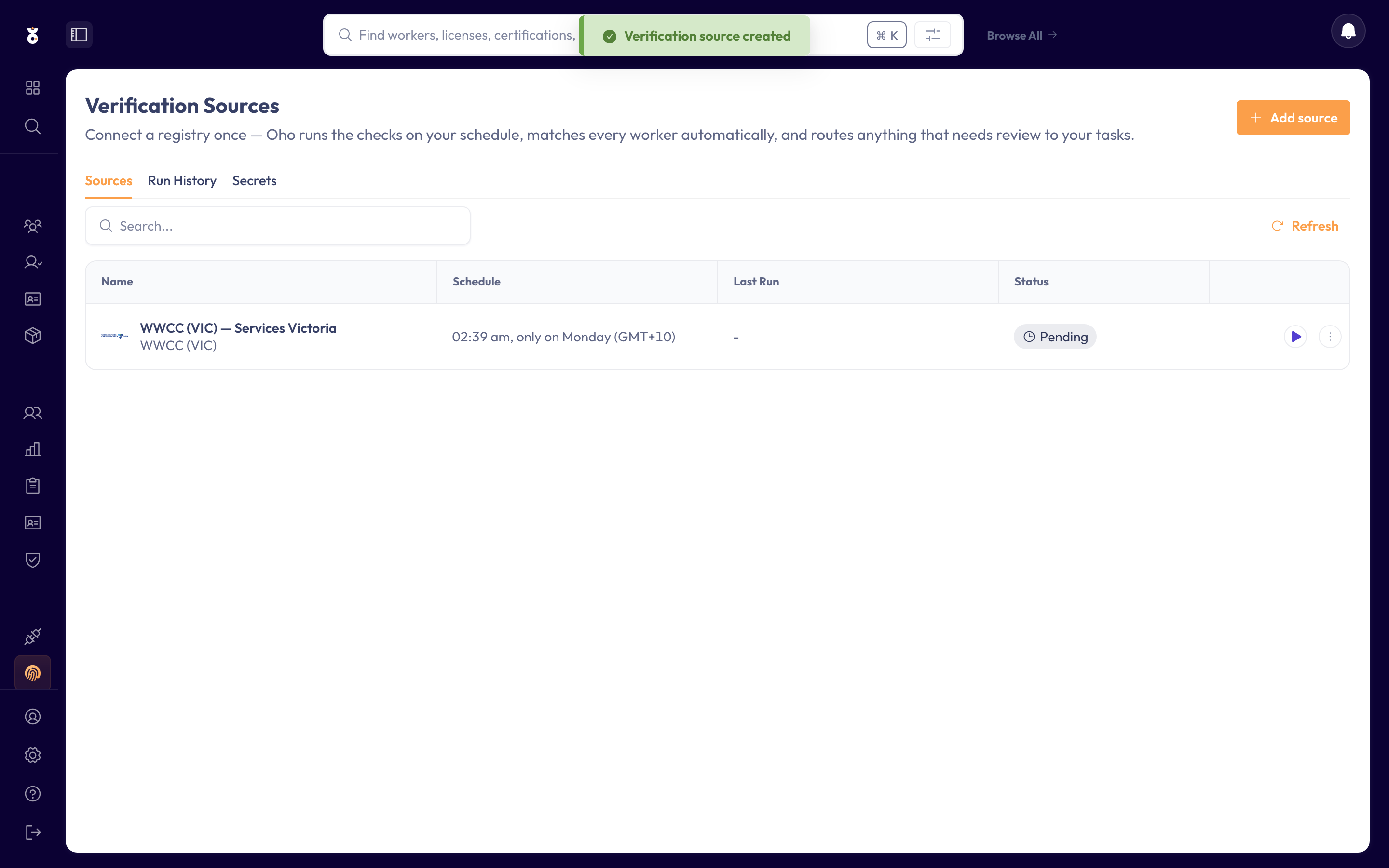
The source now appears in your list, and VIC WWCCs verify on the schedule you set.
Verification sources are admin-level configuration. If you don't see the Verification Sources menu item, ask your Oho administrator.
Run a source now
A source runs on the schedule you set, but you don't have to wait for it. On Admin → Verification Sources, each row has a ▶ button on the right. Click it and that source starts a full run immediately, checking every credential of its type it's responsible for.
Use it after you've corrected something and want the answer now — a fixed reference number, a credential a register has since updated, a source you've just reconnected after a password change.
A few things worth knowing:
- One run at a time. While a run is in progress the button greys out and says so. It comes back when the run finishes.
- It runs the whole source, not one credential. There's no way to re-run a source against a single worker.
- NSW Working With Children has no ▶ button. Those checks are performed by a separate runner on its own cadence rather than by a run you can start.
- An NDIS row has two buttons. Sync existing data (▶) re-reads the Commission's export, which is the one that updates clearances. Link new workers attaches workers who aren't on your Commission list yet, and is currently greyed out — see NDIS Worker Screening.
Watch the run from View Last Run Result in the row's ⋮ menu.
Reading a run's status
The Status column shows how the source's last run ended. Click the status, or ⋮ → View Last Run Result, to open the run and its logs. Earlier runs are on the Run History tab.
| Status | Colour | What it means |
|---|---|---|
| Success | Green | Finished with no errors or warnings |
| Success with a warning icon | Amber | Finished, but reported at least one warning. Open the run to read it |
| Failed | Red | Didn't finish, or ended with an error. The logs say what went wrong; fix it and run again |
| Running | Blue | In progress now |
| Pending | Grey | Queued, or hasn't run yet |
Less common: Up for Retry (amber) retries on its own. Aborted (grey) stopped part-way, usually because the service restarted; anything already saved is kept, so run it again. Cancelled (grey) was stopped by someone.
An NCC or PharmacyID source's run asks the provider about your open checks, and Oho writes the updates straight onto the checks. The run itself never reports any output, so every run that finishes shows amber Success with the warning "No metadata was produced by the source. Please check the source configuration, filters, and permissions."
On a police check source, ignore that warning. It doesn't mean nothing was waiting, or that anything is misconfigured. A red Failed is the one to act on. If a check is finished with the provider but still In progress in Oho, see The check is complete on NCC but still In progress in Oho.
On any other source, the same warning means the run wrote nothing at all. Check the source's settings, and that there was something for it to pick up.
If a source keeps failing, send support the source's name and the time of the failed run.
Sources that sign in on your behalf
VIC WWCC queries a public register, so it needs no account. Several registers don't have one — NSW's OCG employer portal, the SA DHS Screening Unit, QLD Blue Card Services — and for those the connection step asks for the portal Username and Password of an account your organisation holds with that regulator.
The Password field is not a text box. It's a picker labelled Secret Field, offering your existing Oho Secrets and a + Create Secret option:
- The password itself is stored encrypted as an Oho Secret. The verification source holds only a reference to it, which is why the value never appears in the source's settings, its recipe, or its run logs.
- Once saved, a secret's value can't be read back — not by you, not by Oho support. It can be replaced, not revealed.
- You can't type a password straight into the field. Pick an existing secret or create one.
- Secrets are shared across your tenant, so one portal password can serve several sources. They're listed under Admin → Data Sources → Secrets, which needs the Manage Secrets privilege.
Give each one a name that says what it opens — OCG_PORTAL_PASSWORD, SAWWC_PORTAL_PASSWORD —
because the name is all anyone will ever see of it.
When the portal password changes
Two routes, both fine:
- Update the secret in place. Admin → Data Sources → Secrets, edit the secret, put in the new value. Every source pointing at it picks the change up on its next run, with no change to the source itself.
- Create a new secret and point the source at it. Admin → Verification Sources, Edit the source, open the Password picker, + Create Secret, name it, paste the value, Create, then step through to Save.
Either way the change applies on the next run — verify one credential by hand to confirm it took.
A source that suddenly can't sign in
The signature is that every check against that source fails at once, rather than one worker's check coming back not found. On NSW the run report reads:
Error checking accreditations: Error: Could not log in.
Work through it in this order:
- Sign in to the regulator's portal yourself, in a browser, with the same username and password. If the portal rejects them, or says the account is locked or the password has expired, fix that with the regulator first — Oho can only use an account that works.
- Replace the secret with the password you just signed in with, using either route above.
- Check the username on the source. It sits beside the Password field as plain text, so you can read it back. A username from a person who has left is a common cause.
- Watch for a pasted password. A trailing space or a line break picked up from an email or a password manager travels into the secret and is not visible anywhere afterwards. If you're not certain, create the secret again and type the value rather than pasting it.
- Re-run one check rather than the whole schedule, so you find out quickly either way.
Don't delete and re-add the source. The secret is a separate object and survives the source, so a rebuilt source can end up pointing at the same stale password — with a morning's reconfiguration spent for nothing.
Some regulator portals lock an account after a number of failed sign-ins, and Oho's schedule will keep trying until the source is corrected. If you can't fix it quickly, pause the source rather than leaving it to retry.
What's next
- Verify a credential to watch a single check run against the new source