Customise SMS templates
When you send a recruitment check or a fetch request, Oho can text the person as well as emailing them — the same secure link, on their phone, the moment the request goes out. The SMS Templates page lets you change the wording of those texts, and the Send by SMS switches decide which requests text at all.
You'll find the switches under Settings → Manage → Features, and the wording under Settings → Customize → SMS Templates.
Applicants and workers with an Australian mobile get a short text from OHO alongside every request and reminder, carrying their link and worded the way your organisation would say it.
Turning on SMS and editing the texts is an Admin task, and SMS has to be switched on for your organisation by Oho. If you don't see Send by SMS on the Features page or SMS Templates in Settings, you're either not an Admin or SMS isn't on for your account — talk to whoever manages your Oho account, or contact support.
How Oho's texts work
A few things to know before you turn anything on:
- The email always goes. A text is sent as well as the email, never instead of it. If a text can't be sent, the email still arrives and the request is unaffected.
- Australian mobiles only. Oho texts a number that is an Australian mobile (04…) and skips anything else — landlines, overseas numbers, or no number at all. Nothing is charged for a skipped text.
- Texts come from OHO. The sender shows as OHO on the recipient's phone. They can't reply to it, so every text says who it's from and points at the link or the email.
- You choose which messages text. Each Send by SMS switch has a Text when list under it — the first request, reminders, and (for fetch requests) corrected-document requests. Every option starts ticked, so turning the switch on texts everything; untick what you don't want. Reminders include the automatic ones and any your team sends by hand, including for requests that were already open.
Which requests text, and to whom
| Request | Who gets the text |
|---|---|
| Recruitment check request and its reminder | The applicant, on the mobile number on their record |
| Fetch request, its reminder, and a corrected-document request | The worker, on their personal mobile — or their work mobile if there's no personal one |
| Reference request | The referee, if the applicant gave their mobile. A heads-up only: the reference link is in the email |
Credential expiry alerts, compliance requests and anything sent from the Action Queue stay email-only.
Step 1: Turn on Send by SMS for recruitment checks
Open Settings (the gear icon), then go to Manage → Features. On the Recruitment Check Request Settings card, turn on Send by SMS (1). A Text when list (2) appears under it:
- The request is sent — when you send a new recruitment check request.
- A reminder is sent — each reminder, whether automatic or sent by your team.
Both start ticked. Untick any you don't want texted, then click Save Settings.
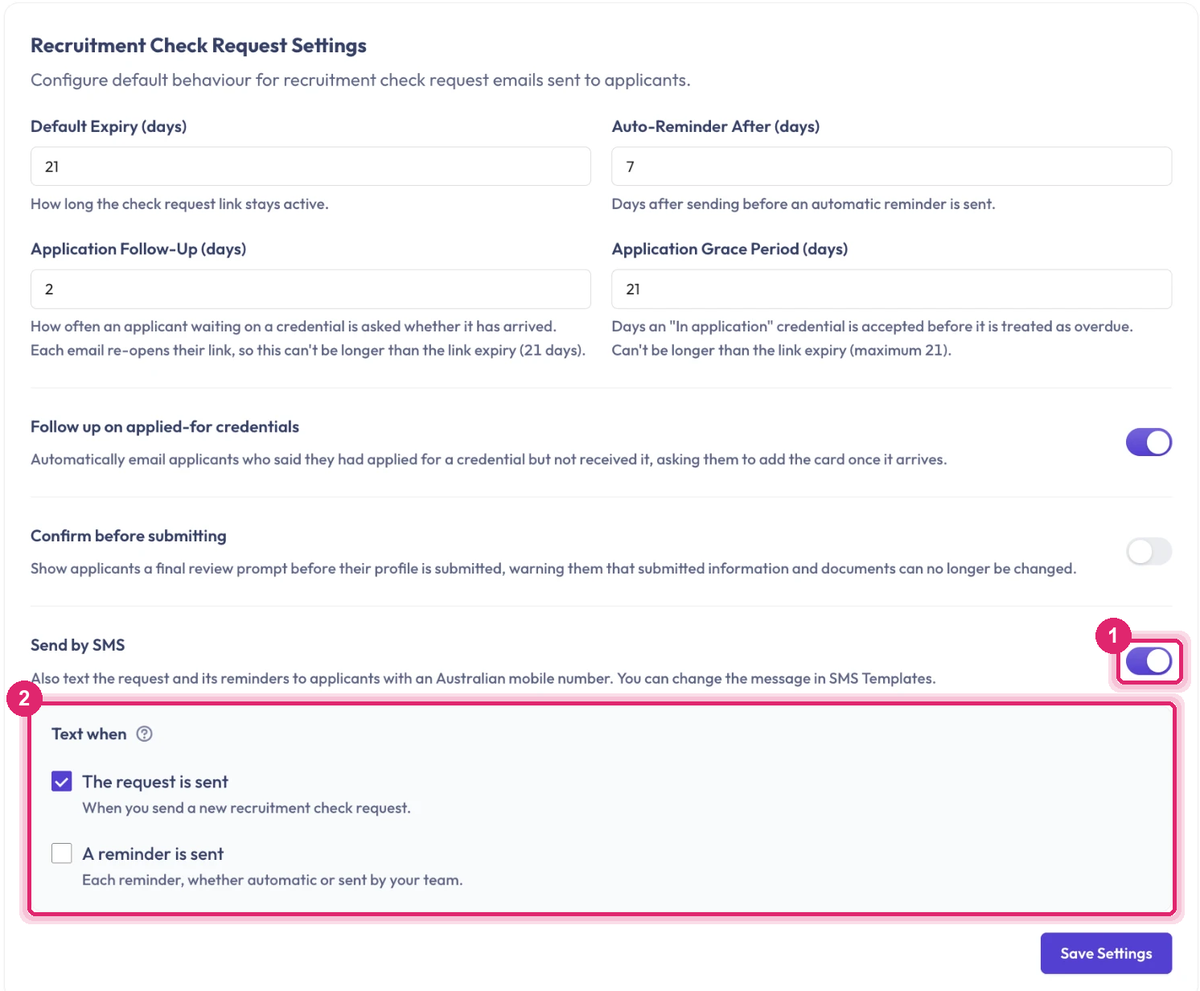
Expected outcome: from the next recruitment check you send, applicants with an Australian mobile get a text with their screening link for each message you ticked. Allow up to 30 seconds after saving for the change to take effect.
Step 2: Turn on Send by SMS for fetch requests
On the same page, scroll to the Fetch Request Settings card and turn on Send by SMS (1). Its Text when list (2) has three options:
- The request is sent — when you send a new fetch request.
- A reminder is sent — each reminder, whether automatic or sent by your team.
- A corrected document is requested — when a reviewer asks the worker to upload a document again.
Tick the ones you want, then click Save Settings. In the example below only corrected-document requests are texted — handy if you'd rather the first request went by email alone but a document that needs fixing got a nudge straight away.
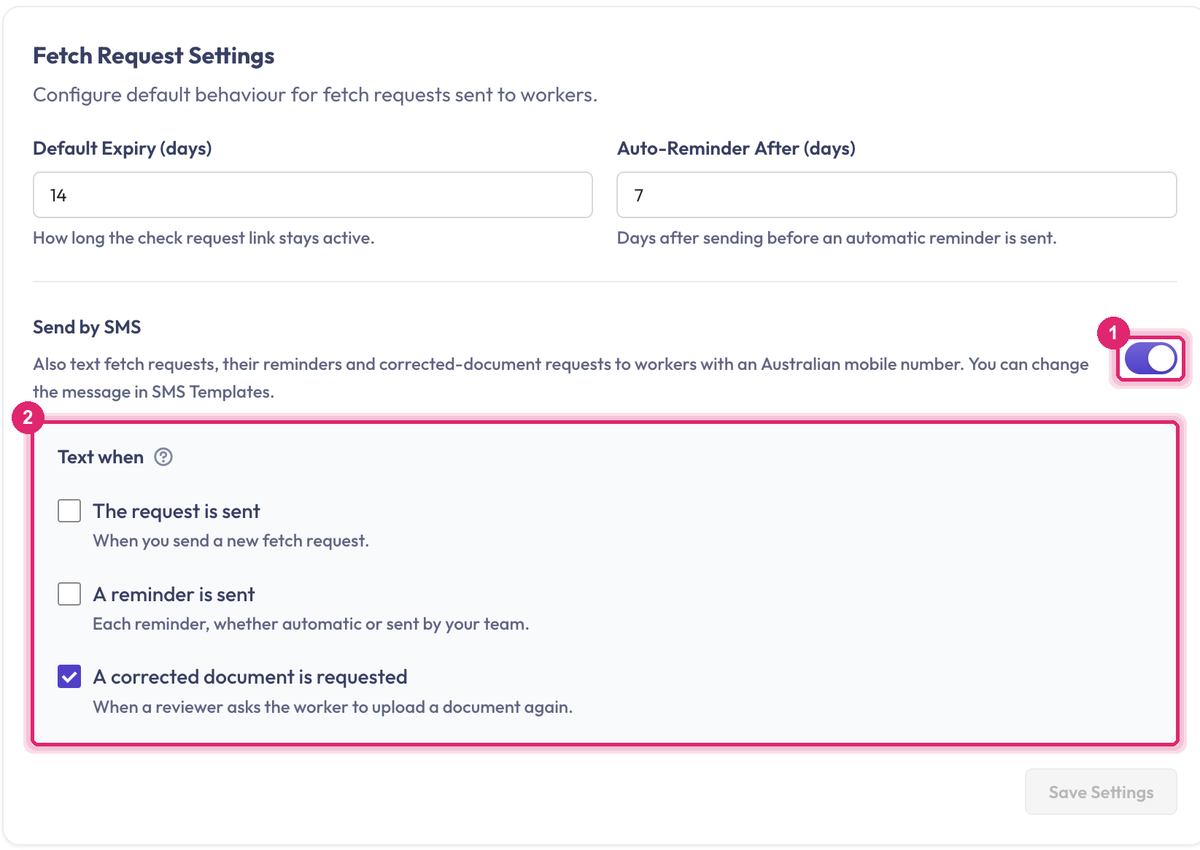
Expected outcome: the fetch request messages you ticked also go by text to workers with an Australian mobile.
If your plan includes reference checks, there's a third switch under Settings → Customize → References, with its own Text when list: the reference request, and each reminder on your chasing schedule. The text tells the referee to check their email — it never carries the link — and only goes if the applicant gave the referee's mobile number. Those settings save straight away; there's no Save button.
Step 3: Open SMS Templates
Oho ships a ready-made text for each request, so you don't have to write anything for the switches above to work. To change the wording, go to Settings → Customize → SMS Templates (1).
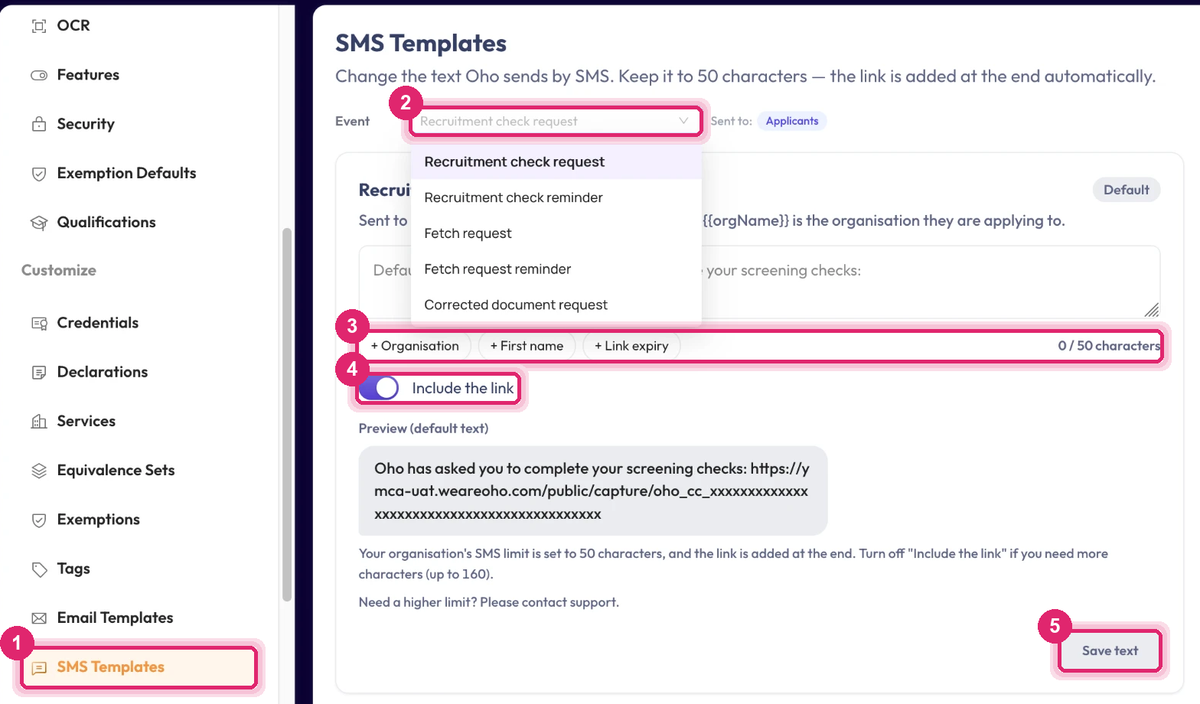
Pick the Event (2) you want to change. The Sent to: chip shows who that text goes to, and the card shows Oho's built-in text so you know what you're replacing. A Default badge means the built-in text is in use.
| Event | Sent to | Built-in text (the link is added after it) |
|---|---|---|
| Recruitment check request | Applicants | {{orgName}} has asked you to complete your screening checks: |
| Recruitment check reminder | Applicants | Reminder - {{orgName}}: please complete your screening checks: |
| Fetch request | Workers | {{orgName}} has asked you to provide your credential details: |
| Fetch request reminder | Workers | Reminder - {{orgName}}: please provide your credential details: |
| Corrected document request | Workers | {{orgName}} needs a corrected copy of a document you sent: |
| Referee request | Referees | {{applicantName}} has named you as a referee for {{orgName}}. Please check your email for the reference request. |
The referee event only appears when reference checks are on for your organisation.
Expected outcome: you're looking at the text for the right event, with its current wording in the preview.
Step 4: Write the text
Type your message in the box. Two rules keep every text to one SMS:
- Only the message is yours to edit. The link is added at the end automatically on every send, so a template can never drop it or get it wrong.
- Keep to the character limit. The counter (3) shows how much room is left. Most organisations have a 50-character limit for the message, which leaves room for the link in a single text. If you need more, contact support.
Click a chip (3) to insert a placeholder that Oho fills in on each send:
| Placeholder | What Oho fills in | Counted as |
|---|---|---|
{{orgName}} | Your organisation's name, as set under Branding | Your actual name |
{{recipientName}} | The recipient's first name | Up to 15 characters |
{{expiryDate}} | The date their link expires, e.g. 30 September 2026 | Up to 17 characters |
{{applicantName}} | The applicant who named the referee (referee text only) | Up to 30 characters |
Placeholders count towards the limit at the length they'll have once filled in, so the counter tells you the truth about the longest text that can go out.
Curly quotes, long dashes and emoji push a text into a different encoding that fits far fewer characters per SMS. Oho swaps the common typographic characters for plain ones at send time, but the safest text is one typed with ordinary quotes and hyphens.
Expected outcome: the counter is within the limit and the preview reads the way you want.
Step 5: Decide whether the text carries the link
Include the link (4) is on for every request text, and that's what you want almost every time: the point of the text is that the person can tap straight through.
Turn it off only if you want the text to be a heads-up and leave the link to the email. A text without the link can use the room the link would have taken, so the limit rises (to 160 characters on the standard limit).
The referee text never carries a link — referees are always pointed to their email — so this switch doesn't appear for it.
Expected outcome: the preview shows the text with the link on the end, or without it if you turned the link off.
Step 6: Preview, save, or reset
The Preview shows the finished text with sample values filled in, and how many SMS it will take. When you're happy, click Save text (5).
To go back to Oho's wording for that event, click Reset to default. That removes your custom text for that event only; the others keep theirs.
Expected outcome: your wording is used on every text for that event from now on, including automatic reminders.
Where the mobile number comes from
Oho doesn't ask the person for a number at send time. It uses what's already on their record:
- Applicants: the mobile number on the applicant's record — whether you typed it, it came in from your recruitment system, or the applicant supplied it.
- Workers: the personal mobile on the worker's profile first, then the work mobile. Numbers synced from your HR system count, so a worker who arrived from a data source with a mobile on file will be texted.
- Referees: the mobile the applicant entered for them on the screening form. That field only appears when referee SMS is on.
If the person has no Australian mobile on file, no text is sent and nothing is charged. The email still goes.
Keeping an eye on usage
Every text your organisation sends is counted against a monthly allowance, shown on the Usage & Billing page by request type. If you go past the allowance, the page tells you and asks you to contact support — texts keep going out in the meantime.
Common questions
I turned on Send by SMS but nobody is getting texts. Check three things: that you clicked Save Settings on the card; that the person actually has an Australian mobile on their record; and that SMS is on for your organisation (the switches are only shown when it is). A change can take up to 30 seconds to apply.
Does the text replace the email? No. The email always goes, whatever you tick under Text when; the text is an extra nudge.
Can I text reminders but not the first request? Yes. Leave Send by SMS on, untick The request is sent and keep A reminder is sent ticked. The first request goes by email only and anyone who hasn't responded by the reminder gets a text.
I turned off a Text when option but texts are still going. Check you clicked Save Settings on the Features cards — the References switch saves on its own, but the Features cards don't.
Can the person reply to the text? No. Texts come from a sender ID, not a phone number. Anyone who replies gets nothing back, which is why every text says who it's from and where to go.
Why is my limit 50 characters? So that the message plus the link fits in one SMS, which keeps the cost per text predictable. The limit is set per organisation; contact support if you need a higher one.
Why doesn't the referee text have a link? Referees fill in the reference from the email, which has the full context. The text just tells them to look for it.
Can I change the texts without turning SMS on? Yes — the SMS Templates page works as soon as SMS is on for your organisation, whether or not any Send by SMS switch is on. Your wording is simply waiting for the first switch you turn on.
Do changes affect requests already sent? The next text for an existing request — a reminder, say — uses whatever wording is saved at the time it's sent.
Related
- Send a recruitment check request — the request these texts accompany, and the settings card the switch sits on
- Send a fetch request — the worker-facing request and its reminders
- Customise email templates — the same idea for the emails that go with every request
- Roles & access — who can edit settings like this one