Send a Recruitment Check Request
A recruitment check request screens someone before they start. The applicant gets an email with a secure link, uploads the credentials your screening package asks for, and Oho verifies them — you just watch the request's progress.
A tracked screening request: you'll see it move from Pending to Completed as the applicant responds, with every credential verified along the way.
Recruitment checks are part of Oho Recruit, which is separate from the Core, Plus and Premium tiers of Oho Continuous. See Plans and features. To collect credentials from people who already work for you, send a fetch request instead.
Before you start
- A screening package for the role
- The applicant's name and email address
Step 1: Open Recruitment Check Requests
In the left menu under Recruit, click Recruitment Check Requests, then click New Recruitment Check Request.
The Requests tab on an applicant's profile lists the checks already sent to them, but it can't send a new one. Every new request starts here.

Step 2: Link a job — or skip
If the applicant applied for a specific job, select it so the check is tied to that role. No job to link? Click Skip (1).

Step 3: Choose the applicant
Start typing the applicant's name and pick them from the results — or switch to New Applicant to create them on the spot.

Step 4: Choose the package and send
Pick the screening package that matches the role (1) — it decides exactly which credentials they'll be asked to provide — and click Send (2). The applicant receives an email with a secure upload link.

Track its progress
The request appears in the list with its status. The summary tiles at the top of the page show how many requests are pending, completed, or overdue across all applicants.

Each row also shows what has actually arrived, without opening the request:
- Credential chips are tinted by state — grey for still waiting, amber for submitted and being verified, green for verified, red for anything that needs a person to look at it. A paperclip and a number mean supporting documents came with that credential.
- The coverage bar under the chips reads, for example, "4 of 12 submitted · 2 verified · 3 documents", so a request one credential short is obvious next to one the applicant hasn't started.
- Partially submitted requests — where the applicant sent some of what was asked for and stopped — show how far they got on the request's timeline, and have their own option in the status filter.
Click a row to open it for the full per-credential detail.
Work the Recruitment Check Requests list
The tiles at the top count every request you can see: Total, Pending (sent and not finished yet), Completed and Expired / Cancelled. Avg. Turnaround is how long requests take to complete, and Overdue (3+ days) counts pending requests with no answer for more than 3 days.
Under All Checks you can narrow the list:
- Search by applicant name or email.
- All Organisations: one organisation's applicants.
- Filter by package: one screening package.
- Filter by status: Pending, Partially submitted, Submitted, Completed, Expired or Cancelled.
- My applicants: only requests for applicants you're the recruiter for.
On each row, View applicant profile opens the applicant and Cancel check withdraws the request. New Recruitment Check Request sends a new one.
Who sees which requests
"Every request you can see" means every request for an applicant in the organisations you're assigned to, whoever sent it — the same rule as fetch requests. Use My applicants when you want only your own; the default is the whole team's.
Someone with no organisations assigned sees nothing, and the page needs Recruit access rather than Continuous. A Super Admin sees every request.
A check raised over the API without an organisation on it is visible to everyone with Recruit access, rather than hidden from everyone. Checks sent from the app always carry the applicant's organisation.
Requests that sit unanswered past 3 days show as Overdue on the Recruitment Check Requests page. Use Send reminder on the row to email them again, or Resend link once a request has expired.
Change your recruitment check settings
You can change how long links last, when reminders go out, and how Oho follows up on applicants who are still waiting on a card under Settings → Manage → Features → Recruitment Check Request Settings.
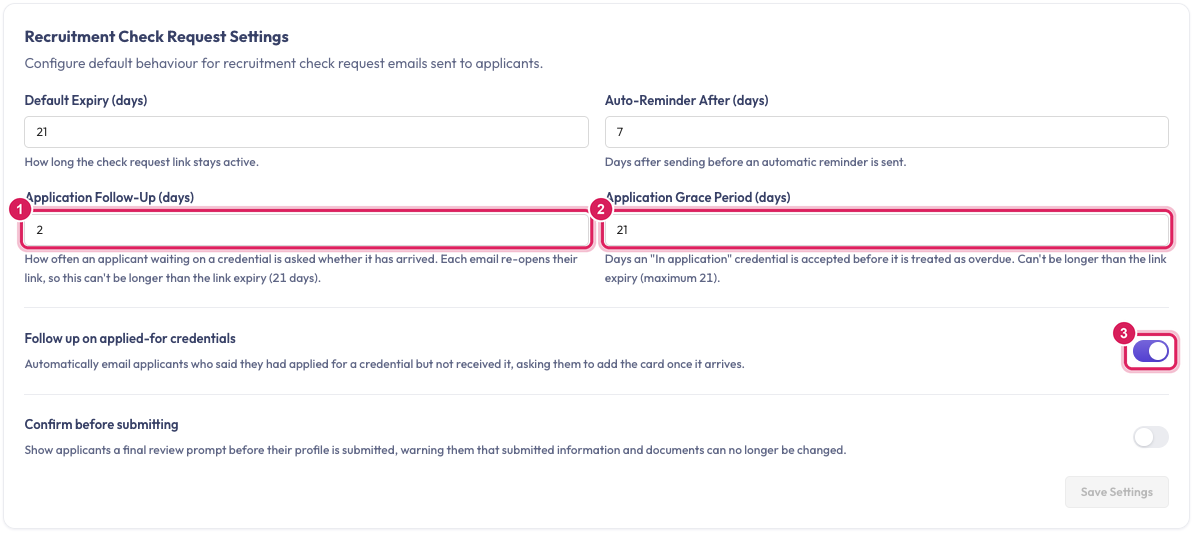
- Default Expiry (days): how long the applicant's link stays active.
- Auto-Reminder After (days): how many days after sending Oho emails a reminder if the applicant hasn't finished.
- Application Follow-Up (days) (1): how often Oho asks an applicant who ticked I've applied for this but don't have it yet whether their card has arrived. Each email re-opens their link, so this can't be longer than the link expiry.
- Application Grace Period (days) (2): how long an In application credential is accepted before it counts as overdue. It can't be longer than the link expiry either.
- Follow up on applied-for credentials (3): turn this off to stop the "has your card arrived?" emails. Overdue applications are still flagged.
- Confirm before submitting: shows applicants a final review step before they submit, warning them they can't change what they've sent afterwards.
- Send by SMS: also texts applicants with an Australian mobile, and Text when picks whether that's the request, its reminders, or both. Shown only when SMS is on for your organisation — see Customise SMS templates.
Click Save Settings to apply the changes.
While an applicant is waiting on a card, their request is tagged Awaiting card, and Application overdue once the grace period has passed. Click Request card details on the request to ask them straight away. See When someone has applied but is still waiting for what the In application status means.
Common questions
The candidate didn't get their link
First check a request exists. Search the list under All Checks by the candidate's name or email.
- No request for them means nothing was ever sent. Candidates who reach Oho from your connected recruitment system get a request automatically. Anyone added another way, or whose order didn't come through, needs one sent by hand: click New Recruitment Check Request.
- Initiated: the email didn't go out. Check the candidate's email address on their profile, then cancel the check and send a new one.
- Sent: Oho handed the email over for delivery, but the candidate hasn't opened it. Ask them to look in spam or junk, since workplace mail systems sometimes quarantine automated email. Then use Send reminder on the row.
- Opened: the email arrived and they've been to the page. They haven't submitted yet.
- Expired: the link ran out. Use Resend link on the row.
Send reminder is available while a request is Sent, Opened or Partial. If an order from your recruitment system never became a check, see Retry a stuck order.
What's next
- Once they're hired, their verified credentials carry over — add them as a worker to start continuous monitoring