Record an Exemption
An exemption records that a worker is formally excused from a requirement they'd otherwise need to meet — for example, a registered teacher or police officer is often exempt from holding a standard Queensland Blue Card. Exemptions sit alongside credentials on the worker's profile and count towards their compliance: if a worker is properly exempt, that requirement is satisfied and you don't also need to chase the underlying card.
An exemption recorded on the worker's profile, with its reason and a review-by date, satisfying a requirement they don't hold the credential for.
Before you start
Know which credential the worker is exempt from and why, and have any supporting documentation to hand. Recording an exemption is a compliance decision — Oho stamps your name and the time against it for the audit trail.
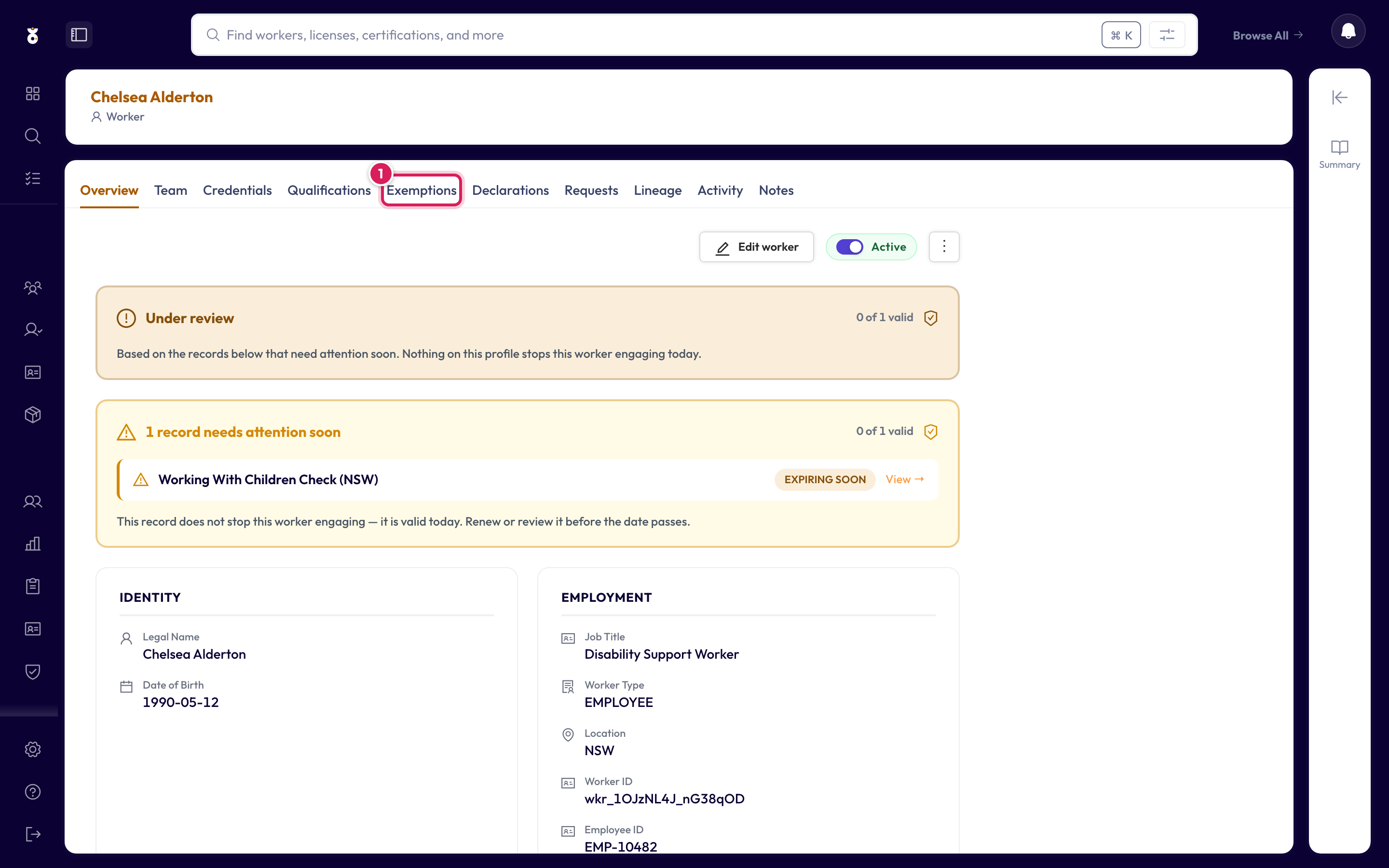
Step 1: Open the worker's Exemptions tab
Find the worker — search their name from the top bar, or browse All Workers — open their profile, and click the Exemptions tab.
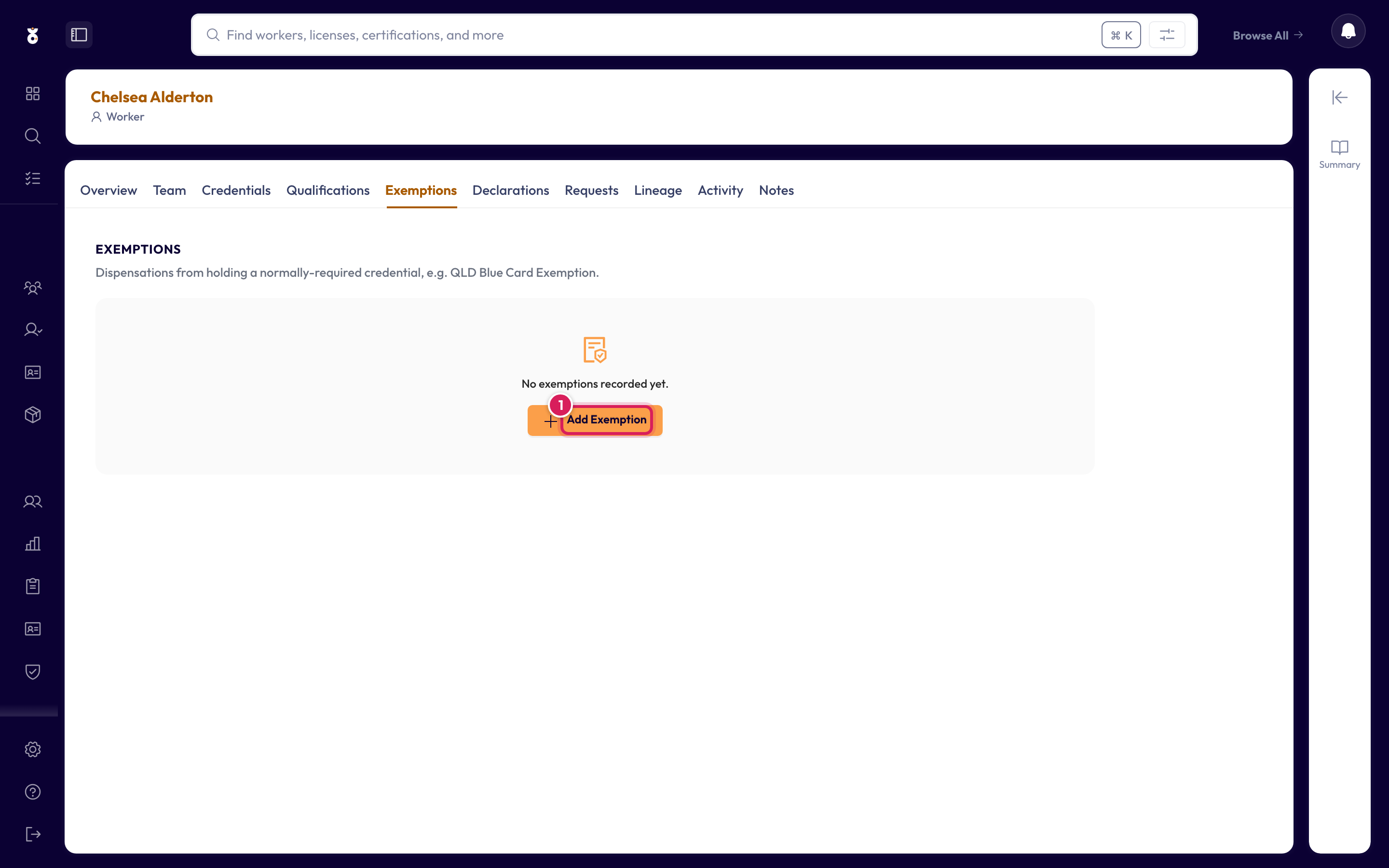
Step 2: Click Add Exemption
Click Add Exemption (or the Add exemption tile if the worker already has one recorded).
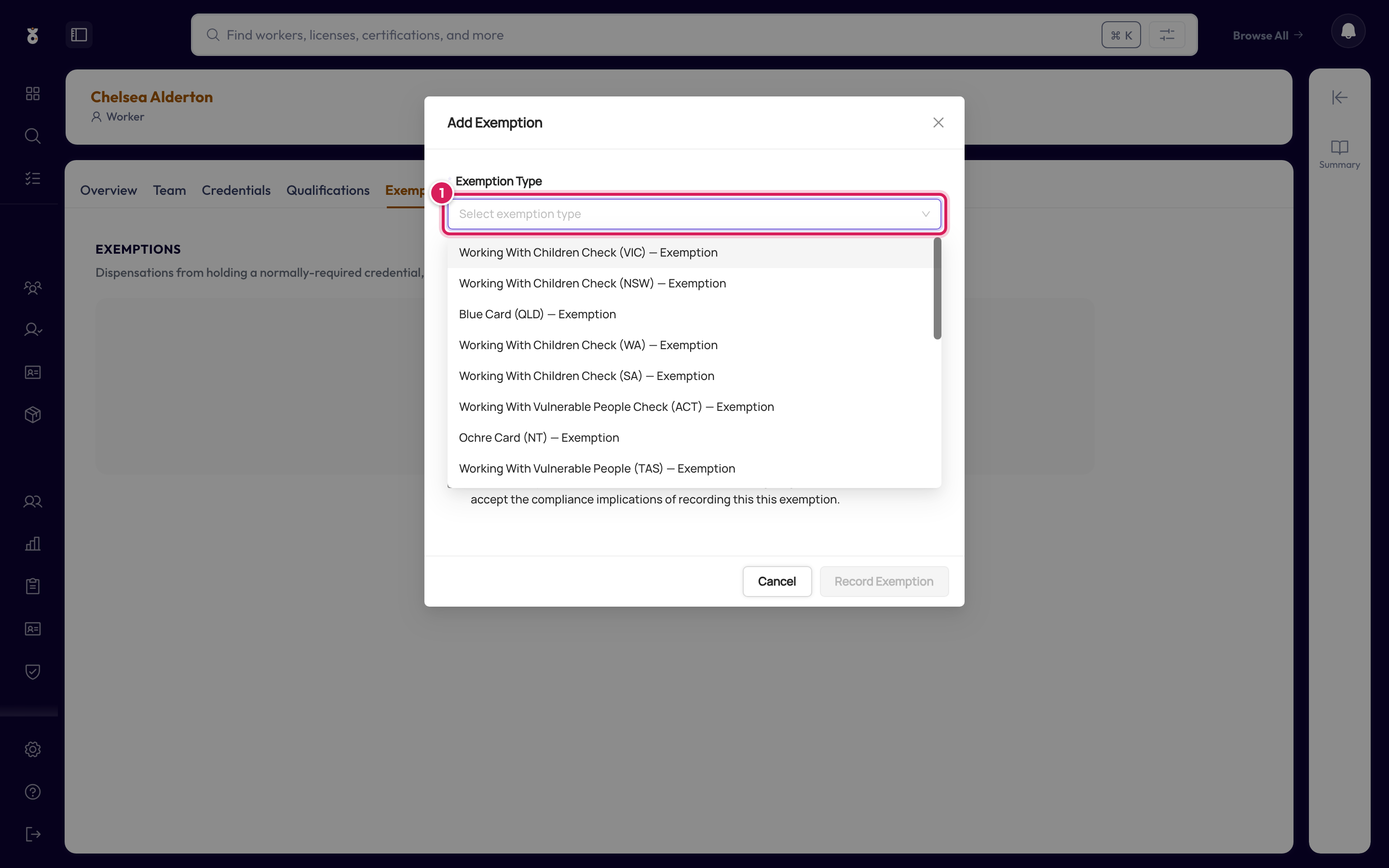
Step 3: Choose the exemption type
Pick the type from the list — it covers Working With Children checks for every state and territory (Blue Card QLD, Ochre Card NT, WWVP…), teacher and AHPRA registrations, NDIS Worker Screening, police checks, and more. The exemption type tells Oho which requirement the exemption satisfies. Exemption bundles your organisation has set up are listed under Custom exceptions; a bundle is how you exempt someone from a custom credential. See Exempt a worker from a custom credential.
Step 4: Record the reason and review-by date
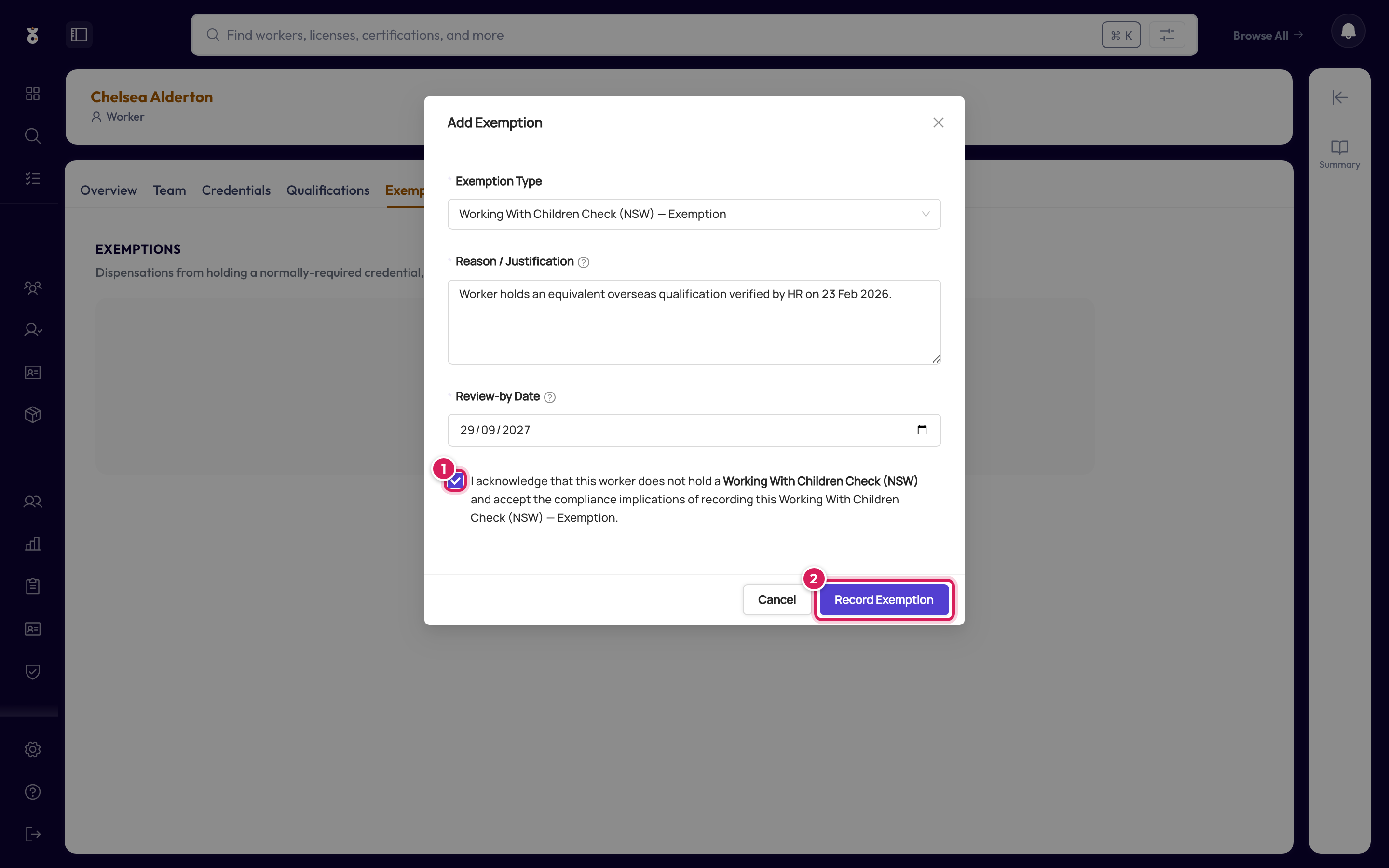
- Reason / Justification — a clear explanation of the basis for the exemption (for example, "Worker holds an equivalent overseas qualification verified by HR on 23 Feb 2026"). This is kept on the audit trail.
- Review-by Date — when the exemption must be looked at again. Oho pre-fills a default horizon, which you can change. Permanent exemptions aren't allowed, so set a date even for long-running ones.
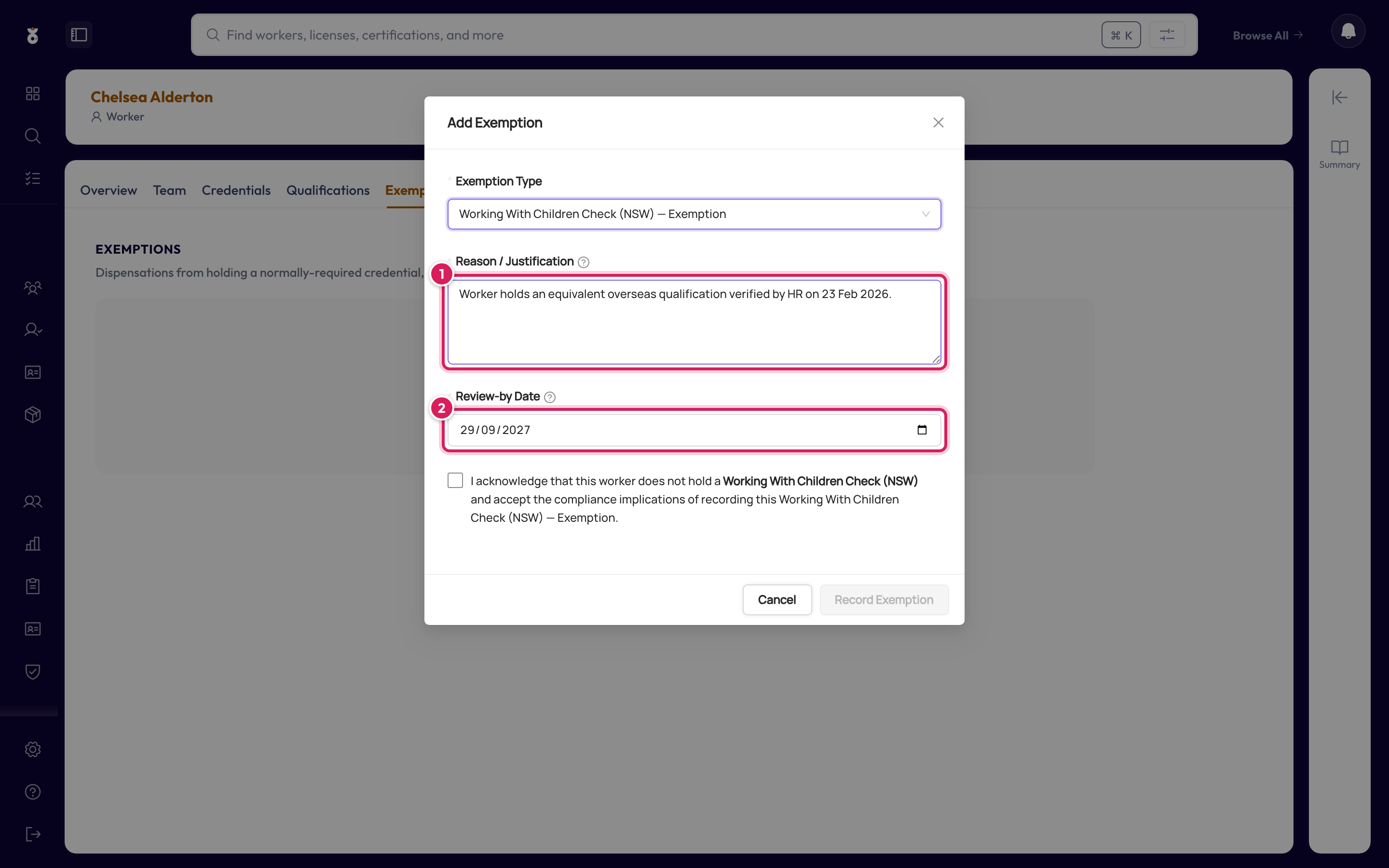
Step 5: Acknowledge and record
Tick the acknowledgment — "I acknowledge that this worker does not hold a [credential] and accept the compliance implications of recording this exemption" — which unlocks the button, then click Record Exemption.
The exemption now appears as a card on the worker's profile, alongside their credentials.
A few exemptions are verifiable — the Blue Card (QLD) Exemption, for instance. For these, the form asks for the card number and the holder's name as printed, and the date you enter is the card's expiry date. Oho then confirms the dispensation directly with Blue Card Services and keeps a history of every check, just like a credential — showing May engage, May not engage, or Under review.
The Add a worker wizard has an Add Exemptions step, so you can record an exemption in the same pass as creating the profile.
What's next
- Understand your Compliance Overview to see how the exemption satisfies the worker's requirement
- Add a credential for any requirements the worker isn't exempt from