Understand Your Recruitment Overview
The Recruitment Overview is your at-a-glance read on screening — how many checks have cleared, how many are still with the candidate, and how many failed and need a decision from you. It's the page to open at the start of the day, and the place that tells you which candidates to chase and who is ready to hire.
A clear picture of where every candidate stands in screening, and — for anyone stuck or flagged — a next step you can act on straight away.
Step 1: Open the Recruitment Overview
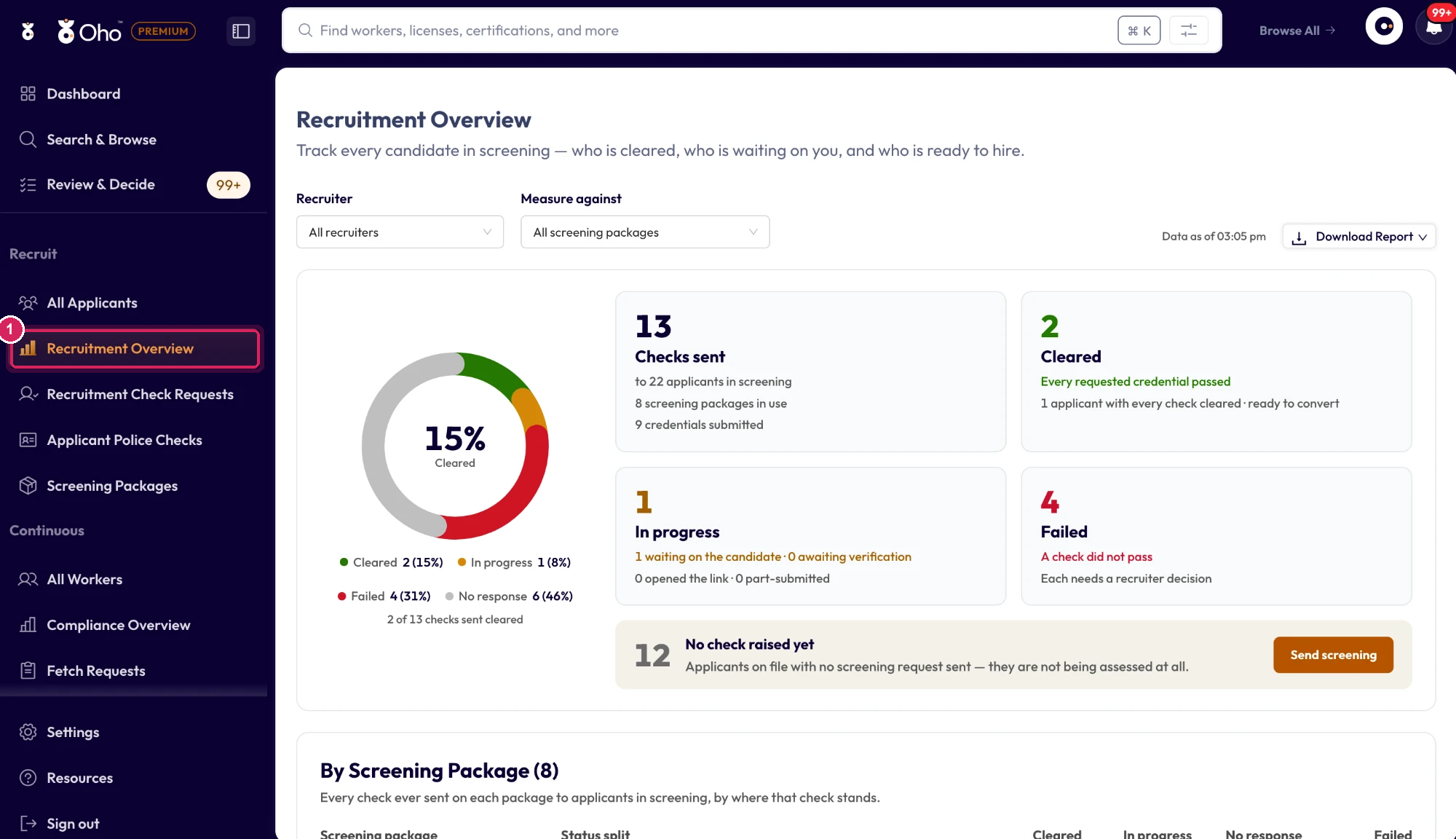
In the left menu under Recruit, click Recruitment Overview.
Step 2: Read the screening snapshot
The top of the page is a donut chart and four metric cards that give you an instant read of your screening pipeline:
- Cleared — checks where every requested credential passed
- In progress — checks still waiting on the candidate, or submitted and waiting on verification
- Failed — checks that didn't pass or need a review; each needs a decision from you
The Checks sent card gives the totals behind those numbers. If any applicants on file have never been sent a check, a No check raised yet banner shows how many, with a Send screening button to start one.
What each figure means below has the exact rule behind each number.
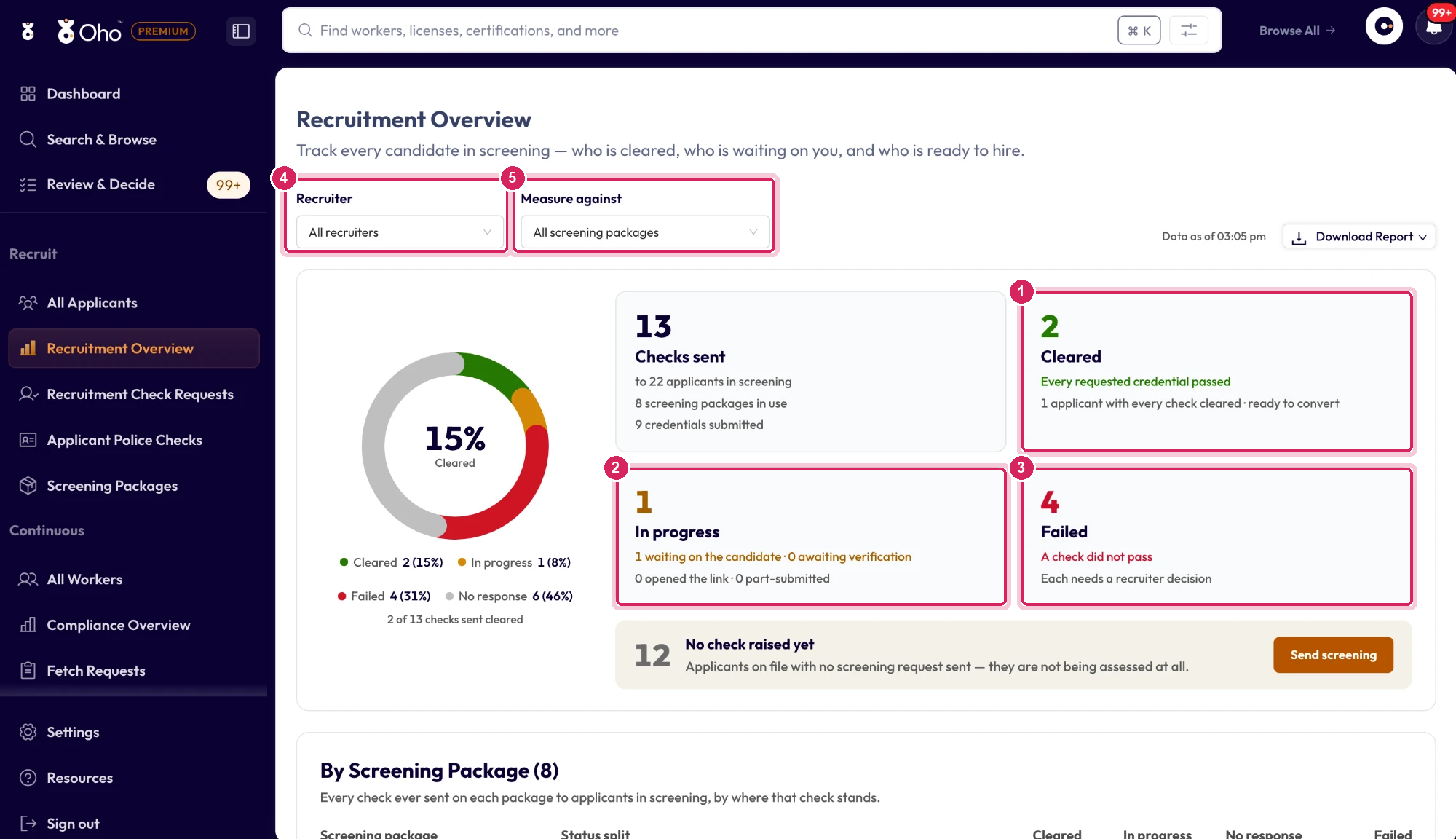
Use the Recruiter filter (4) to switch between All recruiters and My applicants, and Measure against (5) to narrow the page to a single screening package.
Step 3: See where checks stall
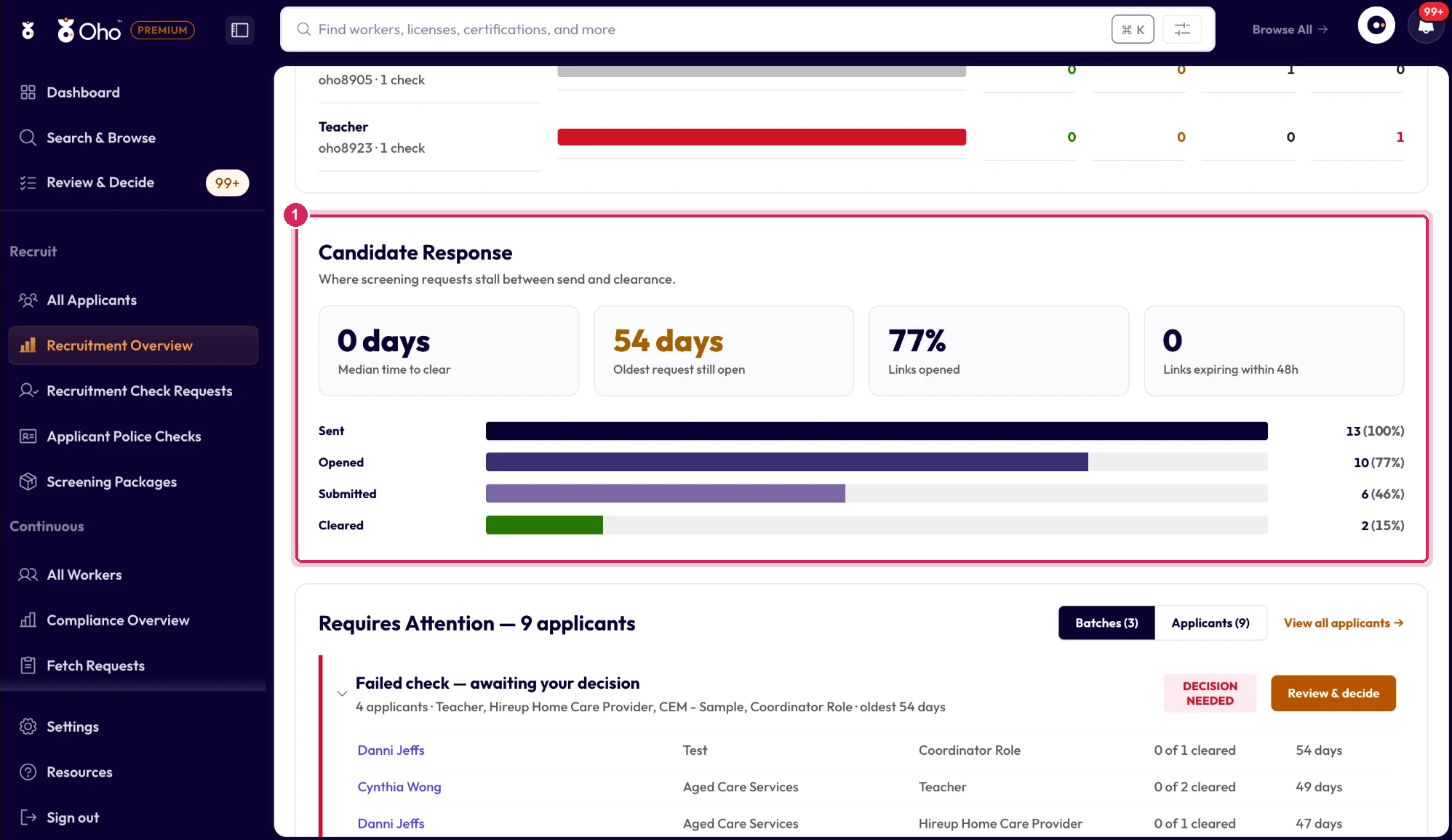
Below the snapshot, two sections show how screening is going over time:
- By Screening Package — for each package, how many of its checks are cleared, in progress, without a response, or failed. A package with a long red or grey bar is one to look at.
- Candidate Response — how fast candidates clear (Median time to clear), the Oldest request still open, what share of Links opened, and how many Links expiring within 48h. The Sent → Opened → Submitted → Cleared bars show where candidates drop off.
Step 4: Work the Requires Attention list
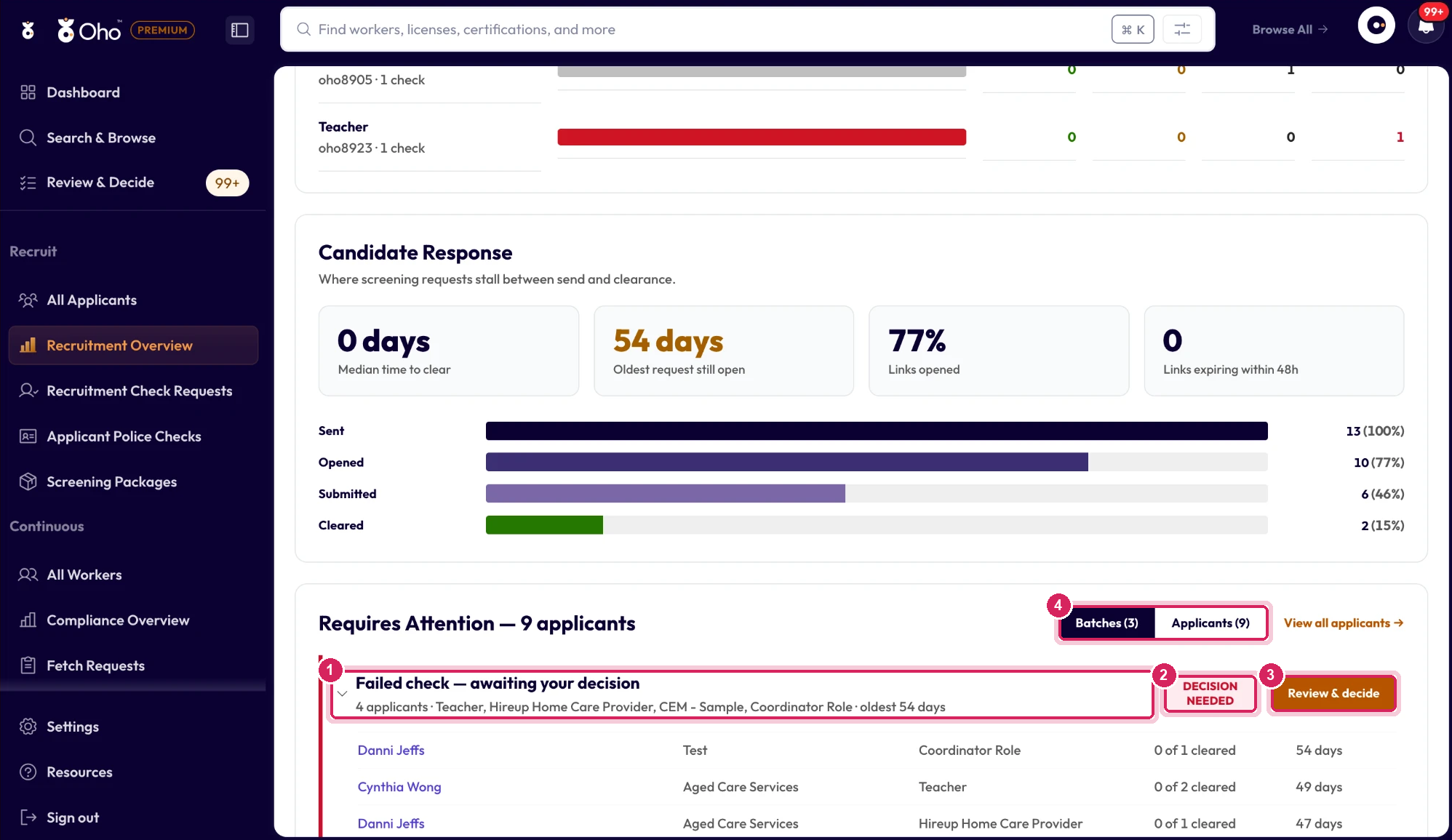
At the bottom, Requires Attention groups the candidates who are waiting on you into batches (1), most urgent first. Each batch has a tag (2) that tells you what kind of action it needs, and one button (3) to do it for the whole batch:
| Batch | Tag | Button | What it does |
|---|---|---|---|
| Failed check — awaiting your decision | Decision needed | Review & decide | Opens your completed recruitment checks so you can see what failed and decide on each candidate. |
| No response — N+ days since send | Chase candidate | Send reminder | Nothing has been opened or submitted. Reminds every candidate in the batch at once. |
| Stalled mid-form — part submitted | Chase candidate | Send reminder | The candidate started but stopped. Reminds them to finish. |
| Link expiring within 48 hours | Expiring soon | Reissue link | Sends a fresh link before it lapses — extending the expiry and keeping what they've already sent. |
| Link expired — candidate can no longer respond | Link expired | Reissue link | A reminder won't help, so this sends each candidate a new link. |
| Cleared — ready to convert to workers | Ready to hire | Convert to workers | Opens All Applicants, where you convert them. Their credentials carry across; nothing is re-collected. |
Click a batch to expand it and see its candidates — longest-waiting first. The envelope button on a row sends a reminder (or a new link) to just that candidate. Switch to Applicants (4) to see the same people as one flat list, or use View all applicants to open the full applicant list.
Step 5: Decide what to do next
For a candidate in Failed check — awaiting your decision, click their name to open the applicant to see which credential didn't pass, then:
- The credential is out of date or the wrong one — send a new recruitment check so the candidate can supply the right details.
- The result needs a judgement call — such as a police check that needs review or a register condition — record the decision in the Review & Decide queue.
- The candidate isn't going ahead — once they're marked Withdrawn (usually by your applicant tracking system), they leave the pipeline and drop off this page.
For a candidate in Cleared — ready to convert to workers, convert them to a worker. Their screening records carry across, so they start already compliant.
Use Download Report to export the current view as a PDF or CSV — handy for a weekly hiring update. The report reflects whichever Recruiter and Measure against filters you have selected.
What each figure means
Use this section when you want the exact rule behind a number on the page.
Top of the page
- Recruiter filter: All recruiters shows everyone in screening; My applicants narrows the page to applicants you own.
- Measure against filter: narrows every figure to the checks sent on one screening package, and to the applicants who were sent one.
- Data as of: when the figures were last worked out. They refresh on a short cycle, not on every page load.
- Download Report: exports the current view as a PDF or CSV, using the selected filters.
The cards and donut
The snapshot counts checks, not people — one applicant can have several checks. That keeps it in step with the package table below.
- Checks sent: every check sent to an applicant still in screening. Cancelled checks, and applicants who have been hired or withdrawn, are left out of every figure on this page. Under it: how many applicants are in screening, how many screening packages are in use, and how many credentials candidates have submitted.
- Cleared ("Every requested credential passed"): the check is complete and every credential on it passed. The line under it counts applicants whose every check cleared — the people ready to convert.
- In progress: split into waiting on the candidate (the link is out, opened or part-submitted) and awaiting verification (submitted, and Oho is still checking). The second line counts how many candidates have opened the link and how many have part-submitted.
- Failed ("Each needs a recruiter decision"): a credential on the check didn't pass, or the result needs a review — for example a police check marked for review, or a lookup that couldn't return an answer. A failure shows as soon as it's found, even before the rest of the check finishes verifying.
- No response (in the donut): the candidate hasn't touched the check for longer than your reminder window, or the link has expired.
- No check raised yet: applicants on file who have never been sent a check. They're counted separately because they aren't being assessed at all.
- The donut shows Cleared, In progress, Failed and No response as shares of checks sent, with the number cleared in the middle. "N of M checks sent cleared" under it is the same figure as a count.
Lower down the page
- By Screening Package: every check sent on each package to applicants in screening, split by where it stands. The counts across a row add up to that package's checks.
- Median time to clear: the middle value of the time from sending a check to it clearing, across cleared checks.
- Oldest request still open: days since the oldest check that's still with the candidate or awaiting verification was sent.
- Links opened: the share of checks sent whose link the candidate has opened.
- Links expiring within 48h: open checks whose link expires in the next two days.
- Requires Attention: each applicant sits in the batch for their most urgent check — a failure outranks a stalled check, which outranks one in progress. Link expiring within 48 hours can overlap a chase batch, so the same person may appear twice; the total at the top counts each person once. Each batch shows up to 25 candidates; open the applicant list to see the rest.
- No response and Stalled mid-form use your reminder window: the number of days set in Auto-Reminder After (days) under Settings → Manage → Features → Recruitment Check Request Settings.
What's next
- Send a recruitment check to start screening a new candidate
- Find and manage applicants to convert a cleared candidate to a worker
- Work the Review & Decide queue to record decisions on failed or flagged checks