Add a Credential
A credential is any card, registration, or certificate a worker holds — a Working With Children Check, an NDIS Worker Screening clearance, a First Aid certificate. Recording it on the worker's profile lets Oho track its expiry, and verify it against the issuing register where one exists.
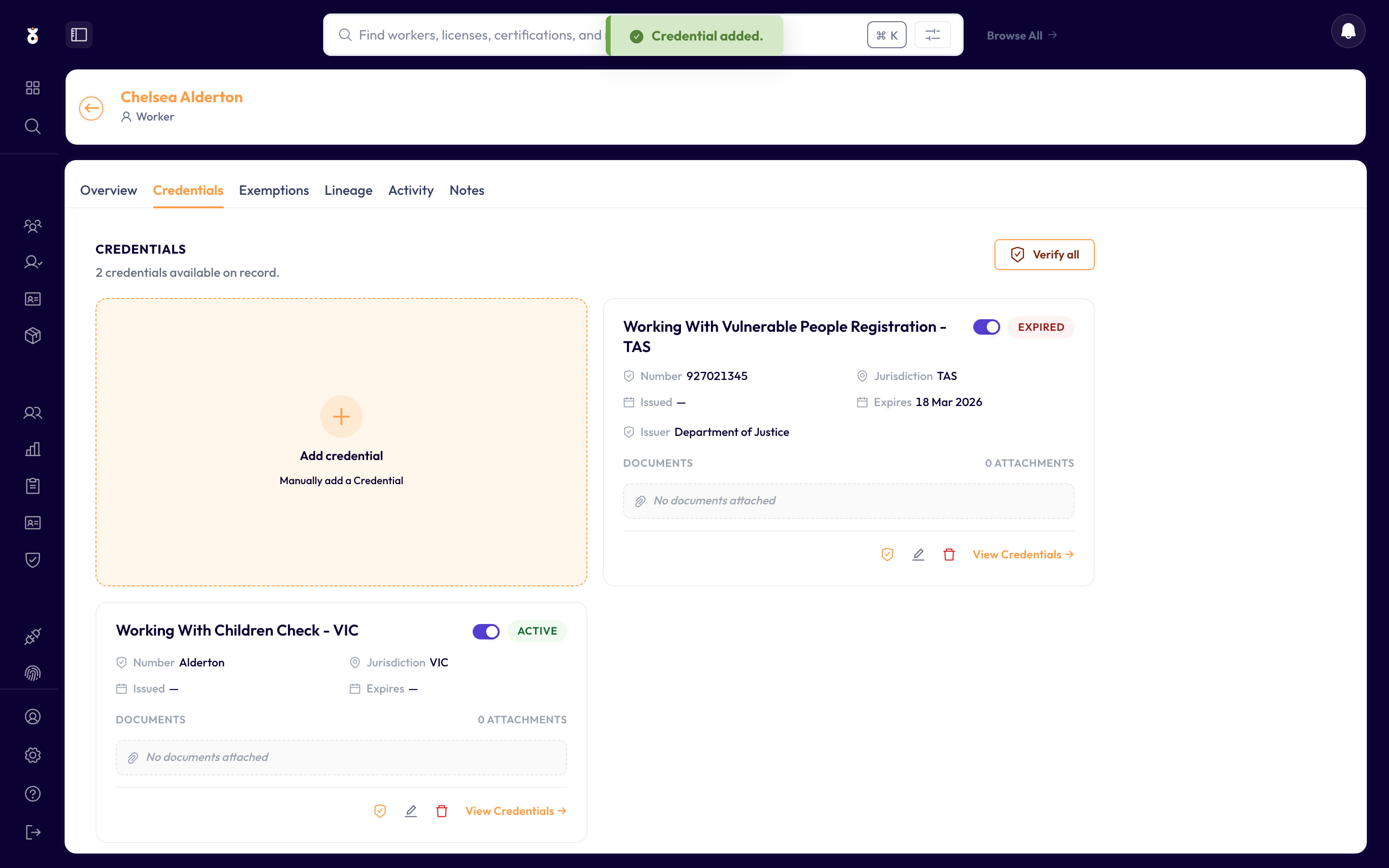
A credential card on the worker's profile, with its status (Valid, Expiring, Verified…) tracked automatically from now on.
Before you start
Have the credential's number and expiry date, and check the worker's name in Oho matches the name on the credential — register checks match on both.
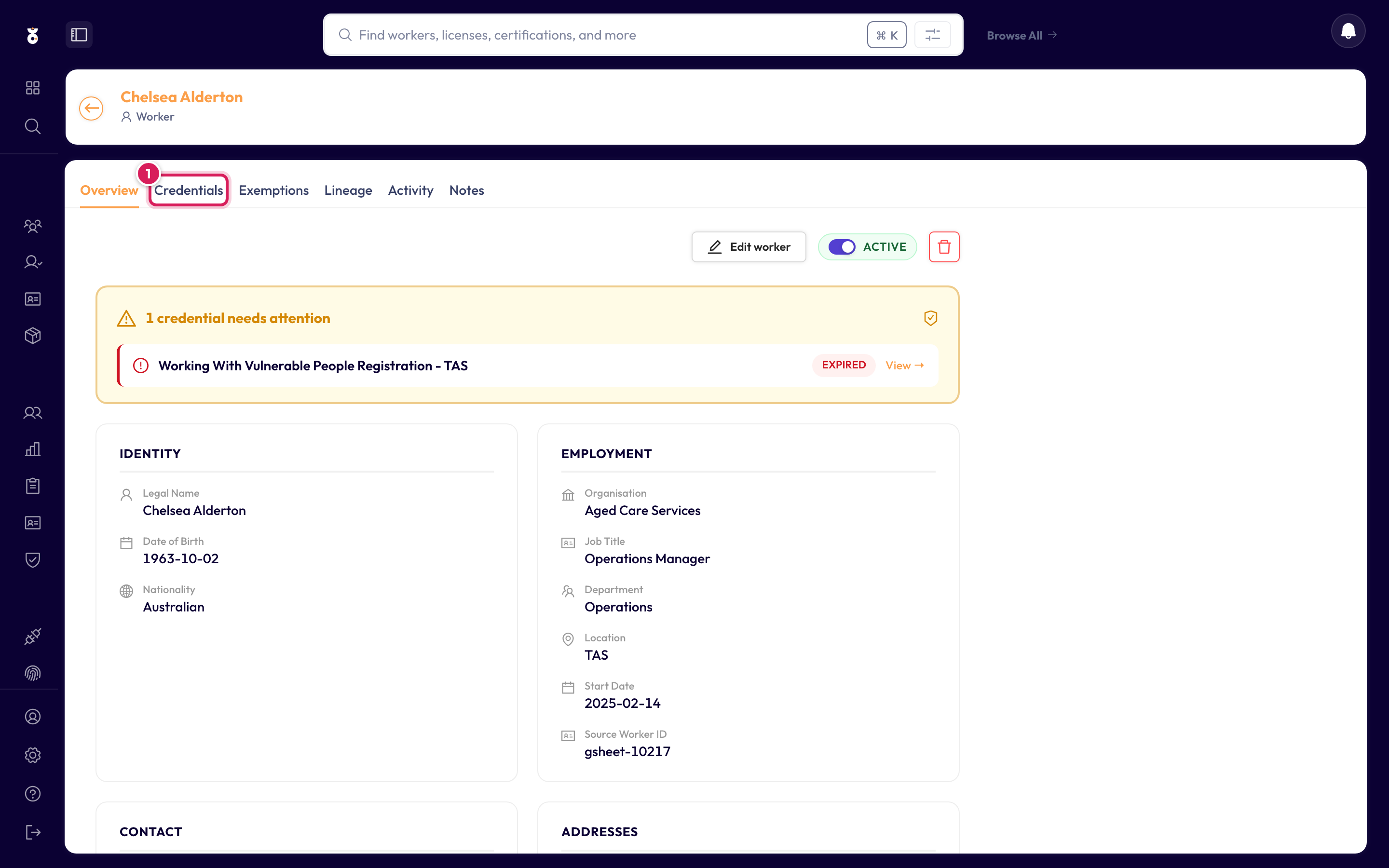
Step 1: Open the worker's profile
Find the worker — search their name from the top bar, or browse All Workers — and open their profile. Click the Credentials tab.
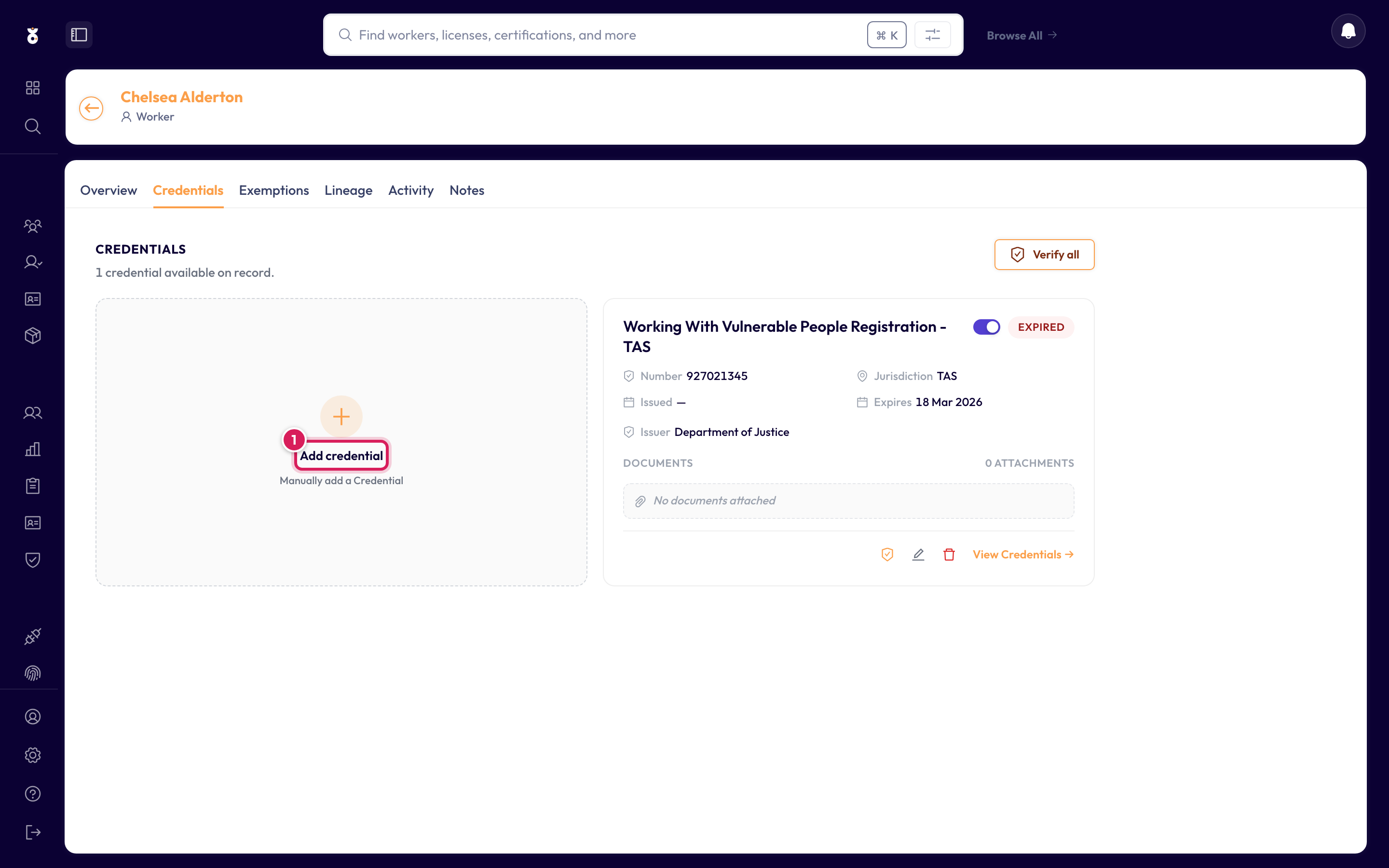
Step 2: Click Add credential
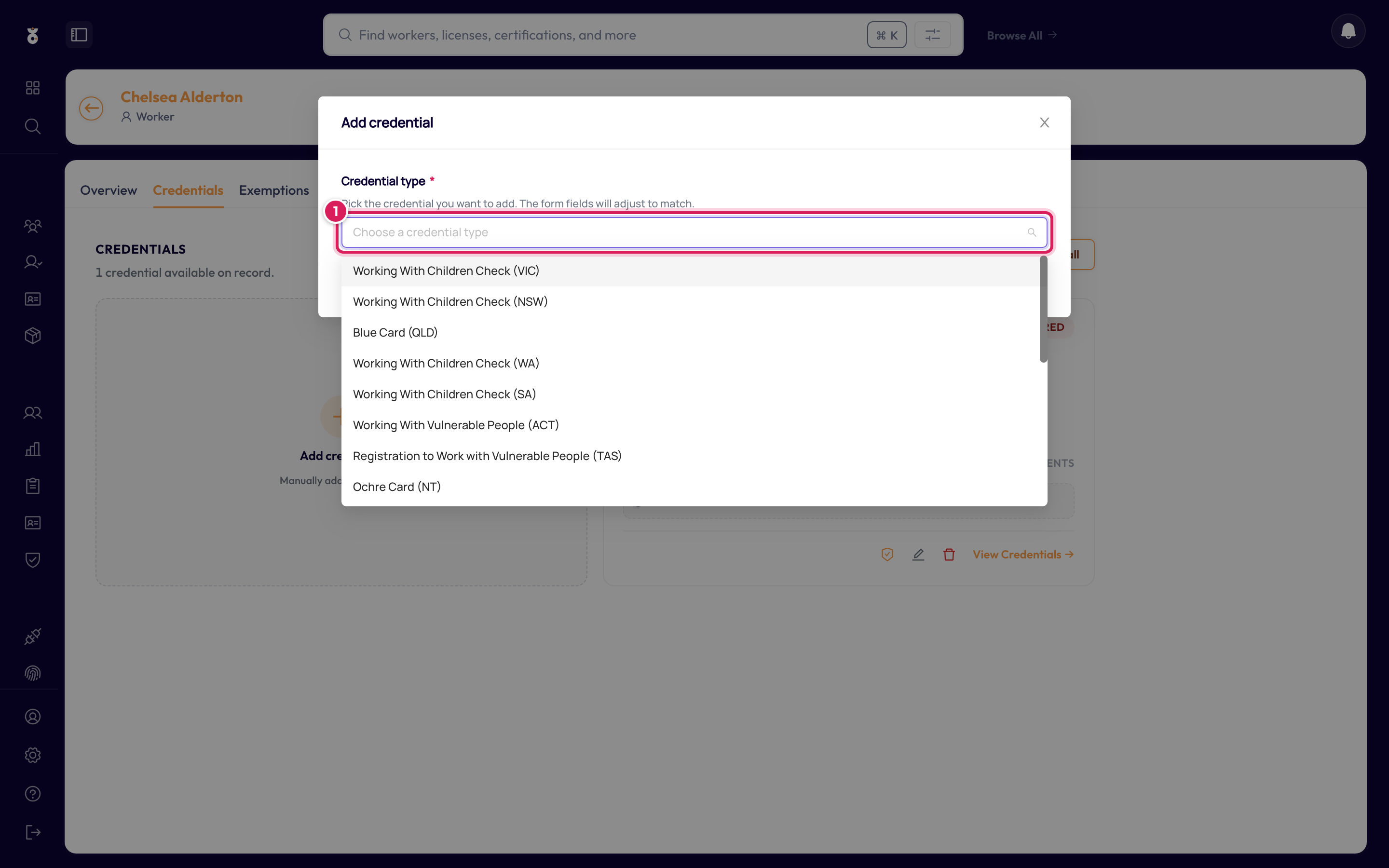
Step 3: Choose the credential type
Pick the type from the list — it covers checks for every state and territory (WWCC, Blue Card, Ochre Card, WWVP…), national clearances like NDIS Worker Screening, and certificates like First Aid. The list is searchable: start typing and it narrows. This guide adds a Working With Children Check (VIC).
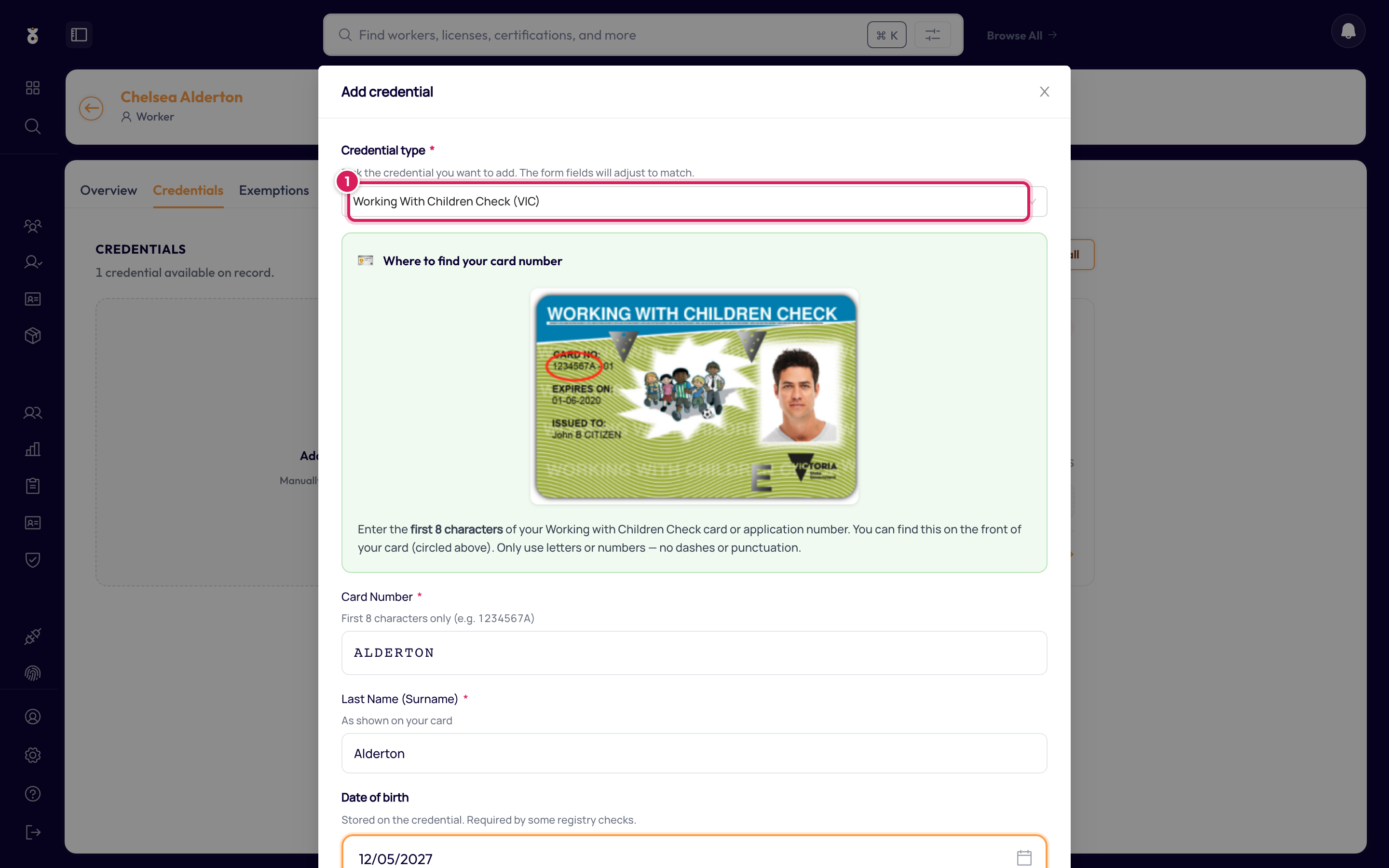
Step 4: Enter the credential details
The fields change with the type you picked — for a VIC WWCC that's the card number (1), the holder's name as it appears on the card, and the expiry date. Click Save (2).
The credential now appears as a card on the worker's profile.
A custom credential set to Attainment with a validity period doesn't ask you for an expiry date. You enter the date the worker attained it and Oho works the expiry out — attainment date plus the validity period set on the type — so the card shows a concrete date straight away.
If you'd expected that and the field is still asking you for an expiry, the type either uses the Expiry behaviour or has no validity period set. Both live on the type, under Settings → Customize → Credentials, not on the credential you're recording.
If the credential type has a connected register (a verification source), Oho checks it at the source — you'll see Verified with a last-checked date. Types without a register are expiry managed: Oho tracks the date you entered and warns you before it lapses.
If the credential you're recording isn't in the type list — an internal course, a company induction — an Admin can create a custom credential type for it. Custom credentials are tracked for expiry but aren't verified against a register.
Fixing a credential you got wrong
A mistyped reference number doesn't just fail to verify — it keeps failing. The register has no such card, so the credential sits Unverified or Not found, shows up in the outstanding lists for its type, and holds the worker short of compliant. It will do that indefinitely, because nothing about a wrong number resolves itself.
The fix is to correct it, not to delete it.
Correct a number or a date
On the credential, click Edit credential, change the field, and save. You can reach the same thing from the pencil on the credential's card on the worker's profile.
Two things to know when the field you're changing is the reference number:
- Oho moves the credential rather than patching it. A credential is identified by its type and its reference number, so a corrected number is a different identity. Oho writes the record to its new address, brings the attachments, source links and organisation with it, and retires the old one. You get one credential, not two.
- The verification history doesn't follow. A result against the old number says nothing about the new one, so the credential goes back to unverified and is checked afresh. That's the point: you want a real answer against the number that's actually on the card.
If the credential came in through an HR connector (Workday, Employment Hero, HiBob and so on), its reference number can't be edited in Oho. Saving a new number shows "This number comes from your system, so it can't be changed in Oho". The connector writes the number it holds on every sync, so correct it in the source system and Oho updates the credential, with its history, on the next sync. You can still edit the other fields.
If the number you're correcting to already belongs to somebody else's credential, Oho refuses the edit rather than merging the two. Two people recorded against one reference is a question for you to settle, and Oho won't pick a winner.
Credential type can't be edited. It's part of the credential's identity in a way a correction can't carry. Delete the credential and add it again under the right type.
Don't edit the old check's expiry. A renewal has its own reference number, so add it as a new National Police Check. See Recording a renewed police check.
Delete a duplicate
Use ⋮ → Delete credential on the credential page when the record shouldn't exist at all —
typically a second copy of a card the worker already holds, created by a spreadsheet import or by
someone adding by hand what a sync had already brought in. You type delete to confirm, and the
record is hidden rather than destroyed, so ask support if you need one back.
The confirmation tells you how many others will go. Read it before confirming.
Before you blame the register
A worker who looks non-compliant for a credential you know they hold usually has two records of it — a good one and a typo — and the bad one is what's showing. Open their profile and look for a second credential of the same type before raising it with support or with the register. Spreadsheet imports are the common source, since a changed reference number in a sheet adds a record rather than editing one.
Correcting your own data is yours to do, and the controls above are all there for it. Support can't edit records on your behalf.
What's next
- Verify the credential right away instead of waiting for the scheduled check
- Create a custom credential — define a type for something the catalogue doesn't cover