Add a Worker
A worker is anyone whose credentials you need to keep an eye on — staff, volunteers, contractors. Adding one takes about a minute, and Oho's wizard can record their credentials and exemptions in the same pass.
A worker profile with their identity, employment details, and (optionally) their first credentials — ready for Oho to start verifying.
Before you start
Have the worker's legal name and date of birth as they appear on their official ID. Oho uses these to match the person against government registers, so spelling matters.
Step 1: Open All Workers
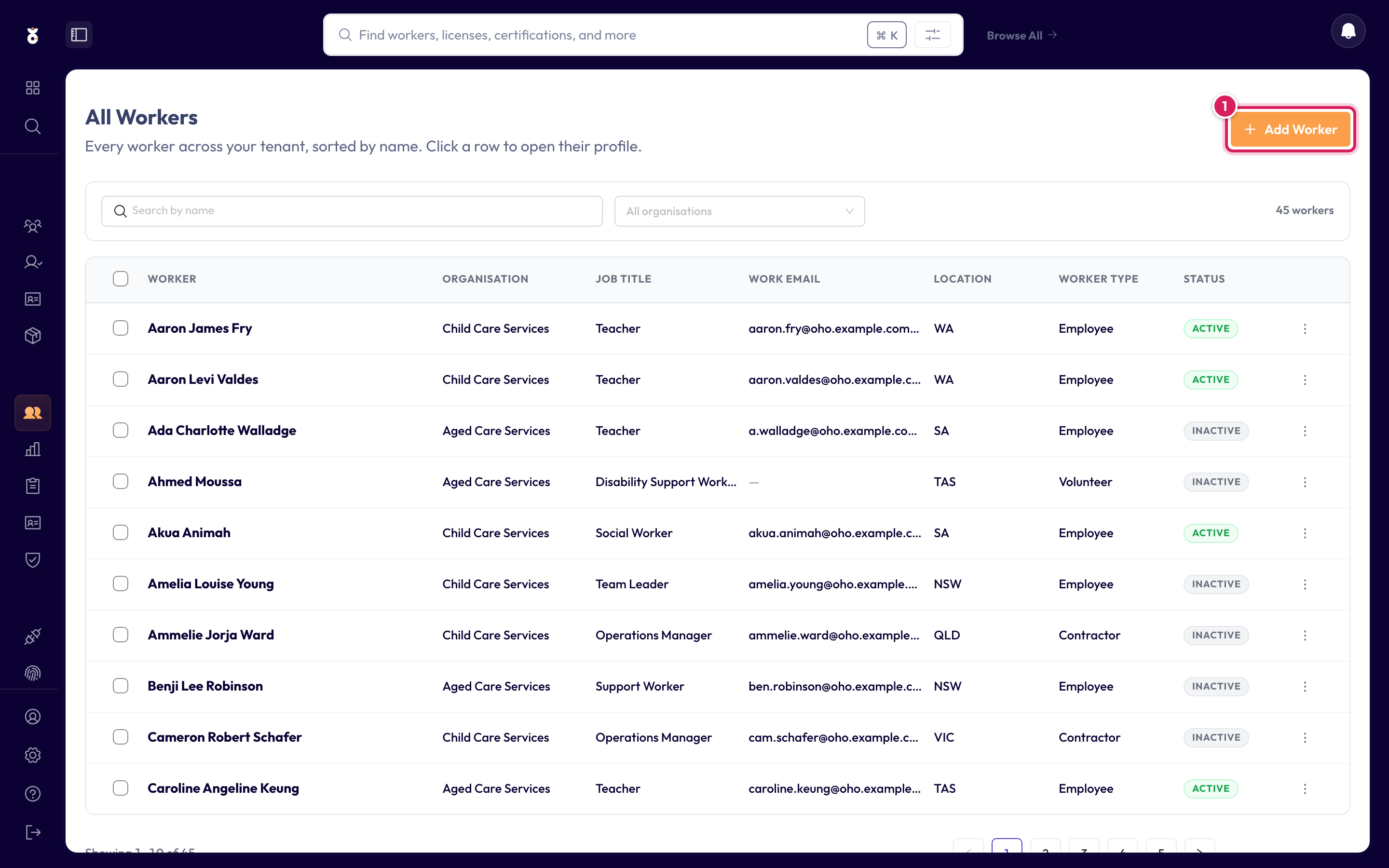
In the left menu under Continuous, click All Workers, then click Add Worker (top right).
Step 2: Enter their details
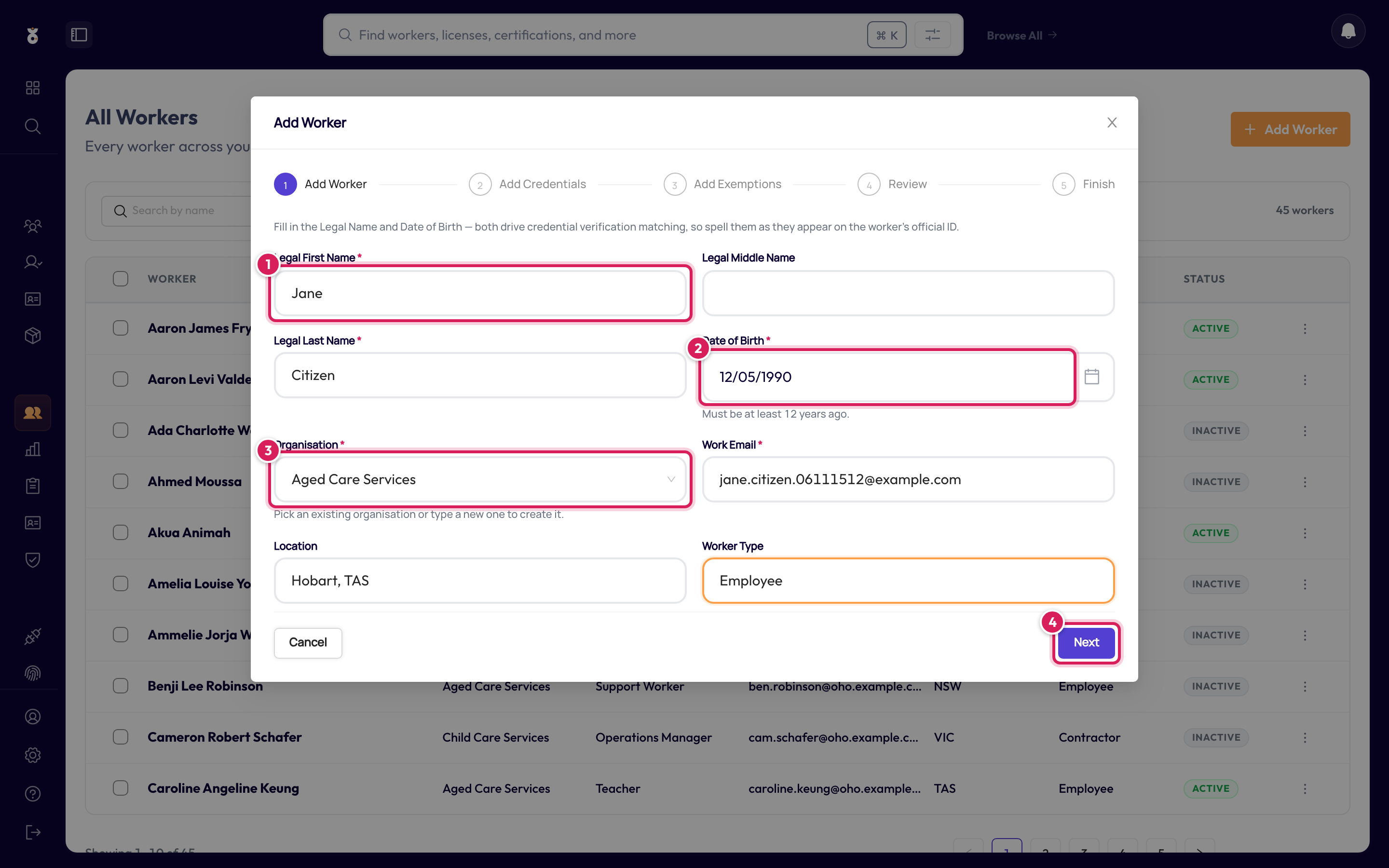
Fill in the form. Two fields are required:
- Legal Last Name — exactly as on their ID
- Organisation — pick one of yours, or type a new name to create it
- Click Next
Legal First Name sits beside the surname and is optional, but fill it in whenever the person has one — registers compare against the full name Oho holds. Leave it blank only for someone who goes by a single name (below).
Two more are strongly recommended — the worker saves without them, but you lose something:
- Date of Birth — format DD/MM/YYYY. Several registers match on it, so a worker without one may never verify. If you do enter it, this form won't accept a date less than 12 years ago.
- Work Email — how Oho contacts the worker if you ever request documents from them. It must be unique across your workers.
Legal Middle Name, Location, and Worker Type are optional but make the workers list easier to filter later.
Put the single name in Legal Last Name and leave Legal First Name blank — that's what the
hint under the field means. Don't type a -, a . or N/A in the surname to get past the form:
the surname is what Oho sends to the register, so a placeholder there makes every check on that
worker fail. See People with one name.
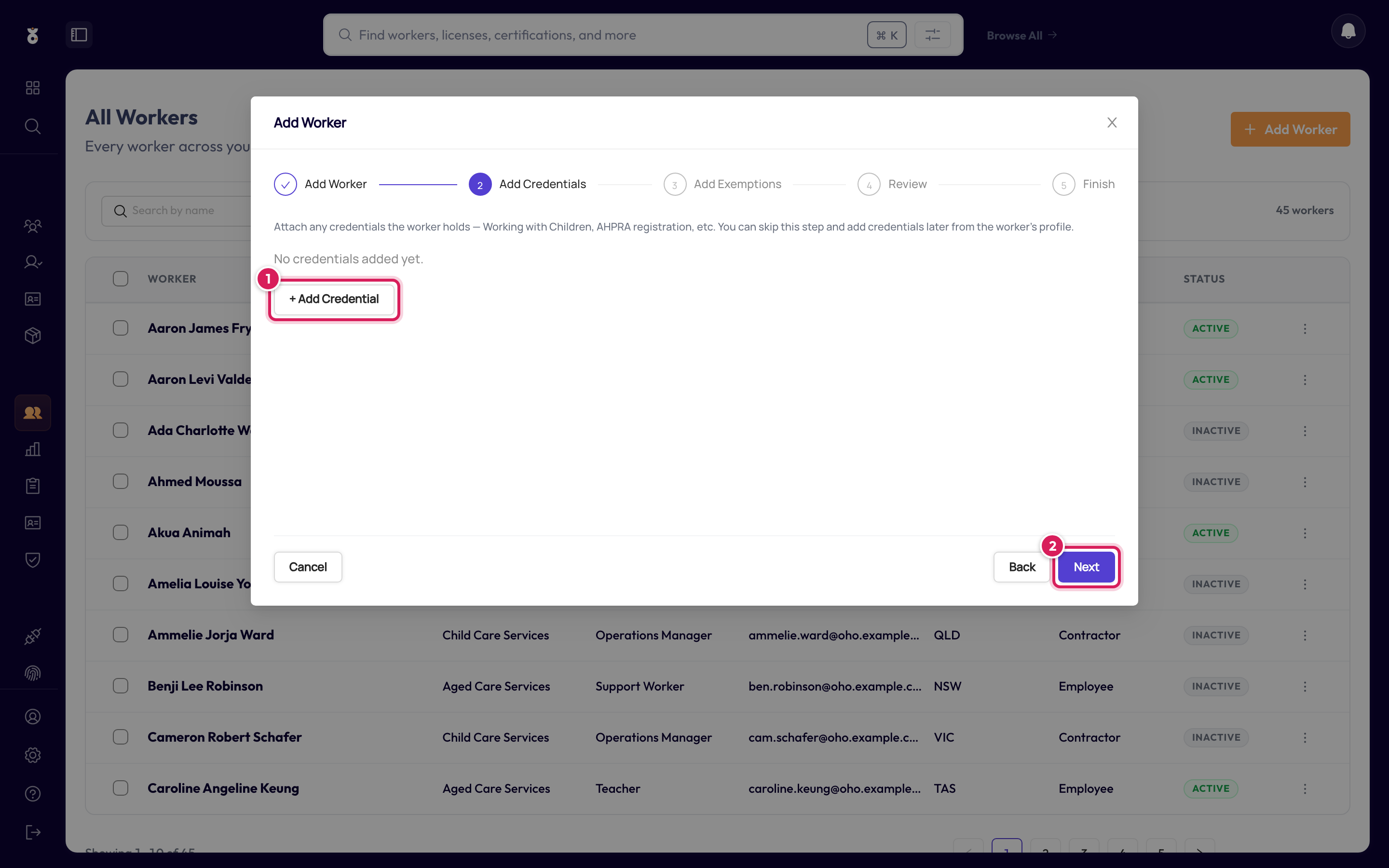
Step 3: Add credentials (optional)
If you already hold the worker's credential details — say their Working With Children Check number — add them now with Add Credential (1). You can also skip this step (2) and add credentials later from their profile.
The next step, Add Exemptions, works the same way — record one if the worker holds a dispensation from a normally-required credential, otherwise click Next.
Step 4: Review and create
Check the summary, then click through to Create Worker.
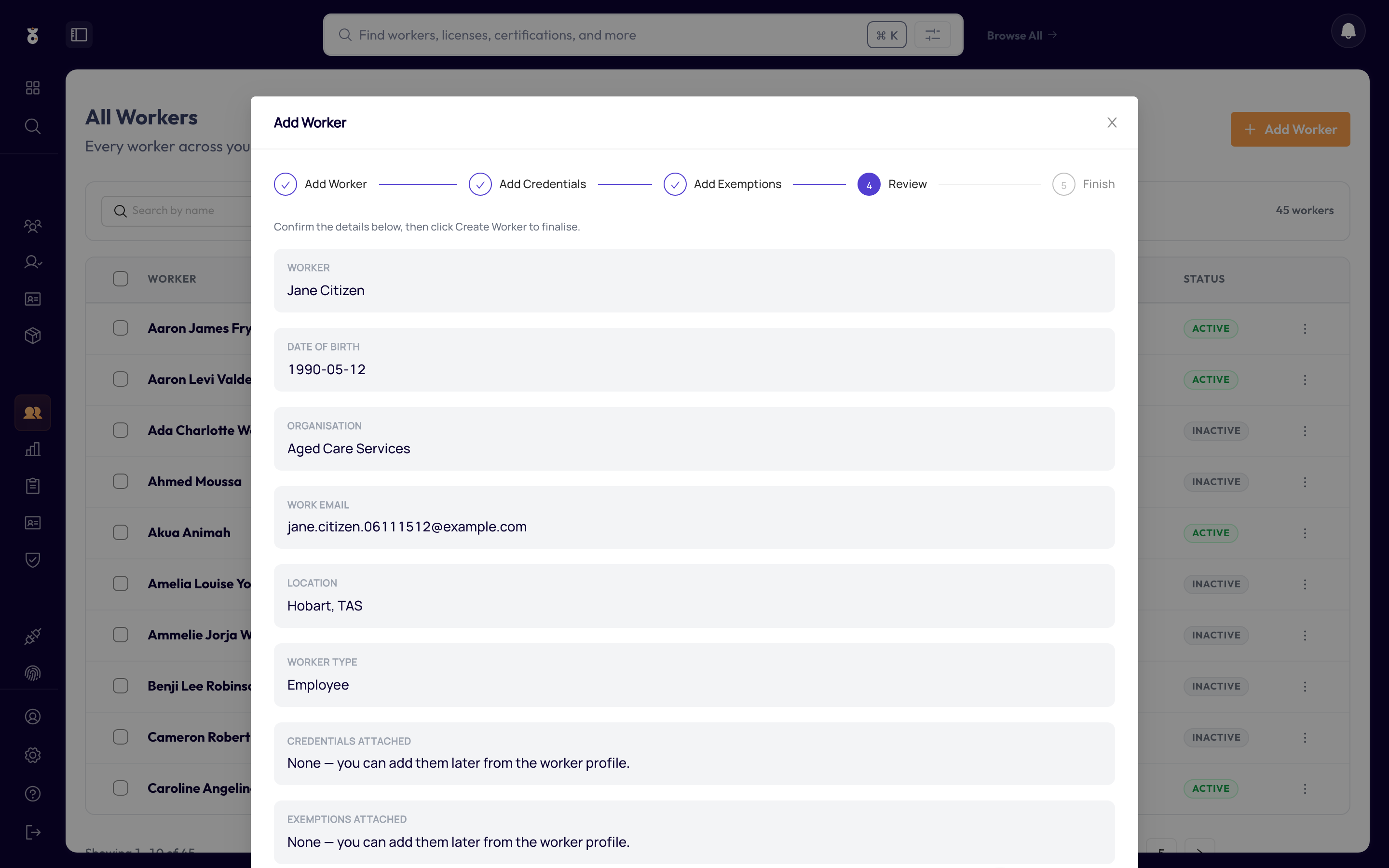
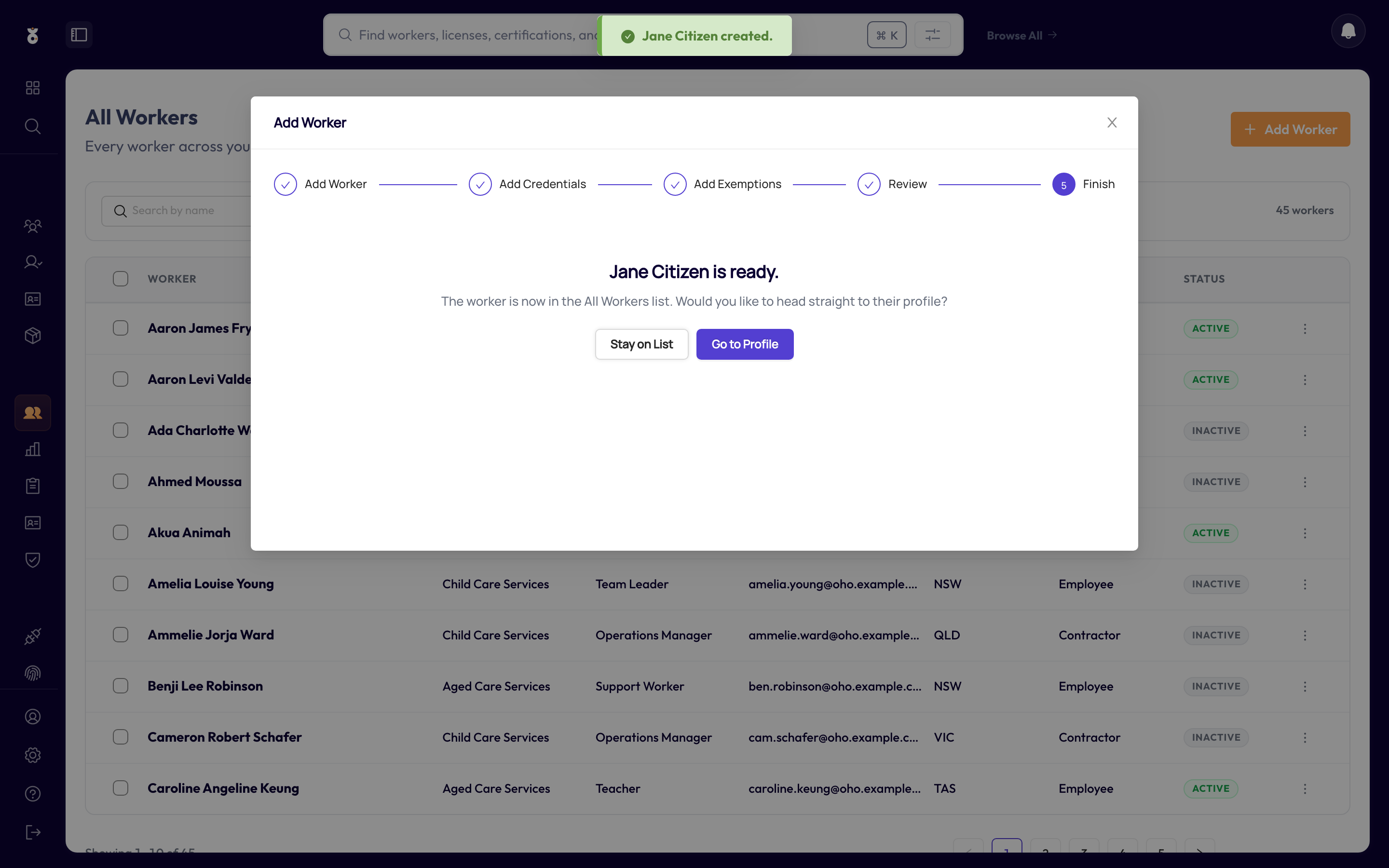
That's it — the worker now has a profile, and any credentials you added are queued for verification.
Check the two required fields are both filled: Legal Last Name and Organisation. If the Organisation field looks empty, start typing a name to create one. The optional fields are only validated when you fill them in — a Date of Birth that makes the worker younger than 12, a malformed Work Email, or one already used by another worker will each block Next with a message at the top of the form.
Don't type them one by one — import a spreadsheet instead.
What's next
- Add a credential to the worker's profile
- Send a fetch request if the worker should supply the details themselves