Understand Your Compliance Overview
The Compliance Overview is your at-a-glance read on where the workforce stands — how many people are compliant, at risk, or non-compliant across every credential Oho is watching. It's the page to open right after a check completes, and the place that tells you who needs chasing and what to do about it.
A clear picture of your compliance position, and — for anyone flagged — a next step you can act on straight away.
Step 1: Open the Compliance Overview
In the left menu under Continuous, click Compliance Overview.
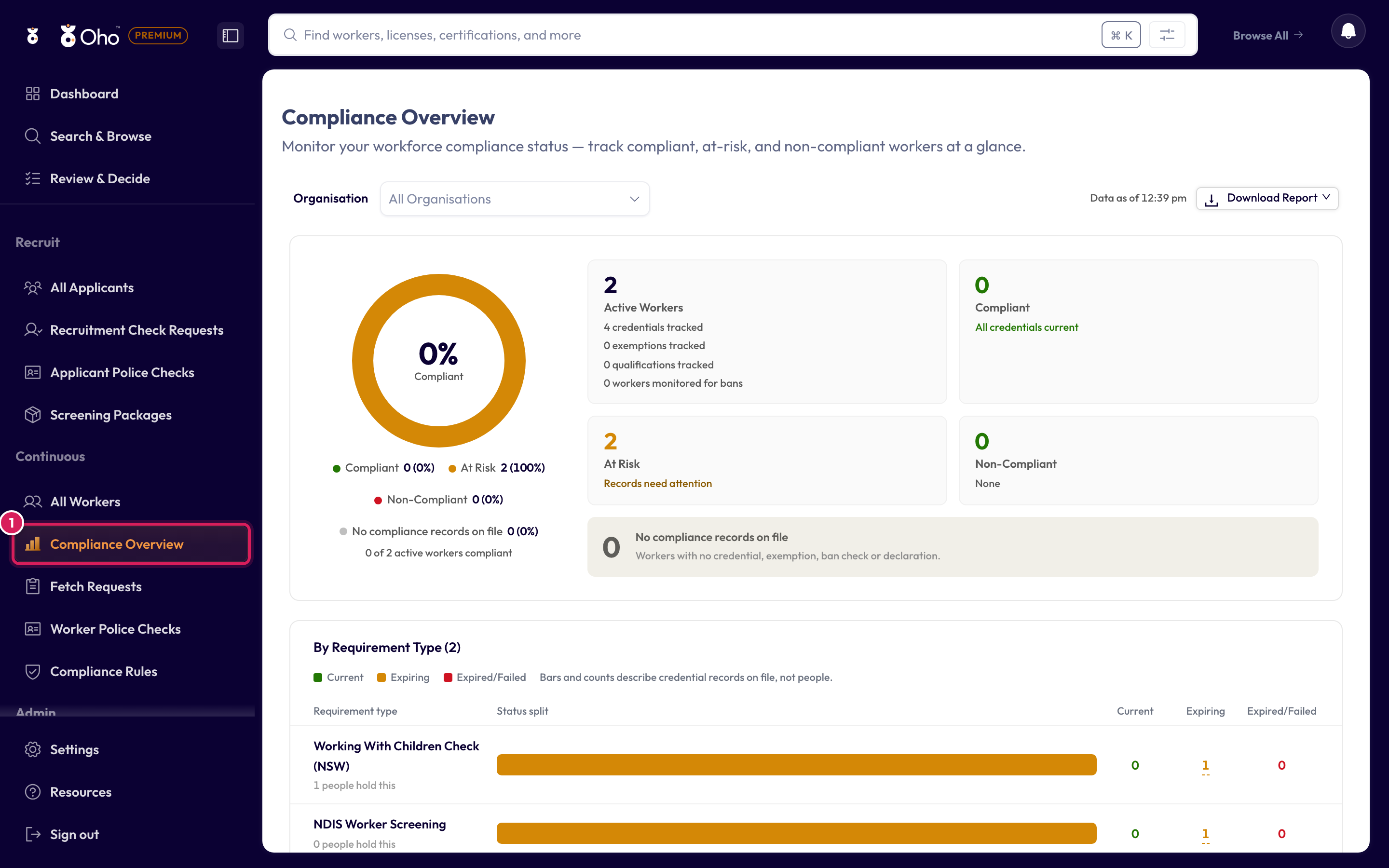
Step 2: Read the compliance snapshot
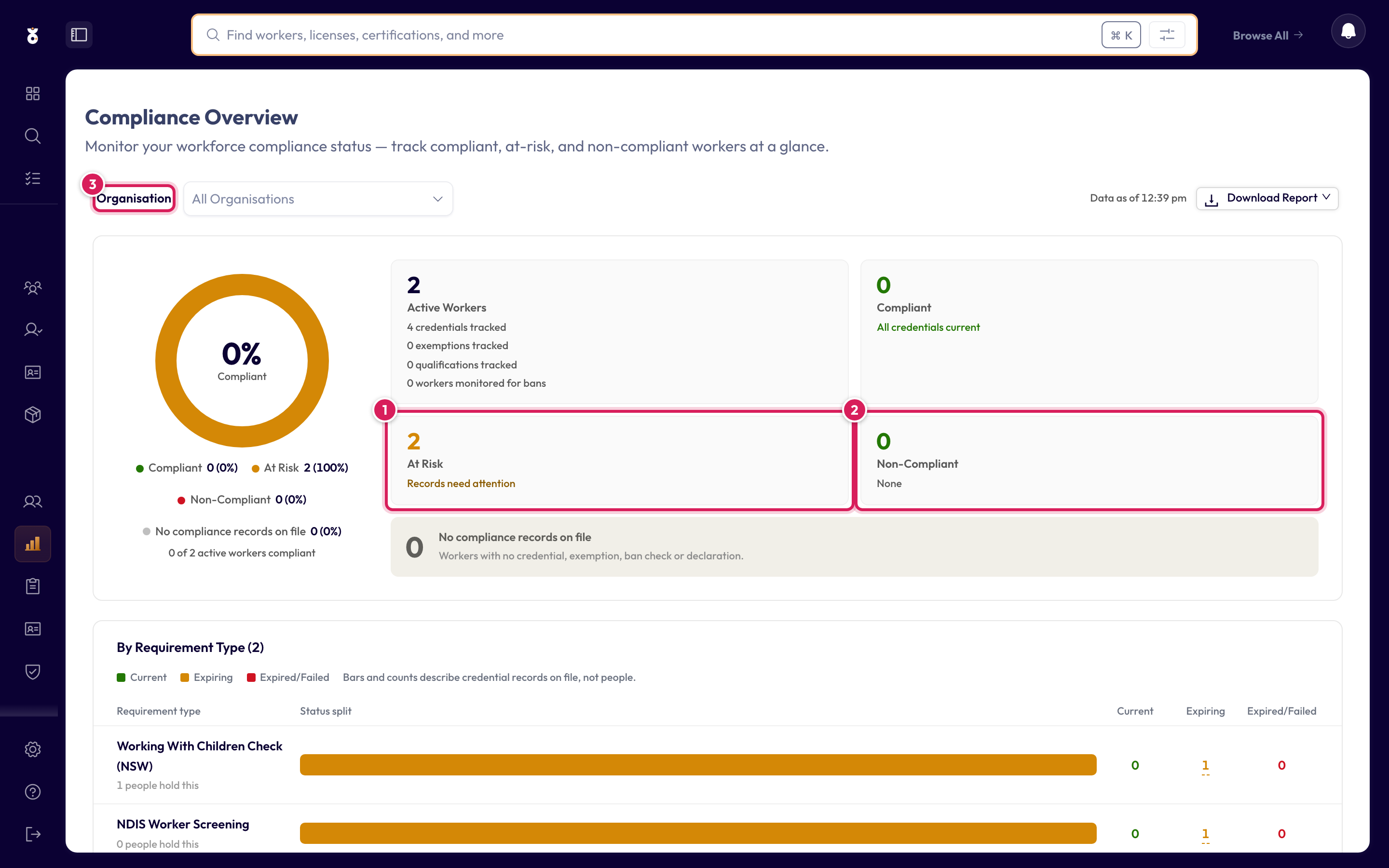
The top of the page is a donut chart and three metric cards that give you an instant read of your compliance health:
- Compliant — everyone whose credentials are all current
- At Risk — nothing has failed, but something is outstanding, such as a credential expiring soon, one with conditions to review, or one still waiting on a result
- Non-Compliant — workers with an expired or failed credential, or missing one their position requires
Alongside them sits Withdrawn by the issuer, which counts something different from the other three — see The "Withdrawn by the issuer" card.
What each figure means below has the exact rule behind each number.
Use the Organisation filter above the chart to narrow the picture to a single team, site, or region, instead of one workforce-wide number.
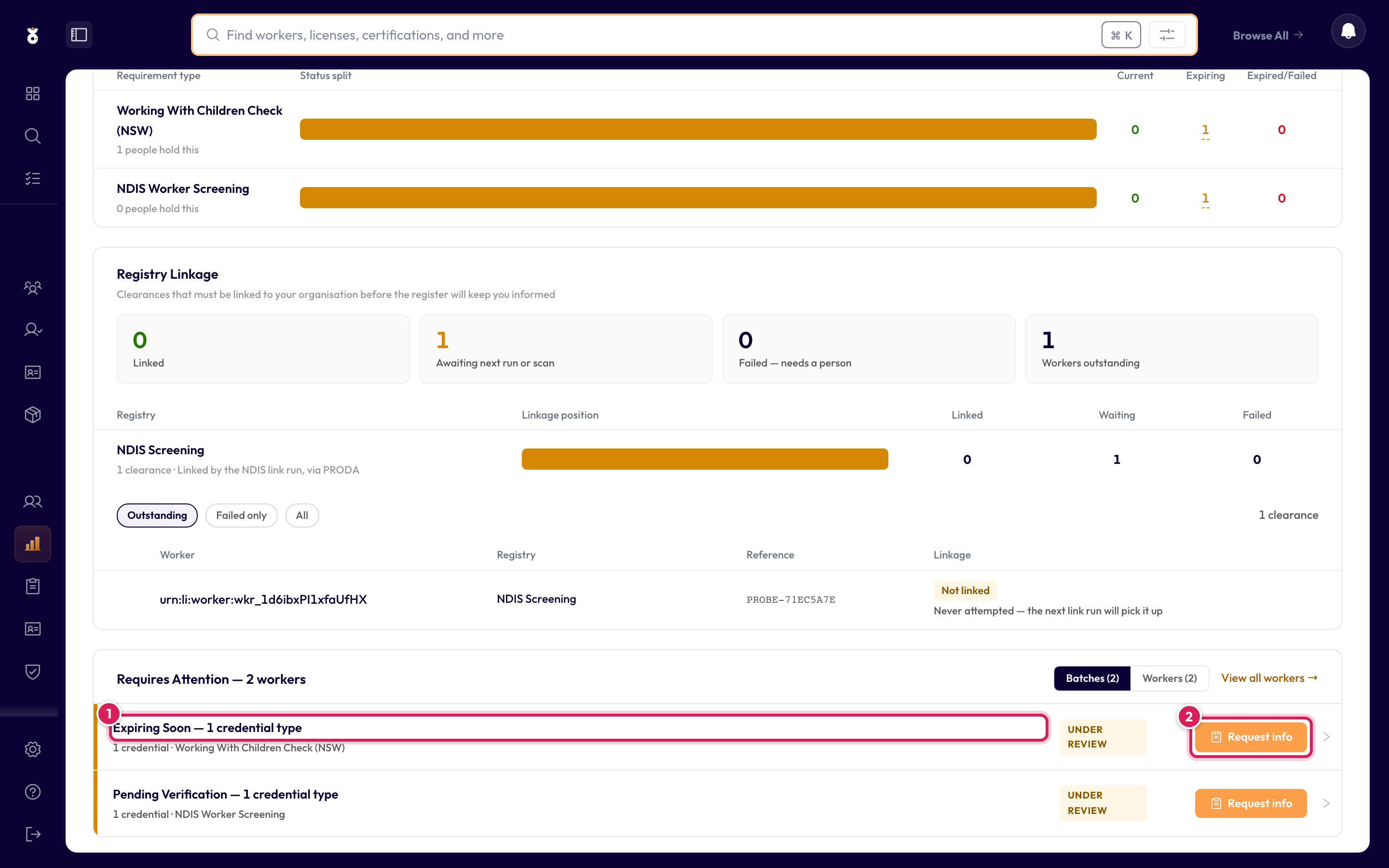
Step 3: Work the Requires Attention list
Below the snapshot, the Requires Attention table lists the workers who have expired or expiring credentials — the people to act on. From here you can:
- Drill into a worker to see exactly which credentials need action, or
- Use the bulk send button to request updates from several workers at once.
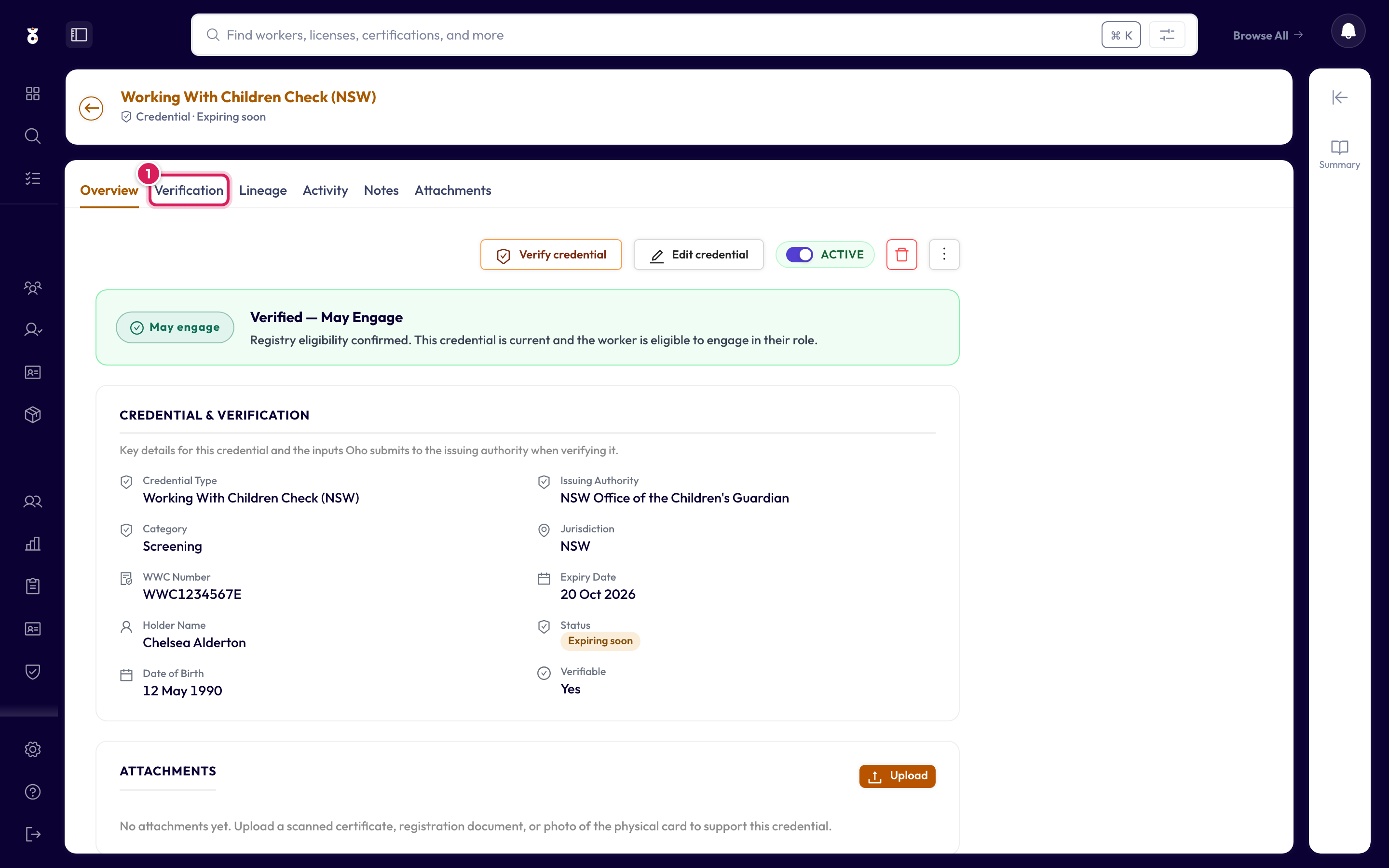
Step 4: Read what a result means
Open a worker, then a credential, to see its outcome. Every verifiable credential and check resolves to one of a few outcomes, shown with a colour so it's easy to scan:
| Status (as shown in the app) | Colour | What it means |
|---|---|---|
| May engage | Green | Valid and current — the person is cleared for the work. |
| May not engage | Red | Not valid — expired, suspended, not found, or a match on a ban register. |
| Under review | Yellow | No decision yet — someone has to read the result and record one. Not a softer kind of pass: the worker counts as non-compliant until they do. |
| In progress | Blue | Still being checked. |
| Couldn't verify | Grey | The source couldn't be reached; Oho will try again. |
Validity and expiry are tracked separately from that verdict, and the badge always shows the most serious state on record — so these appear instead of one of the five above:
| Status (as shown in the app) | Colour | What it means |
|---|---|---|
| Expiring soon | Yellow | Still valid, but inside your expiry lead time — 30 days by default. Time to get the renewal moving. |
| Expired | Red | The expiry date has passed, so the worker is no longer covered. |
| Conditions to review | Yellow | The register attached a condition or a notation that someone has to read and decide on. |
| Pending decision | Blue | The issuing authority has yet to decide on an application. |
A problem the register reports outright — the clearance revoked, no matching record, a newer card superseding this one — shows under its own name in red or grey, alongside the same statusDetail value. Every one of them is listed in what a check result means.
Of the verdicts, May not engage and Under review are the two that need you; the rest either resolve on their own (In progress, Couldn't verify) or need nothing (May engage). Expiring soon and Expired outrank the verdict when they apply, and are what put a worker in At Risk or Non-Compliant above. Core Entities has the same tables with the API value behind each badge.
Step 5: Decide what to do next
For a worker flagged May not engage or Under review, you have a few next steps depending on why it flagged:
- The credential lapsed or is missing — send a fetch request so the worker supplies the current details, or record the renewal on their profile.
- The worker is formally excused from holding it — record an exemption; a valid exemption satisfies the requirement.
- You want a fresh answer now — verify the credential again from its page instead of waiting for the scheduled check.
Some results — ban-register matches, police-check decisions, attachment reviews — need an explicit Confirm or Dismiss. Those land in the shared Review & Decide queue (top of the left menu), where every admin sees every open task and each resolution is written to the audit trail. See Work the Review & Decide queue for how to clear it.
Use Download Report to export the current snapshot as a PDF or CSV — handy for handing a compliance summary to the managers responsible for each area. The report reflects whichever Organisation filter you have selected. The CSV lets you choose which columns to include — see Export compliance data.
The "Withdrawn by the issuer" card
This card counts credentials an issuer has taken away — revoked or suspended — and it is the one figure on the page that doesn't follow the rules the others do. Read it on its own terms:
- It counts credentials, not workers. One worker with two revoked cards is two.
- It covers the whole tenant. The Organisation and Manager filters don't narrow it. Credentials don't carry their holder's organisation, so there is nothing to scope them by. When you have a filter applied, the card says so underneath.
- It deliberately includes people who have left. Every other figure on this page measures your active workforce. A card revoked after someone left reaches none of them — no band, no credential-type row, no Requires Attention batch — so without this card nothing on the page would tell you it exists. The subtext says how many are held by inactive workers, and those are the ones that "appear in no band above".
- It stays visible at zero. "No credential has been revoked or suspended by its issuer" is an answer worth seeing.
- It counts withdrawals a register reported, not the word on the record. A credential that simply carries the status Suspended, with no register check behind it, isn't counted. That status is what an import writes for a record an old system had switched off, and on a migrated tenant those outnumbered the real withdrawals by a hundred to one. A suspension a register actually reported is counted — see Moving from the old Oho.
Why a withdrawal outlives the roster
A withdrawal is the issuer's decision about the person, not about their employment with you. It still matters if they apply again, if a second record exists for the same person, or if someone later asks why the card was pulled. That is why it isn't quietly dropped when the worker goes inactive.
For the same reason, a credential with monitoring switched off is still counted. Pausing re-verification stops Oho asking the register again; it doesn't retract a verdict already on file, and "stop checking this" shouldn't be able to hide a withdrawal.
Two things are left out: records a newer credential has replaced, and credentials held by applicants rather than workers.
Work through them
Click the card to open the matching credentials in Search & Browse. From a row, open the credential and then the worker, and decide:
- The worker is still with you — this is a live compliance problem. Treat it like any other May not engage: send a fetch request for current details, or record an exemption if they are formally excused.
- The worker has left — set their employment status to Inactive, or offboard them. The credential stays counted here, which is intended, but the worker stops appearing anywhere else.
- The record came from another system — check Source System on the credential's overview. A record imported from a previous system may carry a status that reflects how that system filed it rather than anything a register decided. Moving from the old Oho covers what to expect on a migrated tenant.
The card counts a withdrawal recorded as either the credential's own status or the register's own verdict. Search can only filter on one of those at a time, so the list it opens can come up a little short where a register revoked a card and the credential's status hasn't caught up yet. The number on the card is the complete one.
What each figure means
Use this section when you want the exact rule behind a number on the page.
Top of the page
- Organisation filter: narrows every figure on the page to one organisation. You only see the organisations your role gives you access to. Super Admins also get a Manager filter that narrows the page to one manager's team.
- Data as of: when the figures were last worked out. Oho reworks them at most every five minutes, and an open tab doesn't update itself, so reload the page. Straight after a change, the first reload can still show the previous figures while new ones are worked out. If Data as of is earlier than the change, give it a few minutes and reload again.
- Download Report: exports the current view as a PDF or CSV, using the selected organisation.
The cards and donut
- Active Workers: workers in the live workforce. Inactive, terminated, on-leave and removed workers are left out of every figure on this page. A worker drops out when their employment status is set to Inactive or Terminated, or when scanning is switched off for them.
- credentials tracked, exemptions tracked and qualifications tracked: how many of each are on record for active workers.
- workers monitored for bans: active workers who have had at least one ban check against a disqualification register, whatever the result.
- Compliant ("All credentials current"): nothing is outstanding. Every credential is current and verified, and the worker meets any requirement set for their position. A worker with no credentials is Compliant too; see Why a worker with no credentials is Compliant.
- At Risk ("Records need attention"): nothing has failed, but something is outstanding. A credential is expiring soon, carries conditions someone needs to read, or is still waiting on a result (in progress, pending, never checked, or the check couldn't complete).
- Non-Compliant ("Expired or failed"): a credential is expired, failed, revoked, suspended, not current or not found, is marked May not engage or needs a review, or the worker is missing a credential their position requires.
- Critical: the most serious Non-Compliant workers, such as a ban-register match, or a credential that failed, was revoked or wasn't found. Work these first.
- No requirements set: shown when position requirements are in use. It counts active workers whose position lists no required credentials. Add requirements under Compliance Rules → Position Requirements.
- Withdrawn by the issuer: credentials a register reported as revoked or suspended, counted across the whole tenant and including holders who are no longer active. A Suspended status with no register check behind it — what an import writes for an old switched-off record — isn't counted. Not a slice of the three bands — see The "Withdrawn by the issuer" card.
- The donut shows Compliant, At Risk and Non-Compliant as shares of active workers, with the percentage compliant in the middle. "N of M active workers compliant" under it is the same figure as a count.
- A worker's own page uses worker labels for the same idea: Compliant shows as May engage, At Risk as Under review, and Non-Compliant as May not engage.
Why a worker with no credentials is Compliant
Compliant means nothing is outstanding. It doesn't mean the worker holds anything. A worker with no credentials, or only inactive ones, reads Compliant (May engage on their profile) until a position requirement or compliance rule says they must hold something. From then on, the missing credential makes them Non-Compliant.
- Inactive credentials are left out of every figure on this page except Withdrawn by the issuer.
- Position requirements and compliance rules are part of the Premium plan. See Plans and features.
Lower down the page
- Requires Attention: workers grouped by the problem they share, for example "Expired First Aid". Each group has a severity: blocker first, then critical, then risk. Open a group to see its workers, or send a fetch request to everyone in it at once.
- By credential type: for each credential type, how many workers hold it and how many records are current, expiring, expired, not found, under review or failed (revoked, suspended, not current or failed verification), and how many people are outstanding. Outstanding via alternatives means the requirement can be met by any one credential from a set.
- Ban checks: how many workers were checked against disqualification registers, and how many came back as a match, needing review, failed or pending.
- Exemptions and qualifications count towards compliance. A valid exemption satisfies a requirement.
What's next
- Set up notifications so Oho tells you the moment something needs attention — instead of checking this page manually
- Record an exemption for a worker who's formally excused from a requirement