Add a Data Source
Connect Oho to wherever your people data already lives — a spreadsheet, an HR system, or payroll — so workers flow in automatically and nobody maintains two lists. This page is the starting point: it walks the shared setup every data source follows, then points you to the step-by-step guide for your source.
Your whole workforce in Oho — each person a worker, with their credentials added and checked — kept in step with your source system, without maintaining two lists.
How connecting works
Every data source follows the same five steps. The per-source guide below fills in the source-specific detail, but the shape is always the same:
- Get your auth details — generate the connection details in your source system (a share link for a spreadsheet, or an API key / login for an HR system). Non-technical throughout; anything that needs IT is called out clearly in each guide.
- Connect it in Oho — under Admin → Data Sources, start a new integration, pick your source, and paste in the details from Step 1.
- Map your fields — check how your source's records line up with Oho's workers and credentials. Worker ID (file imports) or your HRIS/ATS record ID is the match key that ties records together and recognises returning workers.
- Set the schedule — run it once for a one-off load, or on a recurring schedule so changes in your source flow through automatically.
- Run & verify your first sync — run it, then confirm your people appear under All Workers with their credentials queued for verification.
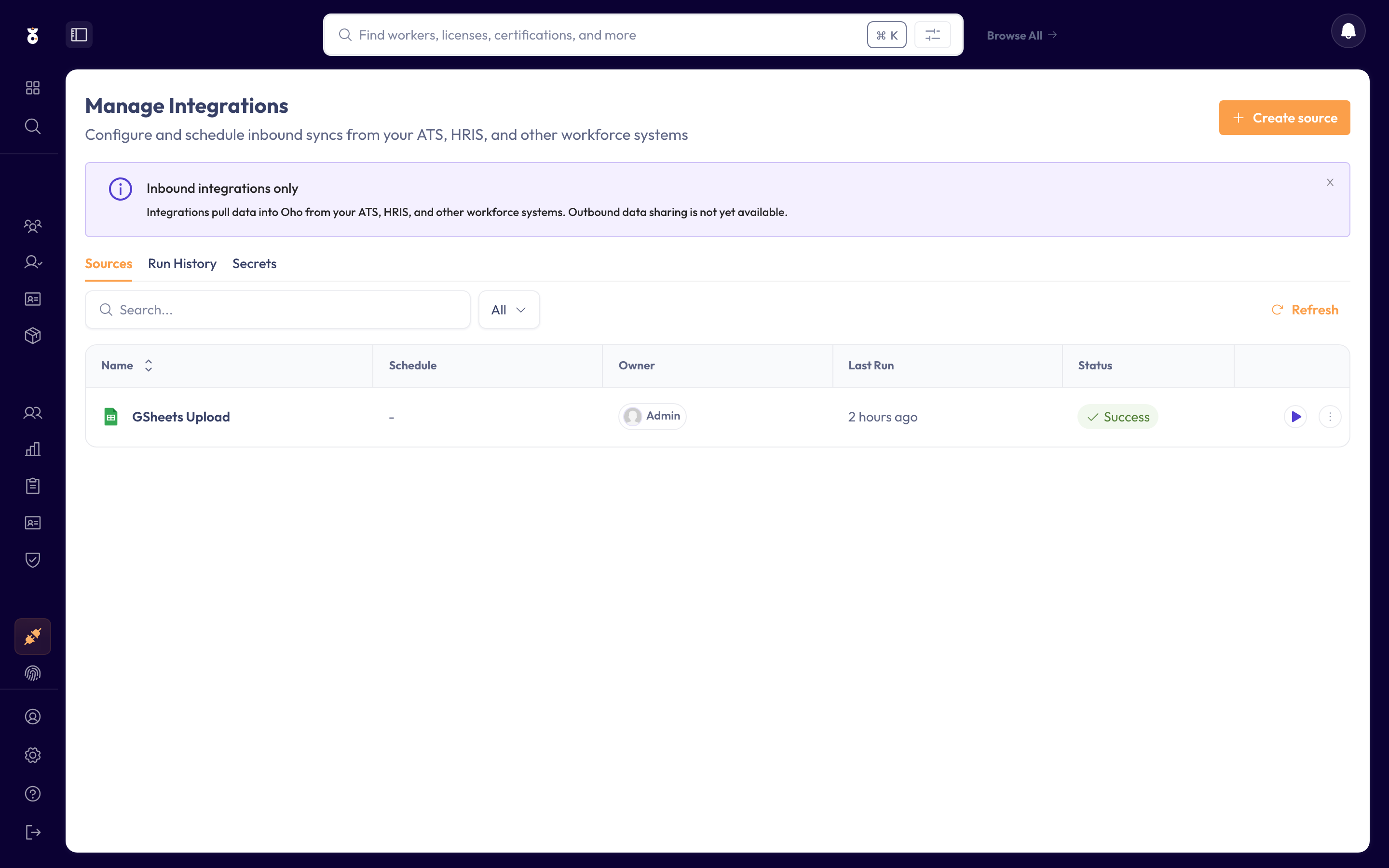
Choose your data source
Follow the guide for your source. Sources marked Available are fully rolled out. Sources marked Beta are still being rolled out — they work, but may not import every field yet. Sources marked Assisted setup need configuration specific to your environment, so Oho's team sets them up with you rather than through the self-serve builder — you request setup from the Integrations page. Sources marked Coming soon are committed and worth knowing about, but aren't usable yet — there's no setup guide to follow. If you hit something unexpected, contact support@weareoho.com.
| Source | Imports | Guide | Status |
|---|---|---|---|
| Excel | Workers and credentials from an Excel file | Connect Excel | Available |
| Google Sheets | Workers and credentials from a live Google Sheet | Connect Google Sheets | Available |
| SFTP | Workers and credentials from a file on an SFTP server | Connect SFTP | Available |
| JobAdder | Applicants and job history | Connect JobAdder | Available |
| IntelliHR | Workers and job history | Connect IntelliHR | Available |
| iChris (Chris21) | Workers and job assignments | Connect iChris (Chris21) | Available |
| Workday | Workers and job history | Connect Workday | Available |
| Oracle HCM | Workers and job history | Connect Oracle HCM | Available |
| Humanforce | Workers and job history | Connect Humanforce | Available |
| Smart Recruiters | Candidates screened from inside SmartRecruiters | Connect SmartRecruiters | Available |
| Employment Hero | Workers, job history, and certifications | Connect Employment Hero | Available |
| LiveHire | Candidates screened from Humanforce Talent | Connect LiveHire | Assisted setup |
| PageUp | People and job history | Connect PageUp | Assisted setup |
| BambooHR | Workers and their current job | Connect BambooHR | Beta |
| HiBob (Bob) | Workers and their current job | Connect HiBob (Bob) | Beta |
| ADP (Workforce Now) | Workers and their current job | Connect ADP (Workforce Now) | Beta |
| MYOB | Workers | Connect MYOB | Beta |
| Rippling | Workers and their current job | Connect Rippling | Beta |
| UKG Pro | Workers and their current job | Connect UKG Pro | Beta |
| SAP SuccessFactors | Workers and their current job | Connect SAP SuccessFactors | Beta |
| Xero | Workers and their current job | Connect Xero | Beta |
| Deputy | Workers and job history | Connect Deputy | Beta |
| Tanda | Workers and job history | Connect Tanda | Beta |
| Ceridian Dayforce | Workers and job history | Connect Ceridian Dayforce | Beta |
| ELMO | Workers and job history | Connect ELMO | Beta |
| Deel | Workers and their current job | Connect Deel | Beta |
| KeyPay | Workers | Connect KeyPay | Beta |
Every source above has a full step-by-step guide. Most follow the same five steps; Assisted setup sources (LiveHire, PageUp) instead walk you through requesting setup and what to expect.
Don't see your source?
Integrations lists every source Oho can connect to, and you can request a new one from the Integrations page — tell us the system you use (for example Sage or Gusto) and it helps us prioritise what to build next.
What happens next
- Your people appear under All Workers, ready for checks.
- To keep those checks current, add a verification source for the credential types you hold — synced credentials then verify at the register automatically.
- If you set a recurring schedule, you don't re-import by hand — change it in your source and Oho picks it up on the next run.