Connect HiBob (Bob)
Import your workers and their current job from HiBob (Bob), the HR platform. You connect Oho to HiBob once, and Oho creates your workers and keeps them in step with HiBob on the schedule you choose — so people don't have to be added in two places.
This connector is still being rolled out. It imports workers and their current job, along with worker status and organisation details such as site and department — but not full job history yet. If you hit something unexpected, contact support@weareoho.com.
Your HiBob employees in Oho as workers — each ready for credentials to be added and checked — kept in step with HiBob, without maintaining two lists.
Before you start
You'll need:
- Your people already recorded in HiBob, with the details you want in Oho — their names, contact details, and current job.
- A HiBob admin account, or someone who has one, to create a service user in Step 1.
- The ability to grant that service user read access to the People category in HiBob.
Step 1: Get your auth details
An admin login to HiBob. The service user is created inside HiBob, not in Oho.
HiBob uses the API key pattern, through a service user — a non-login account whose only purpose is API access. It stays active regardless of the employee who created it, so it's more reliable than a personal token.
- In HiBob, go to Settings → Integrations → Automation and create a new service user.
- Name it
Oho integrationand create it. - Copy the Service User ID and Token — the token is shown once.
- Grant the service user read permission on the People category.
Technical detail: authentication & permissions
- Oho authenticates with HTTP Basic auth, sending the service user ID and token base64-encoded together (
serviceUserId:serviceUserToken). - A service user has no access until you grant it. Permissions are granular per data category — grant at least read on People, or the sync returns no one.
- See the shared Get your auth details → API key or token.
The token grants ongoing access to worker PII for as long as it's valid. Never post it in email, chat, or a ticket, and regenerate the service user if the connection is removed or someone with access to the token leaves.
Expected outcome: you have your HiBob Service User ID and Token copied, ready to paste into Oho.
Step 2: Connect it in Oho
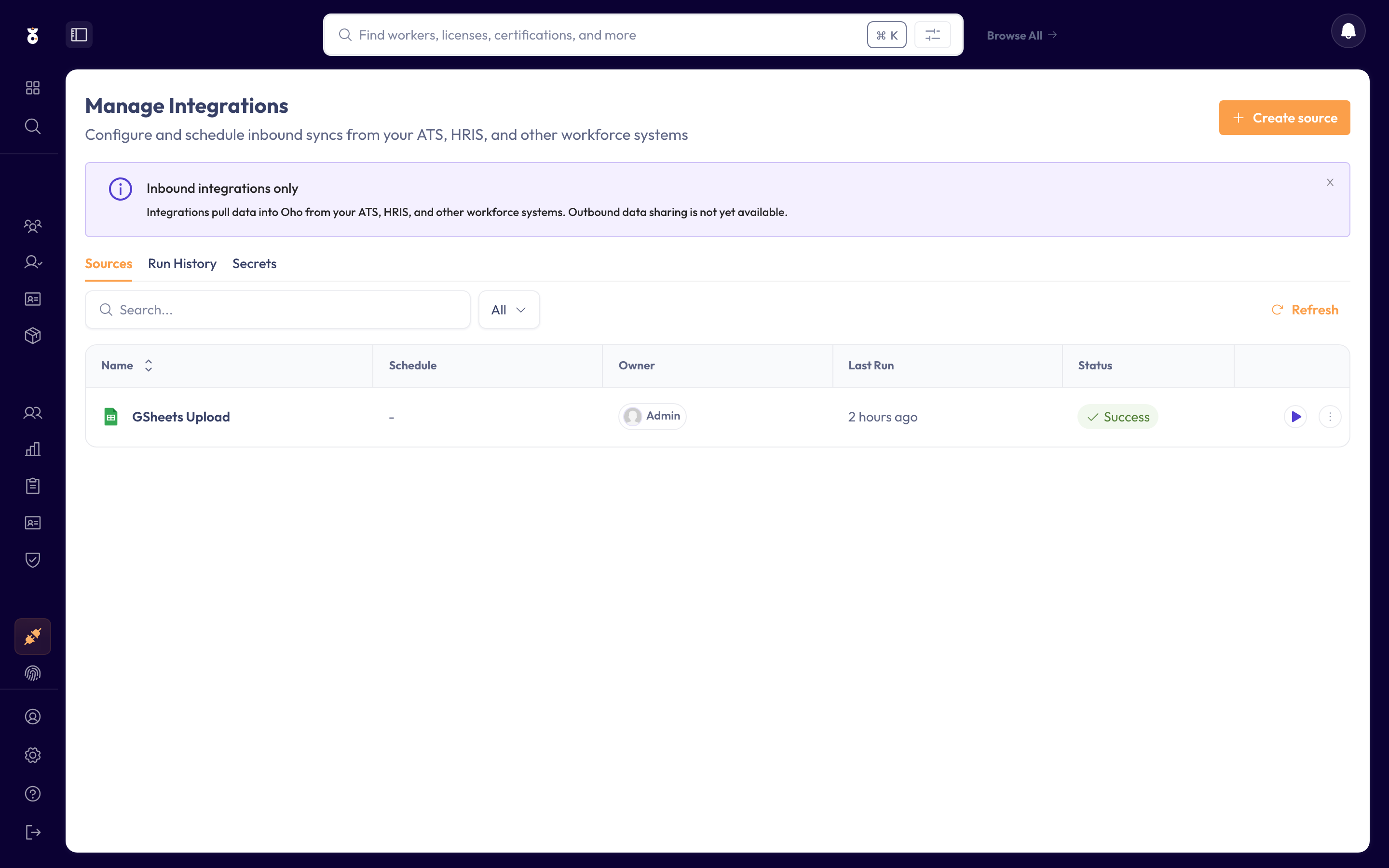
In the left menu under Admin, open Data Sources, then start a new integration.
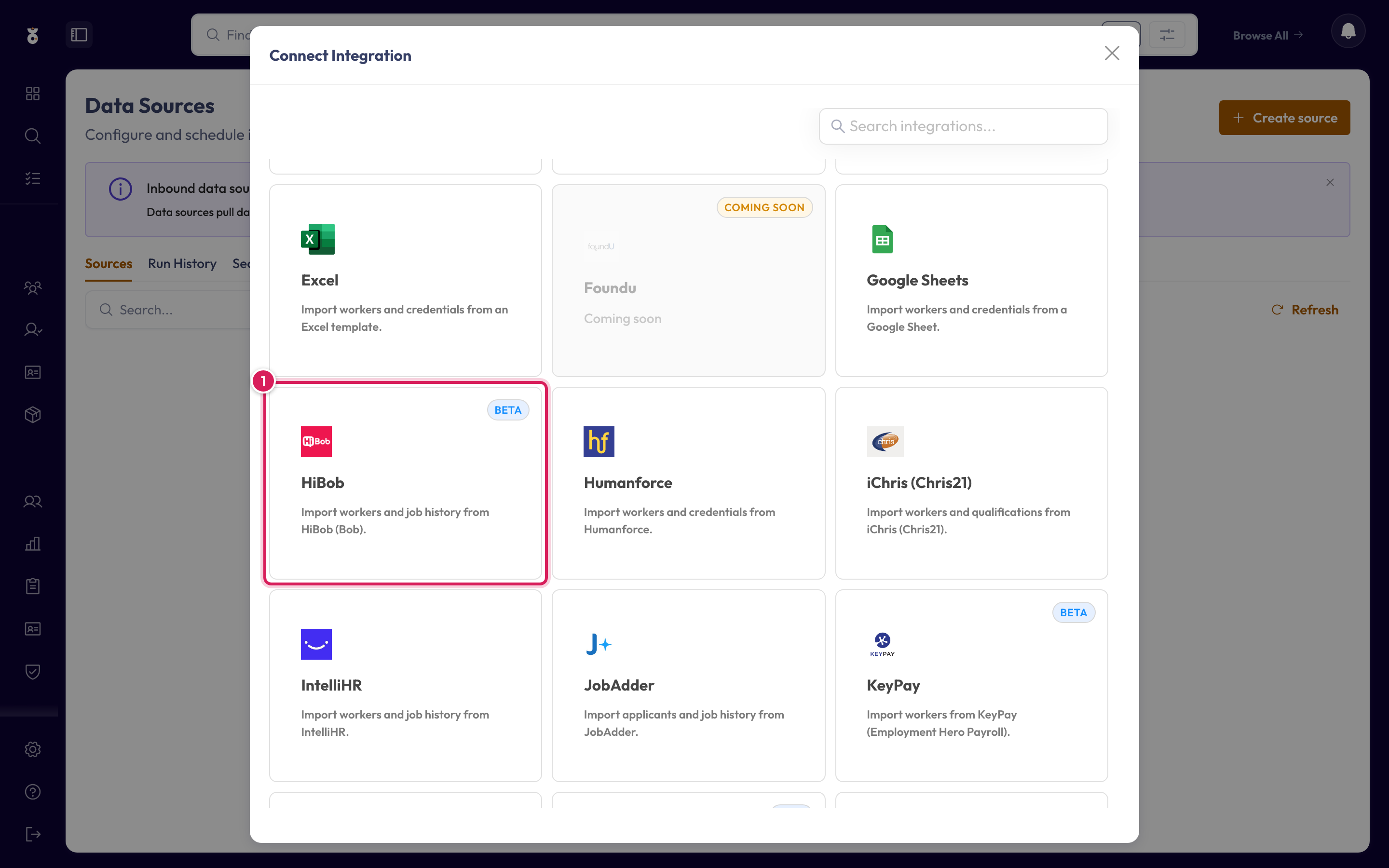
Pick HiBob (Bob) from the list of sources.
Paste your Service User ID and Token, then click Next.
Expected outcome: Oho confirms it can reach HiBob and moves you on to field mapping.
Step 3: Map your fields
Oho creates one worker per HiBob employee. It recognises a returning worker by their HiBob employee ID, carried on source.externalId — so a re-sync updates the existing worker in place rather than creating a duplicate.
HiBob has its own names for things such as status, department, and site; the setup screen asks you to line each one up with its Oho value before your first sync. For what each field expects, which are required, and how re-syncs avoid duplicates, see the shared Map your fields reference, and the HiBob integration reference for what this connector imports at a glance.
A HiBob value you leave unmapped still imports, but Oho can't place it correctly until it's mapped. If a new value appears in HiBob later, Oho flags it so you can map it.
Expected outcome: every HiBob value the setup screen lists maps to its Oho equivalent, and each worker carries their HiBob employee ID as the match key.
Step 4: Set the schedule
Choose how often the sync runs, then name it and save.
- Once — a one-off load to get started. You can remove the service user in HiBob afterwards if you don't intend to sync again.
- Recurring — Oho re-reads HiBob on a schedule, so new starters, role changes, and terminations flow through automatically. The service user must stay active and keep its People read permission for future runs.
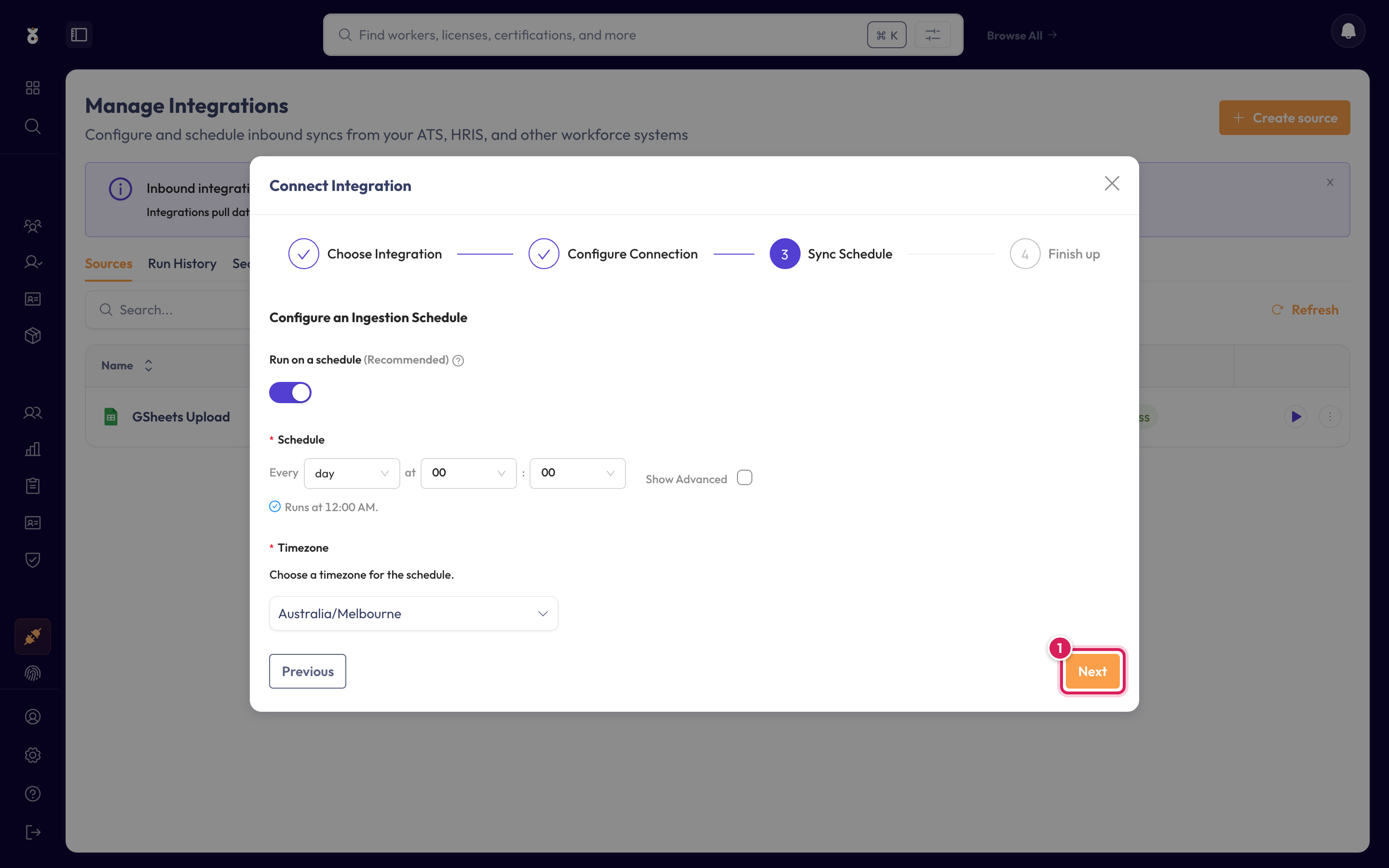
Expected outcome: the connection is saved and scheduled, and appears in your Data Sources list.
Step 5: Run & verify your first sync
Run it now with Save & Run, or wait for the first scheduled run. Once it's run, confirm your people are in: they appear under All Workers, and each credential you later add is checked against its official source (see One-off verification).
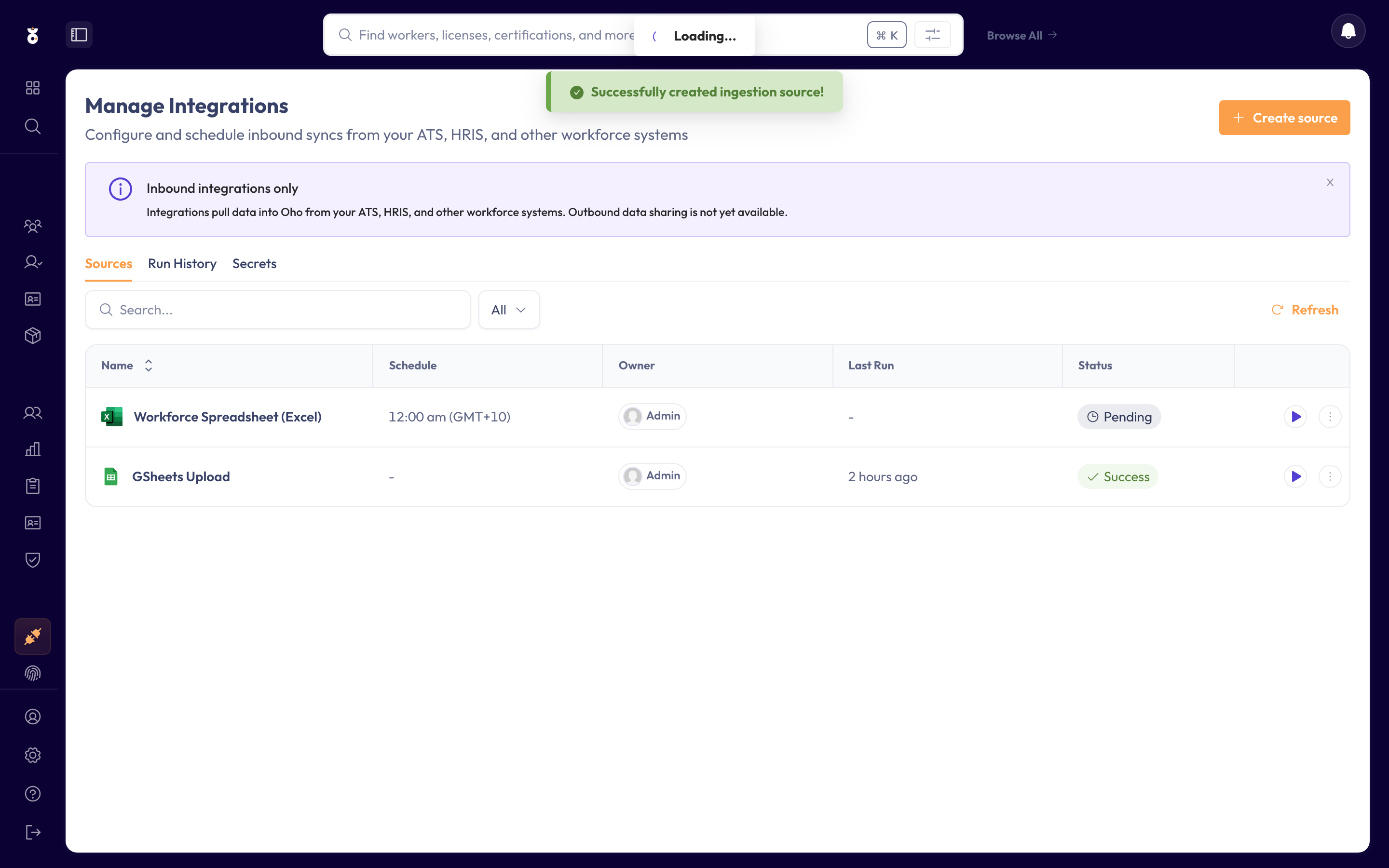
If the run didn't bring everyone in, check the run history and the Common questions below.
Expected outcome: your people are in Oho under All Workers, ready for credentials to be added and checked.
What happens next
- Your people appear under All Workers, ready for checks.
- To keep those checks current, add a verification source for the credential types you hold — synced credentials then verify at the register automatically.
- If recurring, you don't re-import by hand — change it in HiBob and Oho picks it up on the next run.
Common questions
The sync found nothing. The service user most likely lacks read permission on the People category — grant it, then run again. Also confirm the Service User ID and Token were copied correctly.
Some workers didn't import. Check the match key and required fields from Step 3 — a worker missing a required value won't import until it's populated in HiBob.
I don't see Integrations. This is an admin area — if it's not in your menu, ask an admin in your organisation, or contact support@weareoho.com.
Related
- HiBob integration — what the HiBob connector imports, at a glance
- Add a data source — all the ways to bring data into Oho
- Integrations — every source Oho can connect to