Connect Oracle HCM
Import your workers and their job history from Oracle Fusion Cloud HCM. You connect Oho to Oracle HCM once, and Oho creates your workers and keeps them in step with Oracle HCM on the schedule you choose — so people don't have to be added in two places.
Because Oho reads Oracle HCM directly, there's no file to build or host: new starters, role changes, and leavers in Oracle HCM flow through to Oho on their own.
Your whole workforce in Oho — each person a worker, with their credentials added and checked — kept in step with Oracle HCM, without maintaining two lists.
Before you start
You'll need:
- Your workers already recorded in Oracle HCM, with the details you want in Oho — names, dates of birth, organisation, job history, and any card or registration numbers.
- An Oracle HCM administrator, or someone who has that access, to create the integration user and generate the connection details in Step 1. These are set up inside Oracle HCM, not in Oho.
- Your Oracle HCM service endpoint (the web address of your Fusion environment), which tells Oho where to read from (see Step 1).
- The credential types you plan to verify in Oho, so you can map Oracle HCM's records to them in Step 3.
Step 1: Get your auth details
An administrator login to Oracle HCM. The details below are created inside Oracle HCM, not in Oho — if you don't administer Oracle HCM yourself, loop in whoever does before you start.
Oho connects to Oracle Fusion HCM through its REST API, signing in as a dedicated integration user your Oracle administrator sets up. Ask your administrator to prepare three things and copy them somewhere you can paste from in Step 2:
- Service endpoint — the base web address of your Oracle Fusion HCM environment (for example,
https://<your-pod>.fa.oraclecloud.com). Production and test environments have different addresses; use the one for the environment you want Oho to read. - Integration user credentials — the username and password (or OAuth client details) for the read-only account Oho signs in as.
- The security role granting that user read access to workers and their job history.
For the general pattern and how to keep these safe, see Get your auth details → API key or token.
Technical detail: auth mechanism, integration user & roles
Hand these points to whoever administers Oracle HCM — a non-technical admin can skip them.
- Auth mechanism. [Eng to confirm whether Oho uses OAuth 2.0 or Basic authentication against the Oracle Fusion HCM REST API, and the exact token/grant flow.] Oracle Fusion HCM commonly exposes worker data through the HCM REST resources (backed by HCM Data Loader / HCM Extracts, or BI Publisher reports for bulk pulls).
- Integration user. Create a dedicated integration (service) account rather than reusing a person's login, so access can be audited and revoked independently. [Eng to confirm the exact user-provisioning steps in Oracle.]
- Least-privilege role. Grant the integration user a custom role with read-only data access to the worker and assignment (job-history) objects Oho imports, and nothing more. [Eng to confirm the exact role/privilege names — e.g. the aggregate privileges for Worker and Work Relationship REST resources.]
- Service endpoint & data-security scope. [Eng to confirm the exact REST base path Oho calls, and any HCM Data Security profile that scopes which workers the integration user can see.]
- Token expiry / allow-list. [Eng to confirm whether credentials or tokens expire and any IP allow-list Oracle requires.] Credentials are stored encrypted in Oho and sent on every request.
The integration user's credentials grant ongoing access to worker PII — names, dates of birth, and card or registration numbers — for as long as they're valid.
- Never post them in email, chat, or a ticket, and hand them over only through a channel your organisation trusts.
- Scope the integration user to read-only, and rotate its password (or OAuth secret) periodically and whenever someone with access to it leaves.
- To rotate without downtime: set the new credentials in the integration's settings, then retire the old ones in Oracle HCM.
Expected outcome: you have the Oracle HCM service endpoint and the integration user's credentials copied, ready to paste into Oho.
Step 2: Connect it in Oho
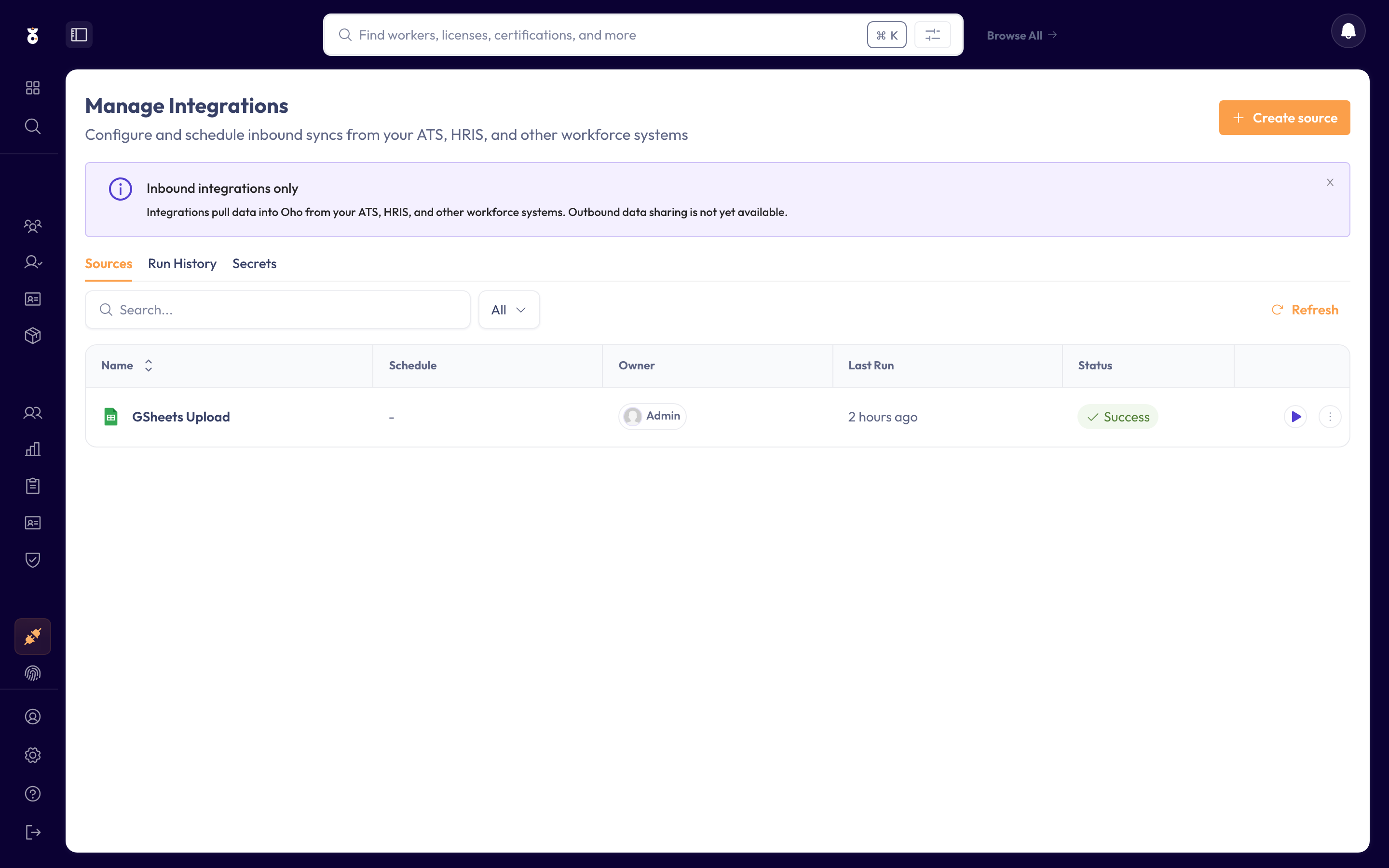
In the left menu under Admin, open Data Sources, then start a new integration.
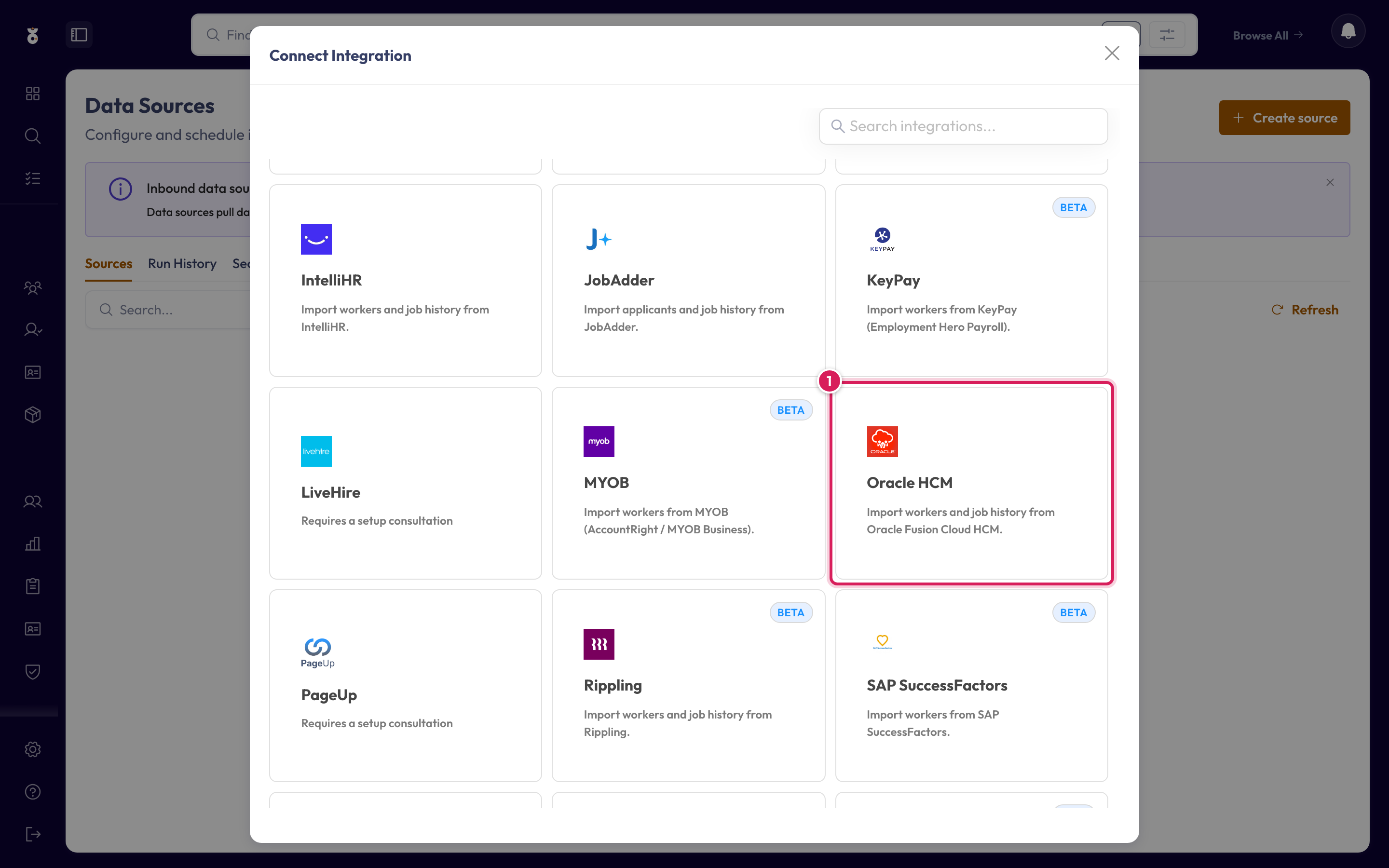
Pick Oracle HCM from the list of sources.
Paste the service endpoint and integration user credentials from Step 1 into the connection fields and click Next.
Expected outcome: Oho confirms it can reach Oracle HCM and moves you on to field mapping.
Step 3: Map your fields
Oho reads your Oracle HCM people and their records automatically, but Oracle HCM has its own names for things — its own organisations, job or grade values, and assignment-status codes — so the setup screen asks you to line each one up with its Oho value. For Oracle HCM, you map:
- Organisations — your Oracle HCM legal entities, business units, or departments → your Oho organisations, so each worker lands in the right place.
- Worker Status — Oracle HCM's assignment-status values → Oho's
ACTIVE,INACTIVE,ON_LEAVE, andTERMINATED, so active staff stay in your live reports and leavers drop out. - Qualifications — any Oracle HCM qualification or licence records you import → Oho credential types, so a qualification in Oracle HCM becomes something Oho can verify against the register.
How Oho recognises a returning worker. For HRIS integrations like Oracle HCM, Oho matches on your upstream record ID, carried on source.externalId (the Oracle HCM person or worker ID) — not on email. On each sync a match updates the existing person in place; no match creates a new one. You don't set this by hand; Oho reads it from Oracle HCM.
For what each field expects, which are required, how credentials tie to a worker, and how re-syncs avoid duplicates, see the shared Map your fields reference.
An Oracle HCM organisation or status value you leave unmapped still imports as a record, but Oho can't place or verify it until it's mapped. If a new organisation or qualification appears in Oracle HCM later, Oho flags it so you can map it rather than letting it slip through.
Expected outcome: every Oracle HCM organisation, status, and qualification value maps to its Oho equivalent, and each worker carries their Oracle HCM person ID as the match key.
Step 4: Set the schedule
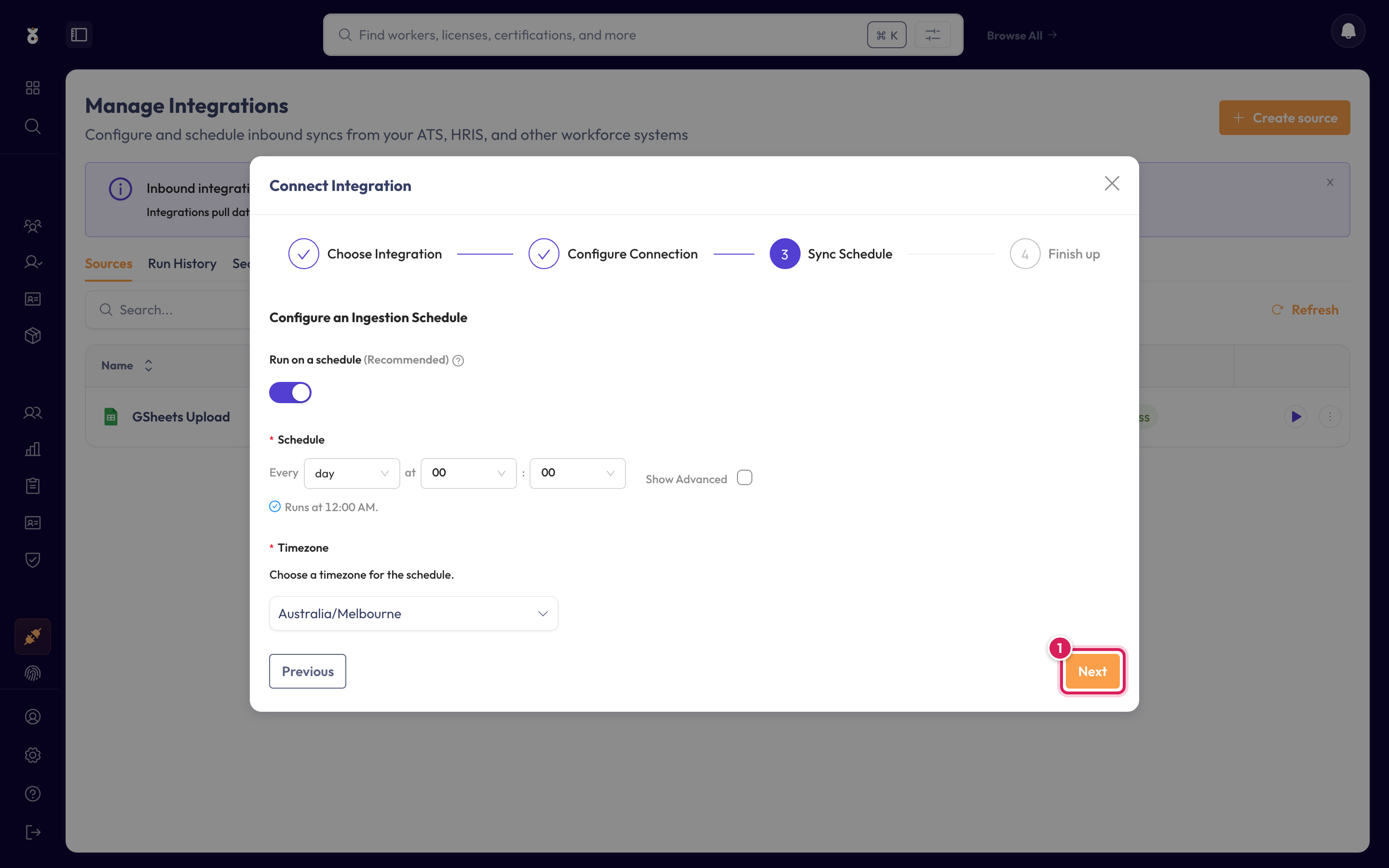
Choose how often the sync runs, then name it and save.
- Once — a one-off load to get started. Oho already has your people after it runs, so you can have your Oracle administrator lock the integration user's access back down afterwards.
- Recurring — Oho re-reads Oracle HCM on a schedule, checking for changes since the last sync, so new starters, role changes, and terminations flow through automatically with nothing to re-enter. The integration user's credentials need to stay valid for future runs, so keep them scoped read-only and rotate them as above rather than retiring them.
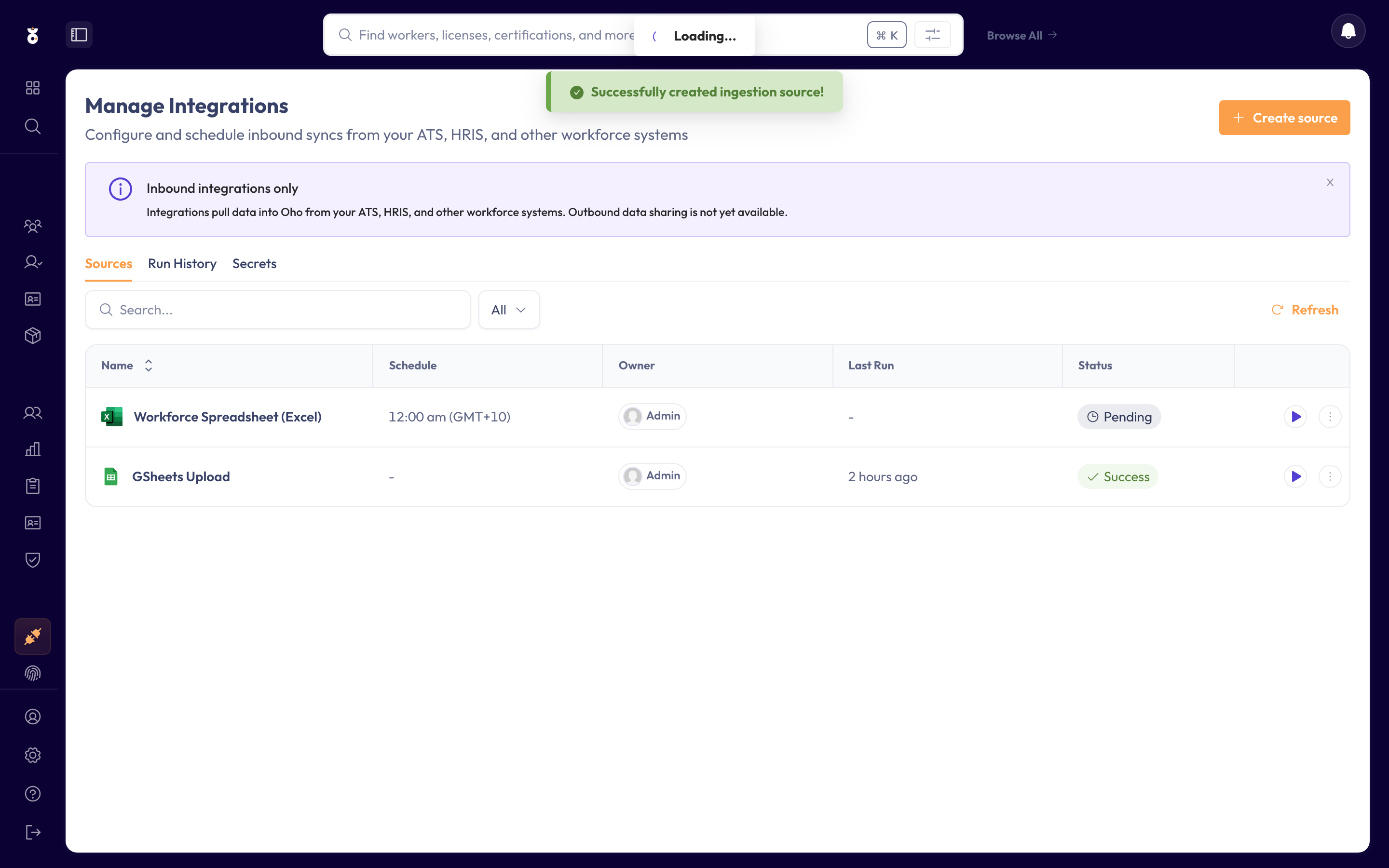
Expected outcome: the connection is saved and scheduled, and it appears in your Data Sources list.
Step 5: Run & verify your first sync
Run it now with Save & Run, or wait for the first scheduled run. Once it's run, confirm your people are in: they appear under All Workers, and each credential you listed is checked against its official source straight away (see One-off verification).
If the run didn't bring everyone in, check the run history and the Common questions below.
Expected outcome: your people are in Oho under All Workers, with their credentials queued for verification.
What happens next
- Your people appear under All Workers, ready for checks.
- To keep those checks current, add a verification source for the credential types you hold — synced credentials then verify at the register automatically.
- If you set a recurring schedule, you don't re-import by hand — change someone in Oracle HCM and Oho picks it up on the next run.
Common questions
The sync found nothing. Check the service endpoint is correct for the right environment (production, not test), and that the integration user's credentials are still valid and the account hasn't been disabled in Oracle HCM. Expired or revoked credentials are the most common cause.
Some workers didn't import. Oho matches returning workers on their Oracle HCM person ID (source.externalId), and sorts them using the organisation and status values you mapped in Step 3. Check those values are all mapped and that the affected people are visible to the integration user's data-security scope.
A permission error. The integration user reads only what its security role and data-security profile allow. If Oho is refused access to some people or fields, ask your Oracle administrator to widen the read-only role to the workers and assignment data Oho needs.
I don't see Integrations. This is an admin area — if it's not in your menu, ask an admin in your organisation, or contact support@weareoho.com.
Related
- Oracle HCM integration — what the Oracle HCM connector imports, at a glance
- Add a data source — all the ways to bring data into Oho
- Get your auth details — the connection-details pattern Oracle HCM uses
- Integrations — every source Oho can connect to