Connect iChris (Chris21)
Import your workers and their job assignments from iChris (Chris21), the HR platform. You connect Oho to iChris once, and Oho creates your workers and keeps them in step with iChris on the schedule you choose. When you turn it on, Oho can also bring in the licences and credentials Chris21 holds for each person.
Your whole workforce in Oho — each person a worker, with their credentials added and checked — kept in step with iChris, without maintaining two lists.
Before you start
You'll need:
- Your workers already recorded in iChris — their names, dates of birth, positions, and (if you want to import them) any licence or credential records.
- An iChris (Chris21) administrator, or someone who has that access, to generate the connection details in Step 1. These are created inside Chris21, not in Oho.
- If you plan to import credentials: the list of Chris21 licence codes you use (for example
NPC,WWC,AHPRA) so you can match each one to an Oho credential type in Step 3.
Step 1: Get your auth details
An administrator login to iChris (Chris21). The details below are generated inside Chris21, so if you don't administer it yourself, loop in whoever does before you start.
iChris uses the API key or token pattern — Oho connects directly to the Chris21 API, and there's no file to host or manage. Ask your Chris21 administrator to provide five details:
- Base URL — your environment's API endpoint. Production and staging have different addresses; use the one for the environment you want Oho to read.
- Username and Password — the Chris21 account Oho signs in as.
- Client ID and Client Secret — the registered credentials Oho uses to generate a secure token.
Copy all five somewhere you can paste from in Step 2. For the general pattern and how to keep these safe, see Get your auth details → API key or token.
Technical detail: base URLs, the token exchange, and account permissions
- Base URLs. Production is
https://apz.chris21.com/APZ_PROD_API/ichris.API; staging ishttps://apz.chris21.com/APZ_TEST_API/ichris.API. Confirm which your tenant uses. - Token exchange. Oho authenticates at the
/connect/loginendpoint and receives a short-lived access token (it expires after roughly an hour) that Oho refreshes automatically. You don't manage the token yourself — only the five details above. - Client ID casing. The Client ID must match the value registered in Chris21 exactly, so copy it as-is.
- Account permissions. The account Oho signs in with reads the people, positions, and (if enabled) licence records you want to import. Scope it to read-only where Chris21 lets you, and to just the records Oho should see.
Hand these points to whoever administers Chris21 — a non-technical admin can skip them.
The password, Client Secret, and token all grant access to worker PII — names, dates of birth, and licence numbers. Never post them in email, chat, or a ticket, and hand them over only through a channel your organisation trusts. Rotate them, and revoke the account's access, if this connection is ever removed.
Expected outcome: you have the Base URL, Username, Password, Client ID, and Client Secret from Chris21 copied and ready to paste into Oho.
Step 2: Connect it in Oho
In the left menu under Admin, open Data Sources, then start a new integration.
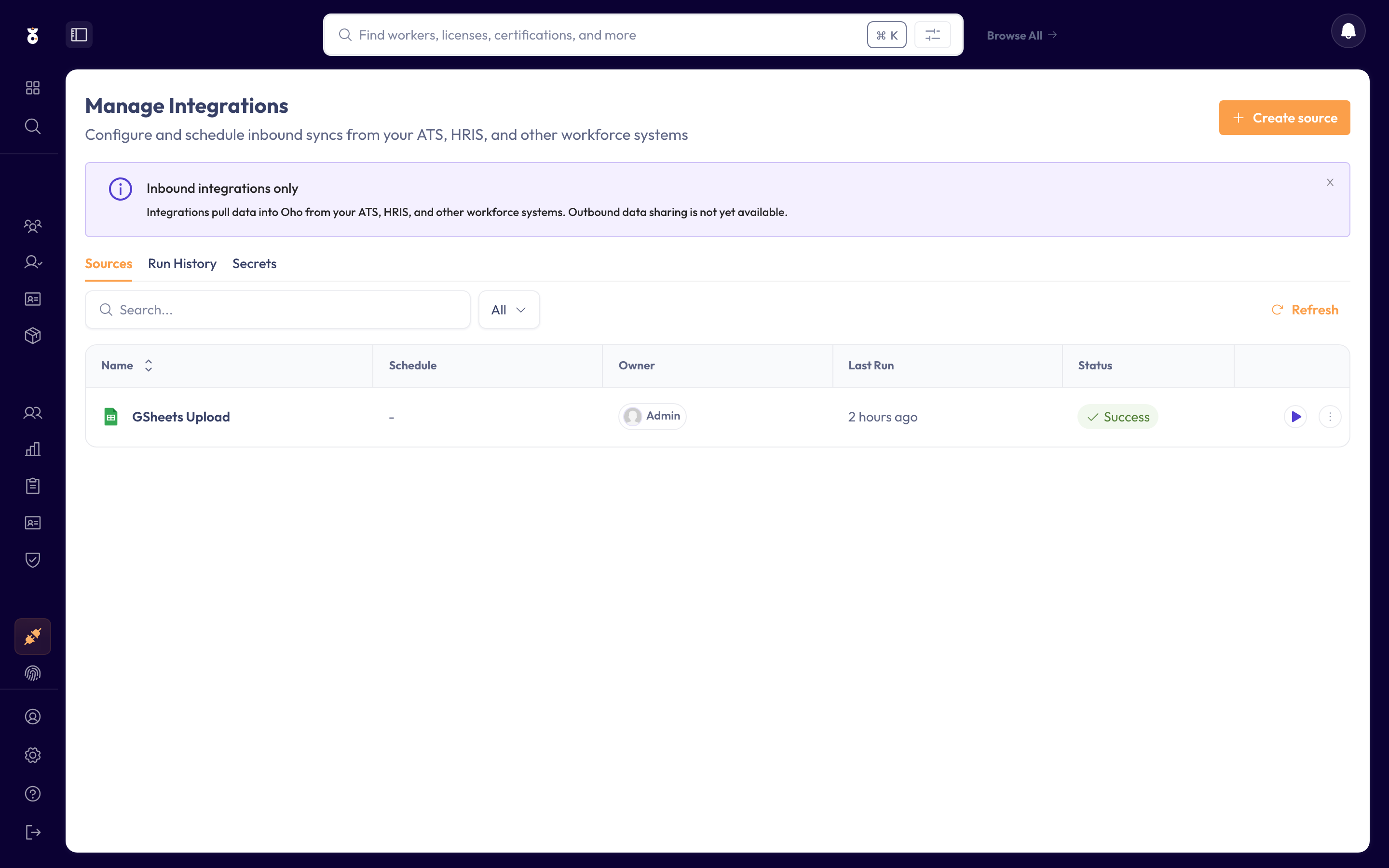
Pick iChris (Chris21) from the list of sources.
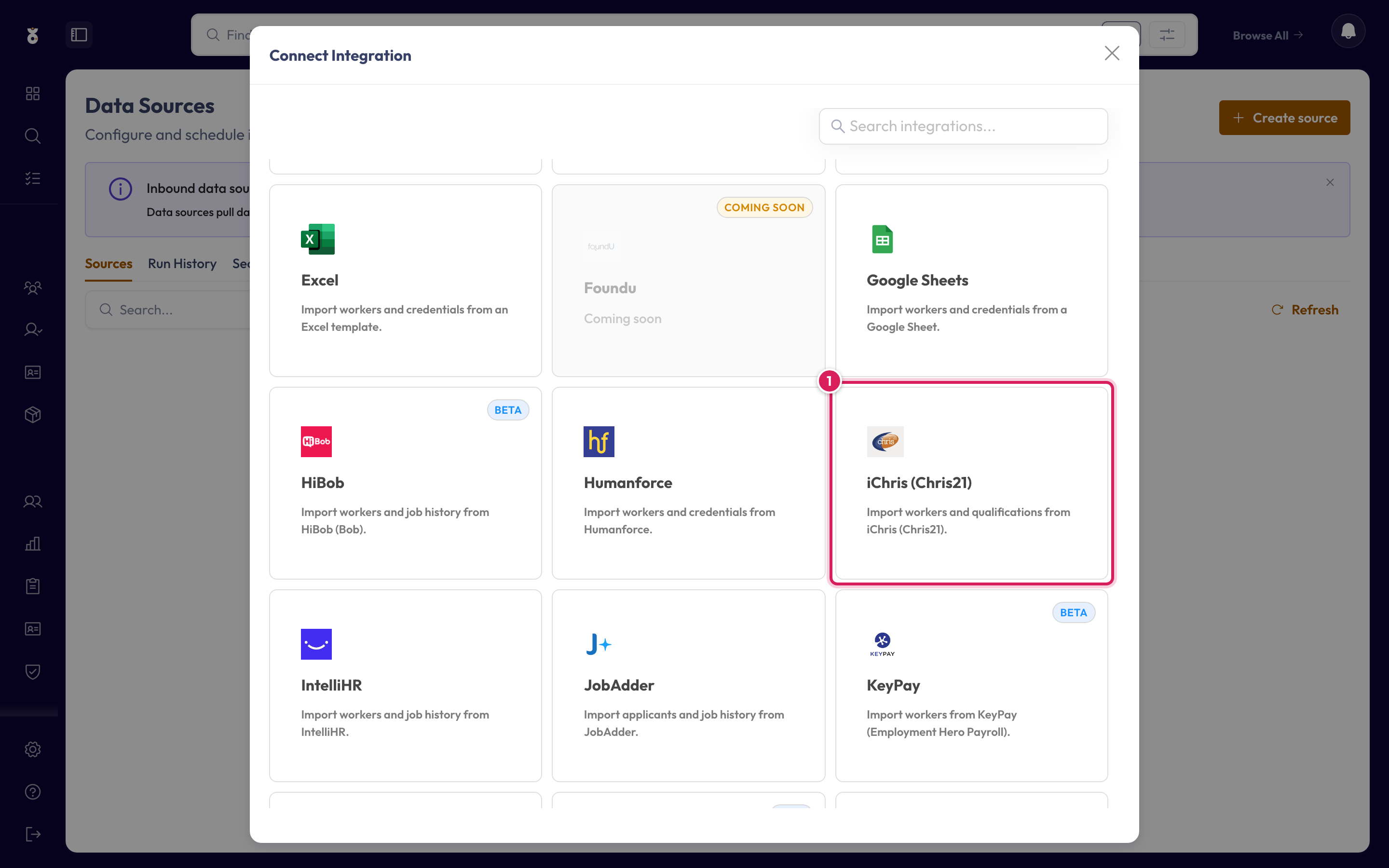
Paste the five details from Step 1 into the connection fields and click Next.
Expected outcome: Oho confirms it can reach iChris and moves you on to field mapping.
Step 3: Map your fields
iChris sends its own names for organisations, worker statuses, and licences, so Oho asks you to line each one up with the matching Oho value. During setup you map:
- Organisations — your Chris21 organisation values → your Oho organisations, so each worker lands in the right place.
- Worker Status — your Chris21 status values → Oho's
ACTIVE,INACTIVE, andTERMINATED. This mapping also drives Oho's monitoring switch: only a worker resolving toACTIVEstays in scheduled credential checking, so leavers stop being re-checked instead of showing as active. There's no separate "on leave" target: map extended and long-term leave toINACTIVE. - Qualifications and credentials — each Chris21 licence code → an Oho credential type. This only appears when you're importing credentials (see Import credentials below).
- Licence statuses — each Chris21 licence status code → whether Oho keeps checking that credential, holds it as history, or skips it entirely (see Map licence statuses below).
- Position requirements — each Chris21 position requirement flag → the Oho credential it means, so workers are checked against what their position actually requires (see Sync position requirements below).
Oho recognises returning workers by their iChris record ID, carried on source.externalId — not by email. Keep that ID stable in Chris21 and re-syncs update each person in place rather than creating duplicates.
For what each field expects, which are required, and how re-syncs avoid duplicates, see the shared Map your fields reference, and the iChris integration reference for what this connector imports at a glance.
A Chris21 organisation or status you leave unmapped won't sort your workers correctly, and a licence code you don't map to an Oho credential type still imports as a record but can't be verified. Map every value the setup screen lists before you save.
Expected outcome: every organisation, status, and licence value iChris sends maps to an Oho value, and each worker has its iChris record ID set as the match key.
Import credentials (optional)
Oho can also bring in the licence records Chris21 holds — WWCCs, police checks, AHPRA registrations, and the like — so they're ready to verify. To turn this on:
- Set Include Credentials to on in the integration settings.
- Map each Chris21 licence code (for example
NPC,WWC,AHPRA) to the corresponding Oho credential type.
Only licences with a mapped code are imported; leave a code unmapped and Oho skips it.
Map licence statuses (optional)
Chris21 records a status code against every licence — CL for clear, RV for revoked, TR for terminated, and so on. Mapping the licence type decides which credential a record becomes; mapping the licence status decides what Oho then does with it. Open the License Status section of Step 3 and give each code one of three actions:
| Action | What Oho does | Choose it when |
|---|---|---|
| ACTIVE | Imports the credential and keeps checking it at the register. | The licence is live, or still in progress — you want Oho watching it. |
| INACTIVE | Imports the credential but stops checking it. | The licence is finished with — revoked, or not applicable — but you want the record on the worker's profile as history. |
| EXCLUDE | Doesn't import the record at all. | The code means the record has no business being in Oho — no credential is created and nothing shows on the profile. |
Oho pre-fills a sensible default for every code Chris21 uses, so you can leave this section as it stands and it will work — adjust only the codes your organisation treats differently. A code Chris21 sends that isn't listed is treated as ACTIVE, and codes are matched whatever their case.
They only control whether Oho keeps re-checking the credential at the official register. Whether a credential counts as valid, expired, or failed is always decided by Oho's own verification — never by the status Chris21 holds. See One-off verification.
Inactivate expired licences
Chris21 doesn't sweep a licence's status code when the licence lapses, so long-expired licences commonly still read CL (clear) or CU (current) — and Oho keeps re-checking them at the register for as long as they do.
Turn on Inactivate Expired Licenses, under Advanced in the same section, and any credential whose Chris21 expiry date has already passed stops being checked, whatever its status code says. Turn it on if your Chris21 licence statuses aren't kept current on expiry.
Taking a credential out of checking also takes it out of compliance triage and the attention queue — including as an expired credential needing renewal. Leave the toggle off if you rely on Oho to surface lapsed licences for follow-up.
Sync position requirements (optional)
Chris21 already knows what each position requires — flags on the position record such as "Working With Children check required" or "National Police Check required". Turn this on and Oho reads those flags, sets them as the position's requirements, and flags anything a worker in that position doesn't hold as a missing credential on their profile.
Chris21 records the requirement generically ("a WWC check is required") while Oho tracks the specific credential, so you tell Oho which credential each flag means:
- Open the Position Requirements section of Step 3 and set Sync Position Requirements to on.
- Add a rule for each requirement — enter the position property name and the value that means "required" (usually
Y), then choose what the position requires under Requires. - Where the flag doesn't say which state's or country's credential is needed, set only for on the rule and add one rule per jurisdiction. A Working With Children check is the common case:
pdtwwcrq=Y, only forWA→ Working With Children Check (WA), plus the same rule withNSW→ Working With Children Check (NSW), and so on for each state you operate in.
Leave only for blank when a flag means the same thing everywhere — a police check, say. Every matching rule adds a requirement, so a position needing both a police check and a WWCC matches two rules.
Requires groups what you can pick, and only lists what your organisation actually has:
- Credential checks — one specific credential the worker must hold. Always available.
- Equivalence sets — a set where holding any one member counts, such as any accepted first aid certificate. This group appears once you've created a set under Compliance Rules → Equivalence Sets.
Each rule requires one of the two. Add another rule if a flag should require two things. If a worker has an exemption on file, the matching requirement is ignored for that worker — the rules here don't change.
A rule that only checks the state ("state is WA → WWCC WA") requires a Working With Children check of every WA position, including the ones Chris21 says need none. Always keep the requirement flag as the rule's property and use only for to narrow it.
Each sync replaces the position's requirements, so a flag turned off in Chris21 removes the requirement in Oho on the next run — don't hand-edit requirements on positions that come from Chris21. Positions Chris21 has no detail record for are left alone.
Step 4: Set the schedule
Choose how often the sync runs, then name it and save.
- Once — a one-off load to get started. Oho already has your people after it runs, so you can have your Chris21 administrator lock the account's access back down afterwards.
- Recurring — Oho re-reads iChris on a schedule, so new starters, role changes, and terminations flow through automatically with nothing to re-enter. The connection details from Step 1 need to stay valid for future runs.
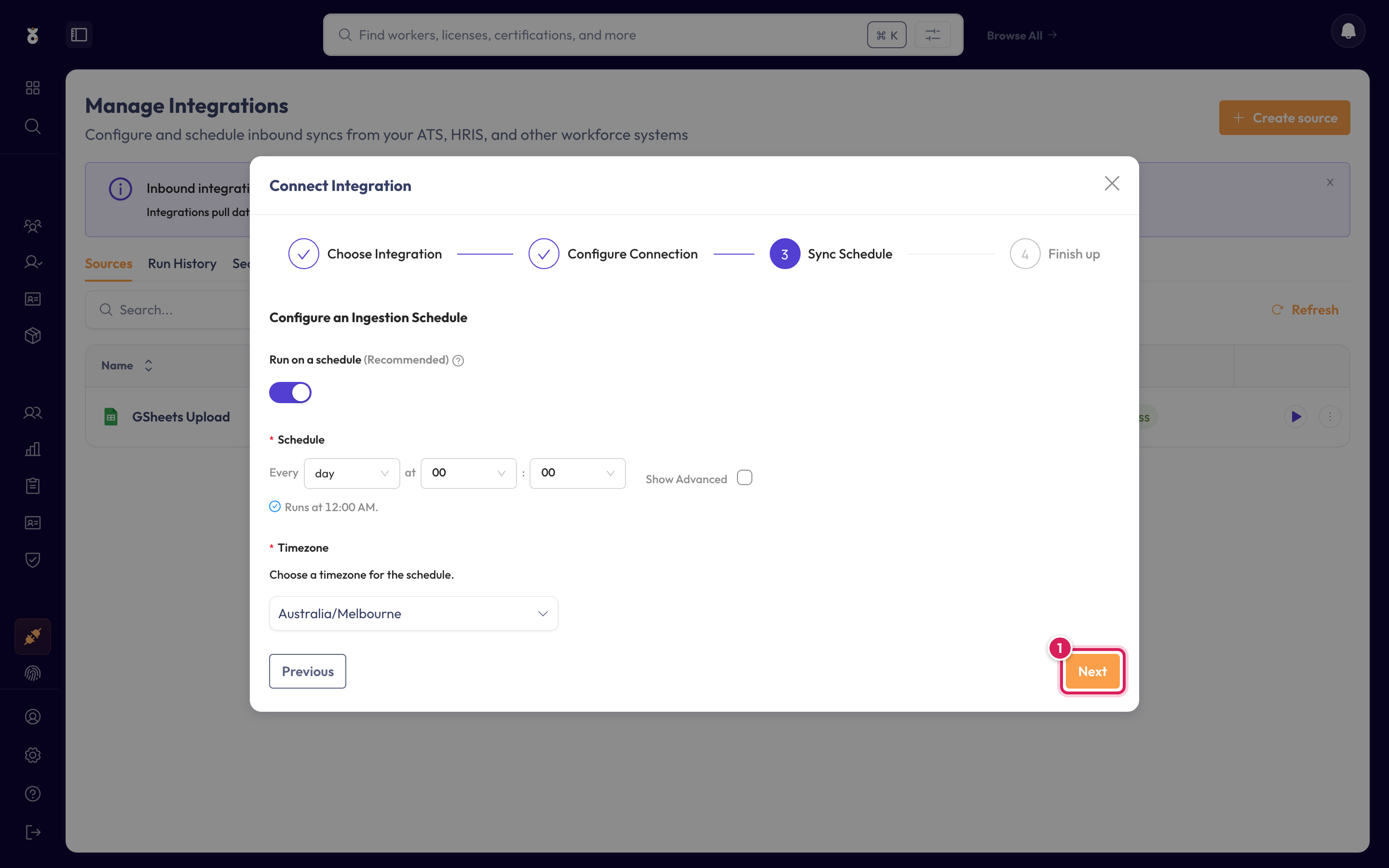
Expected outcome: the connection is saved and scheduled, and it appears in your Data Sources list.
How much each sync reads
Every sync reads your complete Chris21 staff roster — not only what changed since the last run. There's no starting point to set, no cursor to reset, and nothing about this to configure.
Re-reading everything is safe. Oho matches each record on its iChris record ID and updates that worker in place, so a full read never duplicates anyone. It also means:
- A failed run needs no catch-up. The next run covers the same ground regardless, so nothing is missed and there's nothing to re-run by hand.
- Quiet records still get seen. Someone whose Chris21 record hasn't changed in months — a leaver, a rehire — is read on every run, not only in the run where they happened to change.
- Your first sync is no slower than the ones after it. Each run does the same work.
The trade-off is that a sync scales with the size of your roster rather than with how much changed, so every run takes roughly as long as the last. For most workforces a daily schedule is plenty.
Step 5: Run & verify your first sync
Run it now with Save & Run, or wait for the first scheduled run. Once it's run, confirm your people are in: they appear under All Workers, and each credential you imported is checked against its official source straight away (see One-off verification).
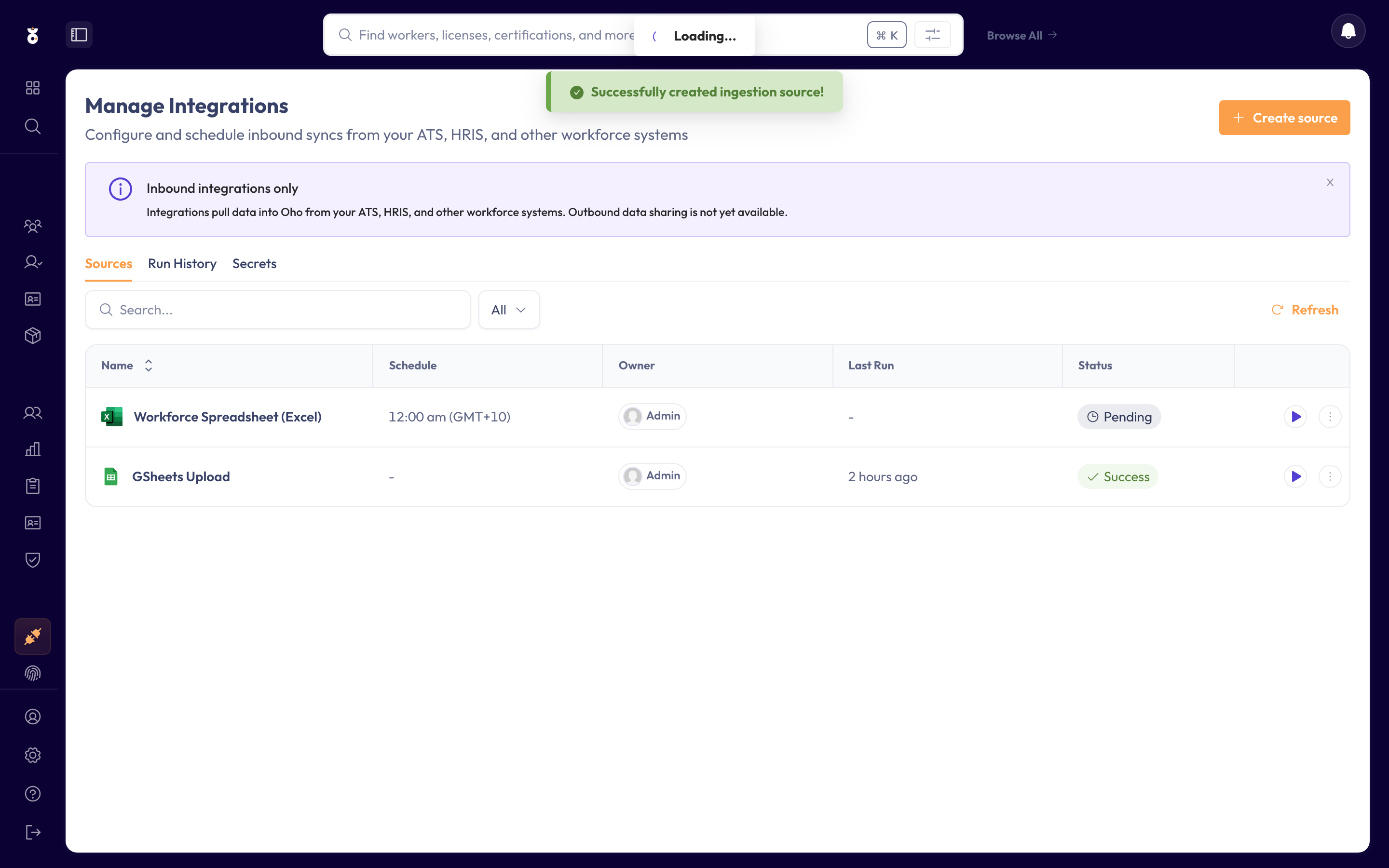
If the run didn't bring everyone in, check the run history and the Common questions below.
Expected outcome: your people are in Oho under All Workers, with their credentials queued for verification.
What happens next
- Your people appear under All Workers, ready for checks.
- To keep those checks current, add a verification source for the credential types you hold — synced credentials then verify at the register automatically.
- If you set a recurring schedule, you don't re-import by hand — change it in Chris21 and Oho picks it up on the next run.
Common questions
The sync found nothing. Check the five connection details from Step 1 are current — most often the password has changed or the account's access was revoked in Chris21. Confirm you used the Base URL for the right environment (production, not staging).
Some workers didn't import. Oho matches returning workers on their iChris record ID (source.externalId), and sorts them using the organisation and status values you mapped in Step 3. Check those values are all mapped and that the record ID is populated in Chris21.
My credentials didn't come in. Make sure Include Credentials is on and that each Chris21 licence code is mapped to an Oho credential type — unmapped codes are skipped.
A credential came in but never gets checked. Its Chris21 licence status code is mapped to INACTIVE in the License Status section, or Inactivate Expired Licenses is on and the licence's expiry date has passed. Both bring the record in but take it out of checking.
No position requirements came through. Make sure Sync Position Requirements is on and that the property name in each rule matches what Chris21 sends (pdtwwcrq, pdtnpcrq, and so on) with the value that means "required" — usually Y. Positions your Chris21 administrator hasn't filled in a detail record for are skipped, so their requirements in Oho stay as they were.
A credential's reference number is too long for Chris21. Oho accepts reference numbers that a Chris21 field will not. The usual source is document recognition: when a worker uploads a certificate through a capture link, Oho reads the number off it and fills the box, and a certificate carrying several numbers can produce a long value. Correct it on the credential in Oho, then re-run the sync.
I don't see Integrations. This is an admin area — if it's not in your menu, ask an admin in your organisation, or contact [email protected].
Related
- iChris (Chris21) integration — what the iChris connector imports, at a glance
- Add a data source — all the ways to bring data into Oho
- Integrations — every source Oho can connect to