Connect Google Sheets
Import your workers and the credentials they hold straight from a Google Sheet. It works exactly like the full spreadsheet import walkthrough, but reads a live sheet — handy if your team already keeps its workforce list in Google, since there's no file to host or re-upload. This page covers the one thing that's specific to Google Sheets: sharing the sheet with a link.
Filling in the template, connecting it in Oho, choosing a schedule, and locking the link back down afterwards are the same for every source. This page adds only the Google Sheets sharing step, then hands you back to the walkthrough. Follow the full walkthrough →
Share your sheet with a link
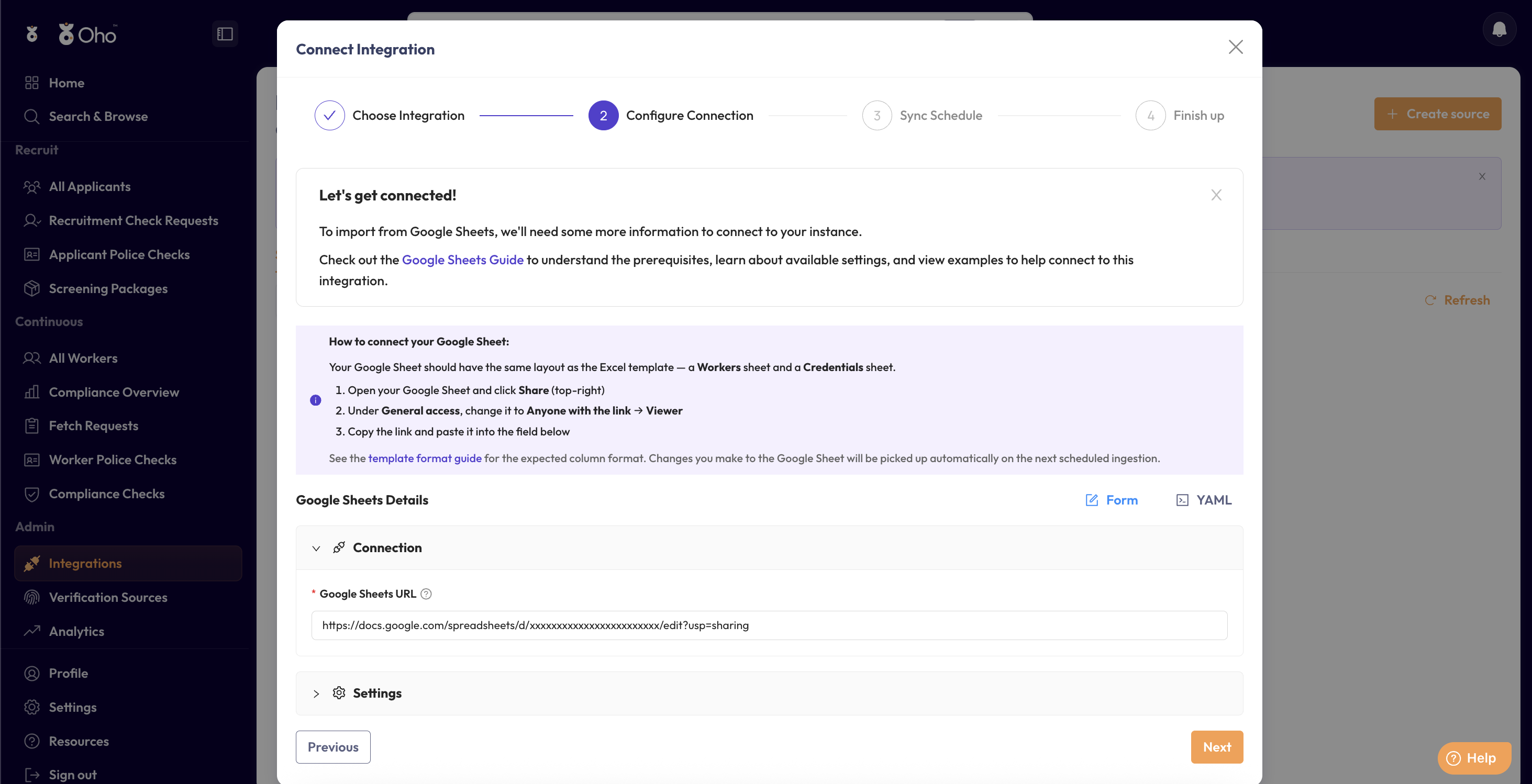
Oho reads your Google Sheet over a share link, so the sheet needs to be reachable by anyone holding the link:
- Open your Google Sheet and click Share (top-right).
- Under General access, change it to Anyone with the link, set to Viewer.
- Copy the link — you'll paste it into Oho at Step 4 of the walkthrough.
Prefer to host a file instead of a live sheet? Excel works exactly the same way and reads an .xlsx you host on OneDrive.
Your sheet contains workers' names, dates of birth, and card or registration numbers. A link set to Anyone with the link exposes all of it to anyone who obtains the URL — no sign-in required. Keep access on Viewer (never Editor), never post the link in email, chat, or tickets, and set access back to Restricted once the import has run. See the walkthrough's full guidance on locking the link back down and Workers → Privacy & access for your obligations under the Australian Privacy Principles.
What Oho reads from the sheet
Oho reads four tabs in the template — Workers, Credentials, Applicants and Exemptions — tied together by Worker ID. A straightforward workforce import only needs Workers; fill in the others if you need them and leave the rest empty, headings in place. Put the same Worker ID on a worker's Workers row and on each of their Credentials and Exemptions rows, and reuse it on later runs so Oho updates that person rather than creating a second copy of them. Keep the column headings exactly as they come so Oho can read them.
For every column, what it expects, and which are required, see the Spreadsheet column reference.
Already have workers in Oho? The connection screen can export your current data into this same template, and Mixing a spreadsheet with records added by hand covers what a sheet will and won't match.
Related
- Import from Excel or Google Sheets — the full step-by-step walkthrough
- Google Sheets integration — what the Google Sheets connector imports, at a glance
- Excel — the same import, from a hosted
.xlsxfile - Integrations — all the ways to bring data into Oho