DHS Screening Unit — Working With Children Check (SA)
The DHS Screening Unit is the South Australian authority for the state's Working With Children Check. South Australia publishes no public validation page, so this source verifies a worker's SA check by signing in to the DHS Screening Unit portal on your behalf.
What Oho needs
You need the worker's full name, date of birth, and SRN or DCSI number. Oho confirms the current status — Not Prohibited, Cleared, Prohibited, or Expired — and the applicant type.
Setup and credentials
Yes, a portal login is required. You provide your DHS Screening Unit portal sign-in details when you set the source up, and Oho uses them to check on your behalf.
The SA portal also emails a verification code on every sign-in. So that Oho can complete sign-in on its own, those codes need to go to an Oho-managed address that you register on your portal account — the steps below cover both halves.
You need to be an administrator on your organisation's SA DHS Screening Unit portal account, and to be an Oho admin so you can reach Verification Sources.
You also need SA verification switched on for your organisation — email support@weareoho.com. SA runs against a per-tenant service Oho deploys for you, and it isn't enabled by default. The steps below save a source either way, but it won't check anything until that's done.
Until a source is connected and running, SA cards keep whatever status and expiry they were loaded with and are never re-checked — see Working With Children Check (SA).
Step 1: Work out your code address
Oho reads verification codes from a dedicated address in this form:
sadhs.assist+yourOHOdomain@weareoho.com
This is an Oho-managed inbox — the + tag routes your codes to your organisation and nobody else's, so the address has to be exactly right.
Your Oho domain is part of your unique Oho URL. In the URL below it is the section highlighted in red:
https://demo-premium.weareoho.com
So for that organisation the address to register is sadhs.assist+demo-premium@weareoho.com.
Oho shows you the exact address for your organisation when you add the source, in the Before you connect box at the top of the connection step. If you'd rather register it first, use the form above; if not, skip to Step 5 and copy it from the screen.
Step 2: Register the address with DHS
On the DHS Screening Unit portal, register that exact email address to receive the sign-in codes, so Oho can complete sign-in automatically.
Step 3: Open Verification Sources
In Oho, go to Verification Sources under Admin in the left menu, then click Add source.
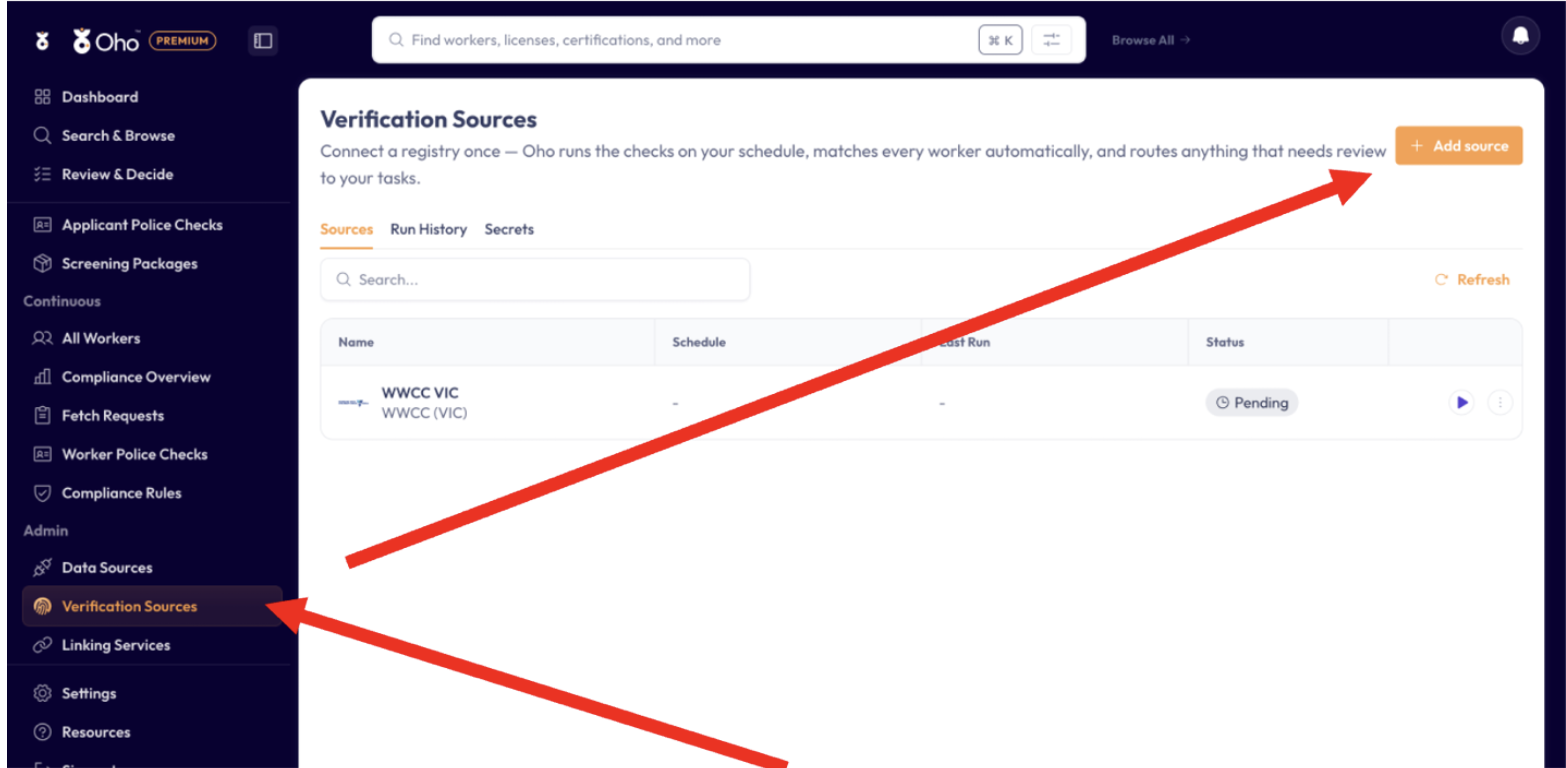
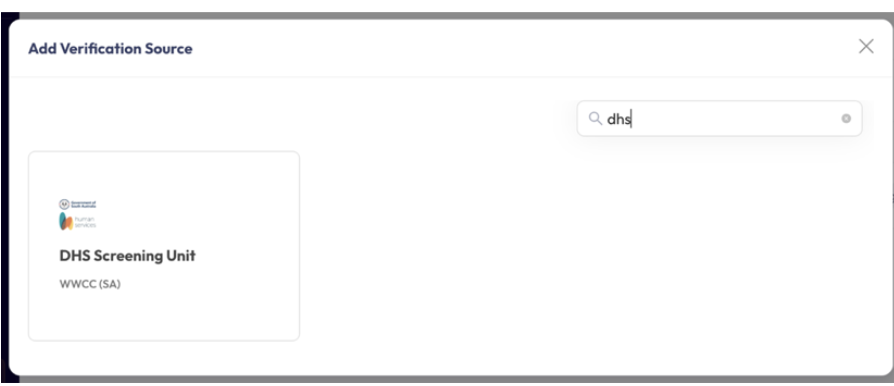
Step 4: Choose the DHS Screening Unit
Type dhs in the search box and select the DHS Screening Unit — WWCC (SA) card.
Everything in this section is yours to do. One step is not: SA WWCC checks run through a browser component Oho deploys into your tenant, and it has to be switched on by Oho before any check can reach the portal. Ask support@weareoho.com to enable SA WWCC verification for your tenant — ideally before you set the source up, so the first check has somewhere to go.
Until it is on, the source saves and looks correct, and every SA credential sits on Pending or In progress without ever settling. If you open one, the message on it names an environment variable and asks for it to be set: that is Oho's job, not yours, and nothing you change on the source will clear it.
Once it is on, you don't need to re-verify anything by hand. The source's next scheduled run rolls those credentials forward to a real result.
NDIS Worker Screening and QLD Blue Card work the same way. VIC, WA, NSW and NT don't — those read a register directly and need nothing enabled.
Step 5: Enter your portal sign-in
On the connection step, fill in Username and Password — your DHS Screening Unit portal sign-in. The password is stored as an encrypted Oho Secret, never in the recipe or logs. See Sources that sign in on your behalf for how the secret picker works and what to do when a sign-in starts failing.
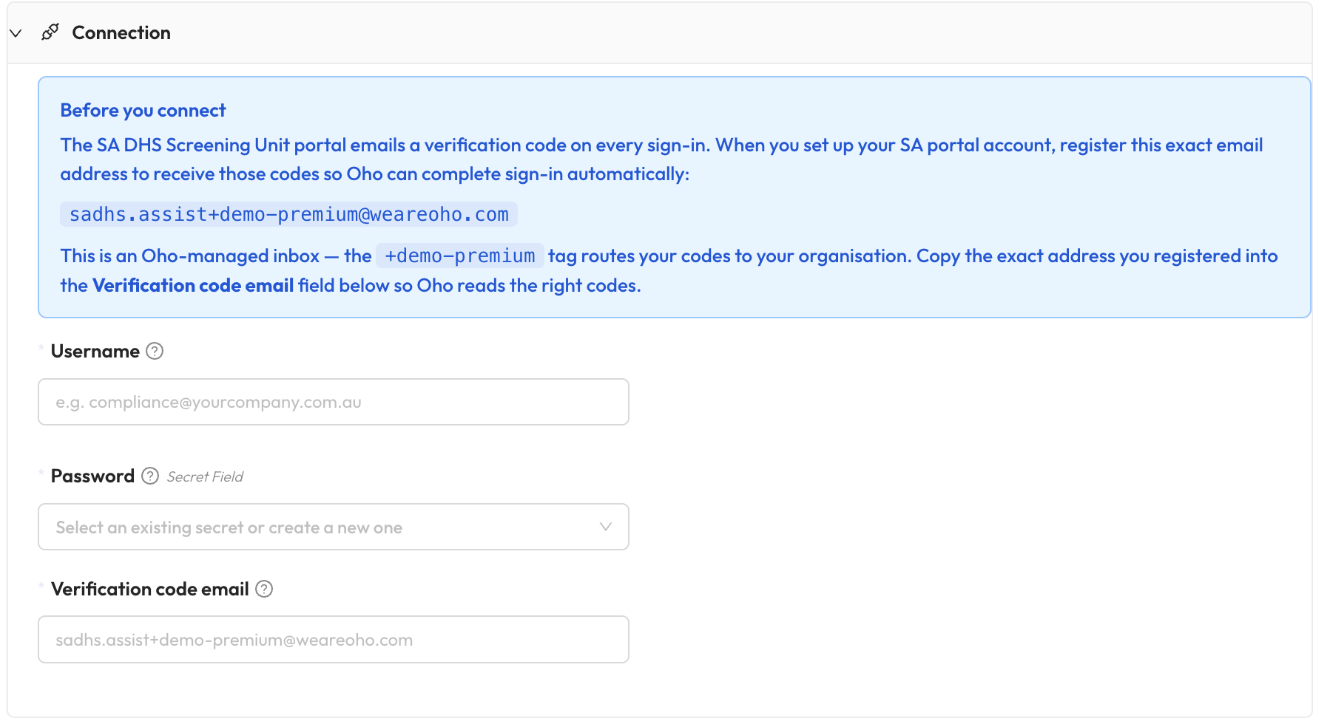
Step 6: Enter the verification code email
Copy the exact address you registered on the portal into the Verification code email field, then follow the remaining instructions on screen to set the schedule and save.
The two addresses have to match character for character. If they don't, Oho can't read the sign-in codes and every check against this source fails to sign in.
DHS requires a password reset on first login, and again every 90 days. When that happens, update the Oho Secret with the new password, or create a fresh one and point the source at it — the change applies on the next sync. Until you do, checks against this source will fail to sign in.
Linking
On the first successful match, Oho registers your organisation's interest with DHS on your behalf. Future status changes then show up in the portal's monitored list, and later scans read that list.
Good to know
Once connected, results come back within minutes.